The Best Way to Clean Up a Completely Messy Mac Desktop in 5 Minutes
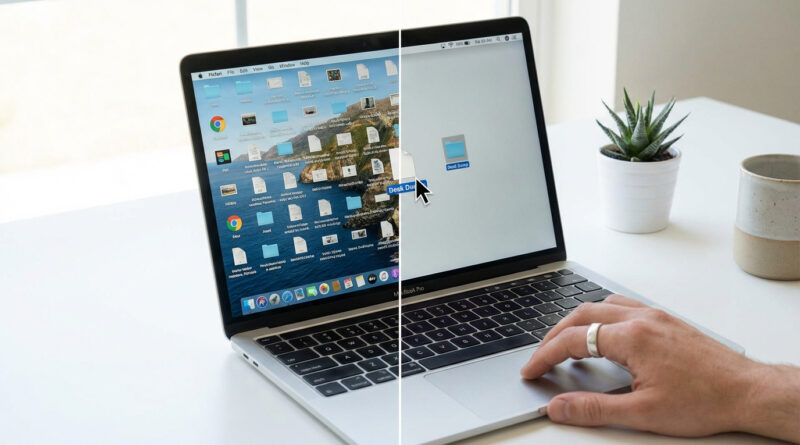
If your Mac desktop is so covered in screenshots, downloads, and “what even is this?” files that you cannot see your wallpaper, you are not alone. It makes you feel behind before you even open an email. The good news is you do not need a deep-clean weekend. You just need one “catch-all” folder and a 5‑minute reset that buys you instant calm without losing anything.
⚡ In a Hurry? Key Takeaways
- Create a single folder on your desktop called Desk Dump, then select everything and move it in one go.
- Use Finder’s Recents to sort only what you used this week into a few simple subfolders.
- Nothing gets deleted. You get a clean desktop fast, and you can chip away at the rest later.
The 5-Minute “Desk Dump” Reset
Step 1: Make one folder that catches everything (30 seconds)
Click your desktop once so Finder is “on” the desktop. Then right‑click and choose New Folder. Name it Desk Dump.
Step 2: Select everything on the desktop (10 seconds)
With the desktop active, press Command + A. You should see all those files highlighted.
Step 3: Move it all in one drag (20 seconds)
Drag the whole highlighted pile into the Desk Dump folder. That’s it. Your wallpaper is back. Your brain can breathe again.
Now Sort Only What Matters (Without Getting Sucked In)
This is the trick that keeps it from turning into a “while I’m at it…” spiral.
Use Finder’s Recents to find your real “active” files (1 to 2 minutes)
Open a Finder window. In the sidebar, click Recents. This view shows files you actually opened or changed recently, across your Mac.
Now you can sort the stuff you touched this week without wading through 900 old screenshots.
Create tiny subfolders inside Desk Dump (1 minute)
Open Desk Dump and make a few simple folders. Keep it boring:
- To File
- Work
- Personal
- Receipts (optional)
- Screenshots (optional)
Then, from Recents, drag only the handful of files you care about into those folders. Ignore everything else for now on purpose.
Two Small Tweaks That Make This Stick
Turn on “Stacks” so the desktop stays calmer
If you like the idea of a neat desktop but you know chaos will return, try this: right‑click the desktop, then choose Use Stacks. macOS will automatically group similar file types together.
Stop screenshots from piling up on the desktop
By default, screenshots land on the desktop. If that’s your main offender, you can change the save location: press Command + Shift + 5, click Options, then set Save to something like Downloads or a Screenshots folder.
One More “Quick Fix” Mindset Tip
This same approach works for other annoying tech problems too. Small, targeted moves beat big “someday” projects. For example, if your phone keeps dropping Wi‑Fi, you do not have to call your provider first. Try this step-by-step: How to Fix Wi‑Fi Dropping on Your Android Phone Without Calling Your Provider.
At a Glance: Comparison
| Feature/Aspect | Details | Verdict |
|---|---|---|
| Speed | One folder plus Command + A clears visual clutter in under a minute. | Best for a fast reset |
| Safety | You move files, not delete them. Everything stays on your Mac. | Low risk |
| Long-term organization | Recents helps you sort what matters now. Subfolders keep it contained. | Good enough, without the weekend project |
Conclusion
You do not need a perfect filing system to feel organized. Make a Desk Dump folder, sweep everything into it, then use Recents to file only the few things you actually used lately. You get instant visual calm in seconds while keeping everything safe. And you can deal with the real clutter later, a little at a time, instead of feeling guilty every time you open your Mac.