The Best Way to Clean Up a Slow Mac Without Paying for Sketchy ‘Optimizer’ Apps

Skip the paid cleaners and do one focused 20 minute session: open your Downloads folder and sort by size, delete anything you know you do not need, then empty the Trash, and finally review only the ‘Login Items’ list so you turn off any apps you do not recognize or use daily. Set a calendar reminder to repeat this once a month instead of waiting until the Mac feels unusable.

Read More

How to Stop Android Apps From Spying on Your Microphone Without Breaking Everything

Instead of turning everything off at once, pick your top three most used apps and your three least trusted apps. For the trusted ones, keep the microphone allowed but switch to ‘Only while using the app’; for the less trusted ones, set the microphone to ‘Ask every time’ for a week so you learn exactly when they try to listen, then uninstall or replace anything that nags you too often.

Read More

How to Fix iPhone Photos That Look Blurry or Washed Out After iOS Updates

Instead of diving into every camera toggle, create one simple ‘test scene’ at home, like a bookshelf or plant, and take the same photo using only three tweaks: turn off Live Photo, lock focus by pressing and holding on the subject, and slide the exposure a little darker. Save those three steps as your default habit and compare before and after in that same scene so you can see what actually helps on your specific iPhone.

Read More

How to Stop Your MacBook Fan From Going Wild During Simple Tasks

Tame the noisy culprits in one place: open Activity Monitor from Spotlight search, click the CPU tab, and sort by ‘% CPU’ to spot any browser tabs or apps stuck at the top using lots of power, then close or quit those and in your browser settings turn off unused extensions and switch from dozens of open tabs to using a ‘Reading list’ or bookmarks for later instead of leaving everything running.

Read More

How to Make ChatGPT Give You Clear, Step-by-Step Help Instead of Confusing Walls of Text

Treat ChatGPT like a helper, not a mind-reader: start your message with ‘Act like a patient tech teacher for beginners’ followed by ‘Give me numbered steps and keep each step to one sentence’ and then say exactly what you want to do, for example ‘Show me how to move photos from my Android to my Windows laptop using a cable’, and if the answer is too long, reply with ‘shorter and only steps 1 to 3’ until it fits your pace.

Read More

The Best Way to Make an Old Android Phone Fast Again in 10 Minutes

Turn off the ‘auto clutter’ first: open your phone settings, go to Apps and sort by ‘Last used’ then uninstall or ‘Disable’ anything you have not opened in a month, next open your browser app and clear its cached data, then in Settings search for ‘Animations’ or ‘Developer options’ and gently reduce animation scales to 0.5x so everything feels snappier without breaking anything.

Read More

How to Stop iPhone Storage From Always Being Full Without Paying for More iCloud

Use the ‘offload’ trick instead of just deleting random apps: on your iPhone go to Settings, then General, then iPhone Storage, tap large apps you rarely open and choose ‘Offload App’ so the app is removed but your data and settings stay saved, then in Photos turn on ‘Optimize iPhone Storage’ so full-size versions live in iCloud while lighter versions stay on your phone.

Read More

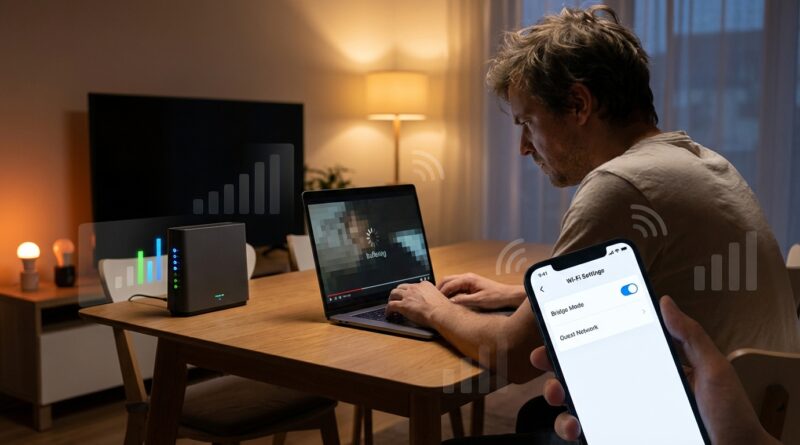
How to Fix Wi-Fi That Keeps Dropping on Windows Without Calling Your Internet Provider

Set your network adapter to stop being ‘too smart’ about saving power: in Windows search for ‘Device Manager’, open ‘Network adapters’, right click your Wi-Fi adapter, choose ‘Properties’, go to the ‘Power Management’ tab and untick the option that lets Windows turn off the device to save power, then in ‘Settings’ search for ‘Power & sleep’, open ‘Additional power settings’ and make sure you are on ‘High performance’ or set the wireless adapter to ‘Maximum performance’ in advanced settings.

Read More