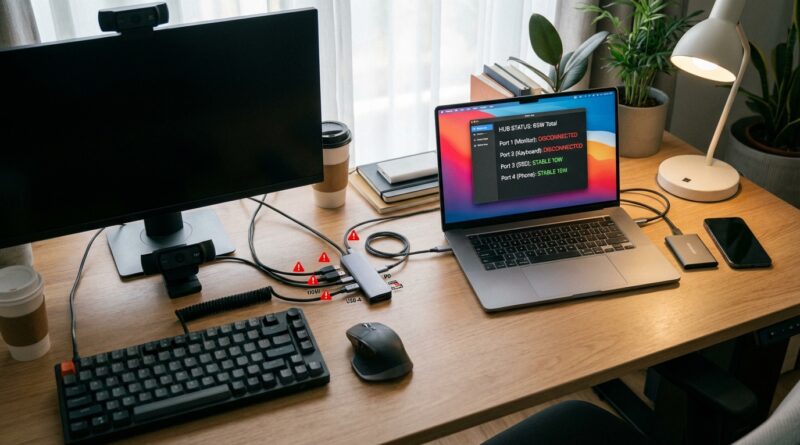
How to Stop Your USB‑C Hub From Randomly Cutting Out and Killing Your Setup
When your usb c hub keeps disconnecting, it does not feel like a small glitch. It feels like your whole desk gives up at once. The screen goes black. The webcam vanishes. Your keyboard stops typing right when you need it. Then you start unplugging and replugging cables like you are trying to restart a spaceship. The annoying part is that the hub often worked fine before. Then an OS update lands, you add one more monitor or SSD, and suddenly the setup becomes flaky.
The good news is that USB-C hub problems are usually not random. Most dropouts come from a short list of causes: power limits, bad cables, too much display bandwidth, heat, or plain old compatibility issues between the laptop, hub, and accessories. You do not need to replace everything on your desk to fix it. A few checks in the right order can usually tell you what is going wrong and how to make the hub stable again.
⚡ In a Hurry? Key Takeaways
- Most cases where a usb c hub keeps disconnecting come down to power, cable quality, heat, or pushing too much data through one connection.
- Test the hub with fewer devices first, then add them back one by one so you can find the exact thing causing the dropouts.
- Do not keep force-replugging drives during disconnects. Repeated sudden dropouts can risk file corruption on external storage.
Why USB-C hubs suddenly become unstable
USB-C is handy, but it can also be confusing. One small port may be handling charging, video output, USB data, Ethernet, audio, and storage all at the same time. That is a lot to ask from one cable and one hub.
If your usb c hub keeps disconnecting, the hub itself may not even be the main problem. Sometimes the laptop port is underpowered. Sometimes the cable cannot carry what the label claims. Sometimes the monitor resolution or refresh rate is eating up the bandwidth that your other devices need.
And yes, software can make it worse. A driver update, a firmware bug, or a new power-saving setting can turn a previously stable setup into a mess overnight.
Start with the simplest test first
Strip the setup down
Unplug everything from the hub except power, if your hub uses pass-through charging, plus one basic device. A keyboard is a good choice. If that works, add one item at a time.
Try this order:
- Keyboard or mouse
- Ethernet
- Webcam
- External drive
- Monitor
- Second monitor, if you use one
This sounds boring, but it is the fastest way to stop guessing. If the disconnects begin the moment you connect the monitor or SSD, you have a clue. If it only fails when everything is attached, you are probably hitting a power or bandwidth ceiling.
Test another USB-C port if your laptop has one
Not every USB-C port on a laptop is equal. One may support full-speed data and video. Another may only handle charging or slower USB modes. If one port is flaky and another is solid, the issue may be with that port’s capability, not the hub.
Power is the first big suspect
Your hub may not be getting enough power
A lot of compact hubs are bus-powered. That means they draw power from the laptop itself. That is fine for a mouse and a flash drive. It is not great for a monitor, webcam, Ethernet adapter, microphone, SSD, and charging pass-through all at once.
Classic signs of a power problem include:
- Devices disconnecting when you plug in one more accessory
- External drives randomly vanishing
- Webcams freezing during calls
- The monitor going black under load
- The laptop charging very slowly or not at all through the hub
What to do
Use the hub’s external power adapter if it has one. If it relies on USB-C power pass-through, make sure your charger has enough wattage. Many people are trying to run a laptop and an entire dock from a charger that is just barely strong enough for the laptop alone.
For example, if your laptop normally ships with a 65W or 90W charger, using a tiny 30W or 45W USB-C charger through the hub can cause weird behavior. The hub also needs some of that power for itself and for attached devices.
If possible, test with the original laptop charger or a higher-quality USB-C PD charger from a known brand.
Cables cause more trouble than people think
Not all USB-C cables are the same
This is one of the biggest traps. A cable can physically fit and still be the wrong cable for the job. Some USB-C cables are charge-only. Some support USB 2.0 speeds. Some can handle power but not full video bandwidth.
If your usb c hub keeps disconnecting, swap these first:
- The cable between the laptop and hub
- The HDMI or DisplayPort cable going to the monitor
- The charger cable, if using USB-C power pass-through
Use the shortest good-quality cable you can. Cheap long cables are often where stable setups go to die.
Watch for loose connectors
If the hub cuts out when you nudge the cable, the port or cable may simply be loose. USB-C connections are convenient, but they are not magic. A worn cable or slightly damaged port can make the whole setup blink on and off.
Displays eat bandwidth fast
Your monitor may be the thing tipping the setup over
External displays are often the hidden reason a hub becomes unstable. One 1080p monitor is easy. A 4K monitor at a high refresh rate is another story. Add a second screen, and you may be asking more from the hub than the laptop can send through that single USB-C connection.
This gets especially confusing because hub marketing is often optimistic. A hub may list support for dual displays, but that support can depend on:
- Your exact laptop model
- Whether the port supports DisplayPort Alt Mode
- Whether the system supports MST or dual external displays at all
- The refresh rate and resolution you are trying to use
What to test
Lower the monitor resolution or refresh rate for a quick test. If your setup becomes stable at 1080p or 60Hz but drops at 4K or 144Hz, bandwidth is the likely problem.
Also try using only one monitor for a day. If the hub behaves perfectly, that points strongly to a display limit rather than a faulty dock.
External drives and webcams can push it over the edge
High-speed SSDs, capture devices, and good webcams use more bandwidth and power than people expect. A simple USB thumb drive is not the same as a fast NVMe enclosure pulling lots of power during file transfers.
If disconnects happen while copying files, editing video, or joining calls, your hub may be choking under real-world load even if it seems fine when idle.
Try plugging the most demanding device directly into the laptop instead of the hub. If stability returns, you have found the bottleneck.
Heat is real, especially with small metal hubs
USB-C hubs run warm. Some run hot. That tiny aluminum brick may be handling charging, display output, data, and networking all at once with very little cooling.
If the disconnects happen after an hour or two, not right away, heat is worth suspecting. Touch the hub carefully. If it feels very hot, move it into open air. Do not leave it buried under papers, behind the monitor, or resting on a warm laptop exhaust area.
A cooler placement can make a surprising difference.
Check software, firmware, and power settings
After an OS update, settings may change
A lot of people notice hub trouble right after a Windows update or a macOS update. That is not your imagination. Updates can change USB behavior, graphics handling, sleep settings, and driver versions.
Check for:
- Dock or hub firmware updates from the manufacturer
- Laptop BIOS or firmware updates
- Graphics driver updates
- USB or Thunderbolt driver updates, if your laptop uses them
Power-saving features can disconnect USB devices
On Windows, look at Device Manager and power settings for USB root hubs and controllers. Features that let the computer turn off devices to save power can sometimes be too aggressive.
On laptops, also test with the system plugged into power and set to a normal or high-performance mode. Some machines get much fussier about ports when running on battery saver.
Make sure your hub matches your laptop
This part catches a lot of people. USB-C is the connector shape. It does not tell you every feature the port supports.
Your laptop may have:
- Basic USB-C data only
- USB-C with DisplayPort video output
- USB4
- Thunderbolt 3 or 4
Your hub may expect features your laptop does not offer. Or the laptop may support them, but only on one port. When that mismatch happens, the setup can be unstable, limited, or just weird.
If the hub uses a DisplayLink chip for video, it may need software to work properly. If it uses native USB-C video output instead, then the laptop port must support the right display mode. Same connector, very different behavior.
A practical troubleshooting order that usually works
If you want a clean plan, do this:
- Restart the laptop with the hub disconnected.
- Connect the hub with only power and one simple USB device.
- Swap the main USB-C cable between laptop and hub.
- Test with the original laptop charger or a stronger known-good USB-C PD charger.
- Add devices back one by one.
- Test with no monitor, then one monitor, then lower resolution or refresh rate.
- Move high-power devices like SSDs off the hub if possible.
- Check for dock, BIOS, graphics, and OS updates.
- Turn off aggressive USB power saving, if relevant.
- Test the hub on another laptop, or test another hub on your laptop.
That last step matters. It tells you whether the trouble follows the hub or stays with the laptop.
When the hub itself is the problem
Sometimes the answer is simple. The hub is just not very good, or it is failing. This is more likely if:
- It disconnects even with a very basic setup
- It runs extremely hot all the time
- Different cables and chargers make no difference
- It behaves badly on multiple computers
- Ports on the hub work intermittently or physically feel loose
If you are at that point, replacing the hub may make sense. But at least now you are replacing it for a reason, not because of pure frustration.
How to build a more stable desk setup going forward
Once you get things working again, a few habits can keep the setup stable:
- Use a powered dock for heavier setups
- Keep one demanding device direct-connected if possible
- Use certified or known-good cables
- Avoid maxing out monitor resolution and refresh unless you need it
- Keep the hub cool and easy to reach
- Update dock and laptop firmware when fixes are available
The big idea is simple. A USB-C hub is not an unlimited magic box. It is a traffic cop with real limits. Once you know where those limits are, these setups become much less mysterious.
At a Glance: Comparison
| Feature/Aspect | Details | Verdict |
|---|---|---|
| Power delivery | Bus-powered hubs and weak chargers often cause disconnects when you add monitors, drives, or webcams. | Check first. It is one of the most common causes. |
| Cable quality | A USB-C cable may fit but still lack the data, video, or power support your setup needs. | Swap cables early. Cheap cables waste hours. |
| Display bandwidth | High-resolution or high-refresh monitors can eat enough bandwidth to make the whole hub unstable. | Lower refresh or resolution to test, especially with dual displays. |
Conclusion
If your usb c hub keeps disconnecting, you are not stuck with random chaos. Most of these problems have a pattern, and once you test power, cables, display load, heat, and compatibility in the right order, the cause usually shows itself. That matters because USB-C hubs and docking stations now sit at the center of a huge number of work-from-home and office setups. More people are hitting these issues after system updates or after adding one more monitor, drive, or webcam. Big gadget reviews often tell you whether a hub is nice, but not why it starts acting flaky in real life. A step-by-step check like this can help you stabilize the gear you already own instead of throwing money at the problem. That saves cash, time, and a lot of cable-yanking rage.