How To Stop Your Phone From Overheating After The Latest Update (Without Babying It All Day)
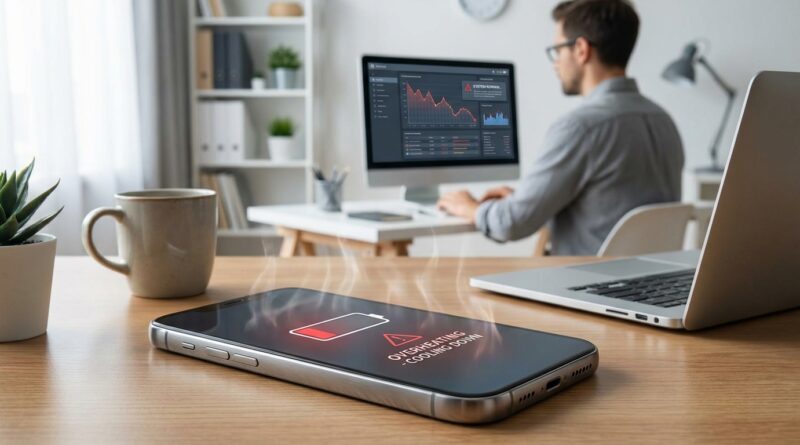
Your phone was fine yesterday. Then a routine update lands, and suddenly it is warm in your pocket, the battery drops like a stone, and charging feels slower than usual. That is maddening, especially when you are not doing anything heavy. No gaming marathon. No hours of video. Just normal phone stuff. If this sounds familiar, you are not imagining it, and it does not automatically mean your battery is ruined. A lot of phones run hot for a while after a major update because the system is reindexing photos, rebuilding search data, optimizing apps, and syncing in the background. The trick is figuring out whether that short-term cleanup is the cause, or whether one app has gone rogue. The good news is you can usually sort this out in under 15 minutes, and in many cases cool the phone down within a day without factory resetting it or babying it every hour.
⚡ In a Hurry? Key Takeaways
- Phone overheating after update is often caused by post-update background tasks or one misbehaving app, not instant battery damage.
- Restart the phone, check battery usage by app, turn off background refresh for the worst offenders, and use Low Power Mode or Battery Saver for 24 hours.
- If the heat continues for more than 48 hours, especially while idle, then it is time to update apps, remove the likely culprit, or contact support before paying for a new phone.
What is actually happening after an update?
Updates do more than add features and security fixes. Right after installation, your phone often starts a pile of housekeeping jobs behind the scenes.
It may reindex your photo library. It may rebuild search results. It may rescan files for malware protection. It may also re-optimize apps so they run properly on the new software version.
That activity can make a phone feel warmer for several hours, sometimes up to a full day. Battery drain can also look ugly during that window.
What is not normal is a phone that stays hot while sitting still, loses huge chunks of battery overnight, or keeps heating up two days later. That usually points to an app or service stuck in a loop.
First, figure out if this is normal update behavior or a real problem
Normal for the first 24 hours
If your phone updated recently and is only warm during setup, charging, or app installs, that can be temporary. Give it some time, especially if you restored photos, changed settings, or updated lots of apps at once.
Not normal
Start troubleshooting sooner if you notice any of these:
- The phone gets hot while idle on a table.
- Battery drops more than expected overnight.
- Charging is much slower because the phone is too warm.
- One app suddenly sits at the top of battery use for no good reason.
- The issue continues beyond 24 to 48 hours.
The fastest fix that works surprisingly often
Before you dig into menus, do these four things in order:
- Restart the phone.
- Plug it into a normal charger, not a super-fast charger, and remove the case if it is thick.
- Connect to Wi-Fi and let it sit for 30 to 60 minutes with the screen off.
- Update your apps from the App Store or Google Play.
That last step matters more than most people think. An old app version can clash with new system software and start chewing through battery in the background.
The settings combo that usually cools things down within a day
If the phone is still running hot, this is the best low-effort combo to try. You do not need to keep these settings forever. Think of it as giving the phone a calm day to settle down.
On iPhone
- Turn on Low Power Mode.
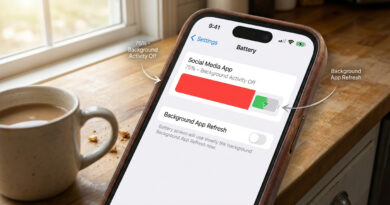
- Go to Settings > General > Background App Refresh, then turn it off for apps you do not need constantly updating.
- Go to Settings > Privacy & Security > Location Services, and switch problem apps to While Using the App.
- Go to Settings > Mail > Accounts > Fetch New Data, and reduce how often mail fetches if it is set too aggressively.
On Android
- Turn on Battery Saver.
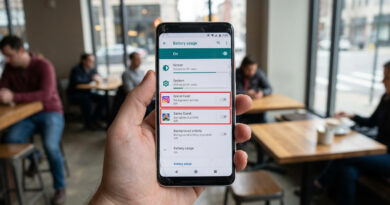
- Go to Settings > Battery > Battery Usage, then find the apps using the most power.
- Restrict background battery use for apps you do not need running all the time.
- Check location permissions and set problem apps to Allow only while using the app.
Then use the phone normally for a day. This often stops the runaway drain and heat long enough to expose whether the update itself was just settling in or whether one app is the real troublemaker.
How to find the app that is cooking your phone
This is the part most generic advice skips.
On iPhone
Go to Settings > Battery. Look at battery usage by app over the last 24 hours. If one app is way above the rest, especially for Background Activity, that is your suspect.
On Android
Go to Settings > Battery > Battery Usage, or Settings > Device Care > Battery on some Samsung phones. Look for an app with unusually high background use, especially one you barely opened.
Once you spot a likely culprit, do this:
- Force close the app.
- Update it.
- Turn off background activity for it.
- If it still acts up, uninstall and reinstall it.
Social apps, email apps, cloud storage, and widgets are common offenders after updates. VPN apps can also cause heat and drain if they do not play nicely with the new software.
Check the obvious things people miss
Sometimes the update gets blamed when the real issue is a pileup of smaller changes.
Poor signal can heat a phone fast
If your phone has been fighting weak cellular service all day, it will burn more power trying to hold a signal. That extra work creates heat. If you are indoors with bad reception, try Wi-Fi calling or spend some time on Wi-Fi instead.
If your internet also feels worse after new hardware from your provider, you might want to read How to Fix Wi‑Fi That Randomly Drops or Crawls After Your ISP’s ‘Free’ Router Upgrade. Bad Wi-Fi can make your phone work harder than it should.
Fast charging adds heat
Fast charging is handy, but if your phone is already warm from post-update processing, it can push temperatures higher. Use a standard charger once or twice while things settle.
Brightness and always-on features matter
High screen brightness, always-on display, live wallpapers, and busy widgets can all pile on. You do not have to give them up forever. Just trim them for a day while testing.
What not to do
- Do not put the phone in the fridge or freezer. That can cause moisture damage.
- Do not keep charging it under a pillow, blanket, or on a hot car seat.
- Do not install random “phone cooler” apps. They usually just close apps you could manage yourself.
- Do not jump straight to a factory reset unless you have already checked battery usage and app behavior.
When a factory reset is actually worth it
A reset is the last stop, not the first. Try it if:
- The phone is still overheating after 48 hours.
- You cannot identify the app causing the drain.
- The update seems to have left the system unstable, with crashes and charging problems.
Back up first. Then, after resetting, install apps slowly instead of all at once. If the phone stays cool until one specific app returns, you have your answer.
When to worry about battery damage
Short-term heat after an update is annoying, but it does not automatically mean permanent battery damage. Lithium-ion batteries dislike heat, yes, but a brief software-related spike is not the same as chronic overheating.
You should take it more seriously if the phone:
- Gets too hot to hold comfortably.
- Shows a temperature warning.
- Swells, bulges, or separates at the screen.
- Shuts down while still showing a decent battery percentage.
Those are signs to stop using it and get it checked.
Brand-specific note for Pixel, Galaxy, and iPhone owners
Pixel
Pixels can run warm after feature drops or Android version updates because they often do extra indexing and AI-related processing in the background. Check battery usage, then look closely at Google Photos, Google app, and any VPN or security app.
Galaxy
Samsung phones have a lot of system features running at once, so Device Care and battery settings are especially useful here. Put suspicious apps into restricted mode, and check whether Always On Display is adding extra heat while you test.
iPhone
iPhones often settle down after indexing completes, but background app refresh, location access, and mail syncing are the usual places to look when they do not.
At a Glance: Comparison
| Feature/Aspect | Details | Verdict |
|---|---|---|
| Heat right after update | Common for several hours while the phone reindexes and syncs data | Usually normal if it fades within 24 hours |
| One app draining battery | Shows up in Battery settings with heavy background activity or unusual usage | Most likely fix is app update, restriction, or reinstall |
| Factory reset | Can help if system files or settings got scrambled, but it is time-consuming | Last resort, not step one |
Conclusion
If you are dealing with phone overheating after update, the goal is not to panic or put up with it. Start simple. Restart the phone, update your apps, check battery usage, and use the temporary settings combo of Low Power Mode or Battery Saver plus reduced background activity for a day. That usually tells you whether the phone is just finishing post-update chores or whether one app is causing the mess. Overheating and runaway battery drain right after an update is one of the biggest pain points people are reporting across Pixels, Galaxies, and iPhones, and too much advice jumps straight to factory resets or expensive replacements. A calmer, step-by-step check can save you a lot of time, money, and frustration. In many cases, your phone is fixable, and you can keep using the device you already own without a trip to the carrier store.