How to Stop Your MacBook Fan From Going Wild During Simple Tasks
That sudden MacBook fan roar is so annoying, especially when you’re “just browsing” or watching a video. It can feel like something’s broken, or like you have to quit your favorite sites to keep your laptop from turning into a space heater. The good news is the fan is usually doing its job. It’s reacting to one or two apps (often a browser tab) that got stuck chewing through CPU. You don’t need scary system tweaks. You just need to spot the noisy culprit and shut it down. Once you know where to look, this turns into a 60-second routine you can do anytime the fan starts up.
⚡ In a Hurry? Key Takeaways
- Open Activity Monitor and sort by “% CPU” to find what’s making your MacBook heat up.
- Close the top-hogging tab/app, then disable unused browser extensions and stop keeping dozens of tabs open.
- Your fan is usually reacting to a misbehaving process, not a “bad Mac.” This fix is safe and reversible.
Why your fan freaks out during “simple” stuff
Streaming video, modern web pages, and ad-heavy sites can be surprisingly demanding. If one tab glitches, or an extension misbehaves, your CPU load spikes. More CPU work means more heat. More heat means the fan ramps up.
So the goal is not “turn off the fan.” The goal is “stop the thing that’s making heat.”
The 60-second check: Activity Monitor
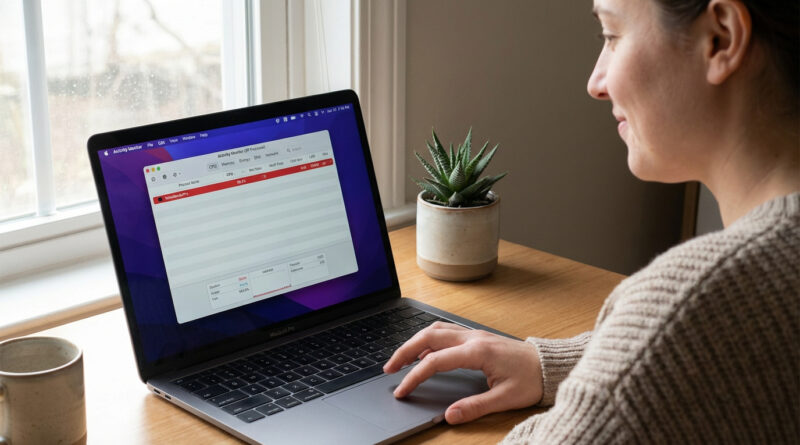
Step 1: Open Activity Monitor
Press Command + Space to open Spotlight. Type Activity Monitor. Press Enter.
Step 2: Sort by CPU usage
Click the CPU tab at the top. Then click the % CPU column header to sort highest to lowest.
Step 3: Find the “stuck” app or tab
Look at the top few items. You’re usually hunting for something that’s way above the rest and staying there.
- Browsers: Safari, Chrome, Firefox, or “Safari Web Content” can shoot up when one tab is going wild.
- Video calls: Zoom or Teams can spike from background effects.
- Random helpers: Updaters, sync tools, or old add-ons can get stuck.
Step 4: Close it the gentle way first
If it’s a browser, close the tab you just opened, or quit and reopen the browser. If it’s an app, quit the app normally.
Step 5: If it won’t quit, force quit from Activity Monitor
Click the problem process. Click the X button near the top (Stop). Choose Quit, and if that doesn’t work, choose Force Quit.
Tip: If you’re not sure what a process is, search its name later before force quitting. But browsers and obvious apps are safe to restart.
Reduce repeats: the browser habits that trigger fan noise
Turn off extensions you don’t use
Extensions are a big cause of “why is my fan loud on a basic website?” Disable the ones you don’t need, especially coupon finders, video downloaders, and “shopping helpers.”
- Safari: Safari > Settings > Extensions
- Chrome: Window > Extensions (or type chrome://extensions)
- Firefox: Settings > Extensions & Themes
Start by toggling off half. If the fan stops acting up, you found the general direction. Then narrow it down.
Stop keeping 40 tabs “alive”
Lots of tabs can be fine. But lots of tabs plus a few heavy sites is when things get loud.
Instead of leaving everything open “for later,” use:
- Reading List for stuff you plan to read soon
- Bookmarks for “keep forever” pages
Your Mac will thank you, and your browser will feel snappier.
If you want help describing the problem clearly
If you’re trying to get help (from a friend, Apple Support, or even ChatGPT), the fastest way is to share exactly what you see in Activity Monitor. If you want a simple way to ask for help without getting a giant wall of text back, this guide is handy: How to Make ChatGPT Give You Clear, Step-by-Step Help Instead of Confusing Walls of Text.
When to worry (and when not to)
Usually normal
- Fan ramps up for a minute while a page loads, a video starts, or an app updates.
- Fan ramps up after waking from sleep and settles down soon after.
Worth a closer look
- The same app sits at the top of “% CPU” every day.
- The Mac is hot and loud even with nothing open.
- The fan is constantly loud and performance is slow.
If that’s you, check for macOS updates, browser updates, and consider removing questionable extensions. But start with Activity Monitor first. It usually tells the story.
At a Glance: Comparison
| Feature/Aspect | Details | Verdict |
|---|---|---|
| Fastest way to find the cause | Activity Monitor > CPU tab > sort by “% CPU” | Best first move |
| Most common everyday culprit | A single browser tab or a buggy extension hammering the CPU | Fixable in minutes |
| Best “keep it quiet long-term” habit | Disable unused extensions. Use Reading List or bookmarks instead of endless tabs. | Big payoff, no risk |
Conclusion
A loud fan during basic tasks feels like a bad sign, but it’s usually your MacBook reacting to one misbehaving app or tab, not failing as a whole. Keep Activity Monitor as your go-to “what’s making my Mac hot?” tool, close the CPU hog, and trim back extensions and tab clutter. It’s a quick routine that calms the noise without messing with scary system settings.