How to Stop Your iPhone Storage From Always Being Full
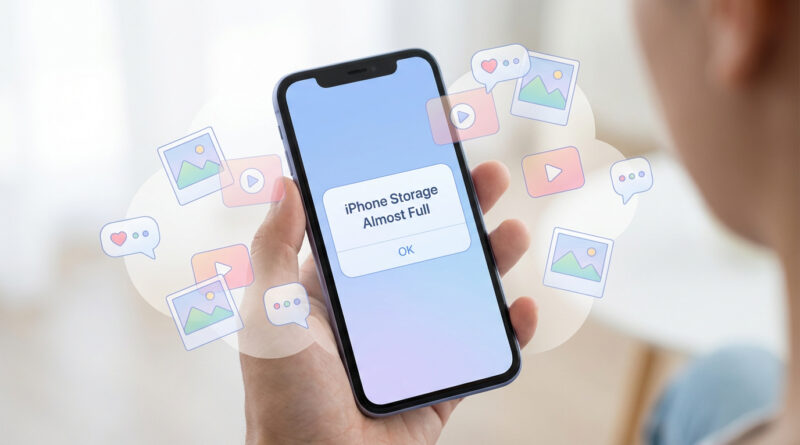
That “iPhone Storage Almost Full” warning is the worst because it never shows up at a convenient time. You try to be responsible, delete a handful of photos or an app you barely use, and somehow you’re right back at 99% a week later. It feels like your phone is hiding the real problem from you. The fix is not a bigger cleanup spree. It’s finding the quiet storage hogs that build up in the background, then putting three small settings on autopilot so you stop fighting the same battle over and over.
⚡ In a Hurry? Key Takeaways
- Go to Settings > General > iPhone Storage and start with Apple’s “Recommendations” and your biggest apps, not your photo library.
- Free big chunks fast by trimming Messages attachments, clearing Safari website data, and removing app “Documents & Data” that quietly piles up.
- Set a simple monthly routine (Optimize Photos, auto-delete old voice messages, clear Safari data) so storage stays steady without constant deleting.
Step 1: Look where iPhone is already pointing you
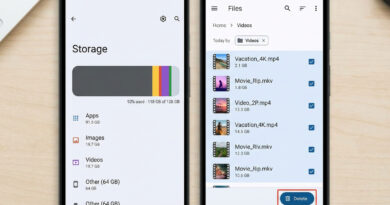
Start here: Settings > General > iPhone Storage. Give it a few seconds to load the colored bar and the app list. This screen is your truth serum.
At the top you’ll usually see Recommendations. Read those first. Apple is not always perfect, but these suggestions often find the biggest wins, like large attachments, unused apps, or iCloud Photo settings that are off.
Sort your effort by size, not by annoyance
Most people delete the stuff they notice (recent photos, a game icon on the Home Screen). Meanwhile, one or two apps are quietly hoarding gigabytes in “Documents & Data.” The iPhone Storage list is already sorted by size. Stay disciplined and start at the top.
Step 2: Kill the sneaky space hogs (the ones you didn’t “download”)
Messages: the hidden video warehouse
If you text a lot, Messages can become your phone’s unofficial cloud drive. Videos especially. The confusing part is you can delete conversations and still have old attachments scattered around.
Try this:
Settings > General > iPhone Storage > Messages
- Check Videos and Photos. Delete the biggest items you don’t need.
- Also check GIFs and Stickers if you use them a lot. They add up.
Tip: If you’re nervous, start by deleting a few huge videos first. You’ll see storage drop immediately.
Apps: “Documents & Data” is usually the real culprit
You know how an app is “free” to download but somehow takes 8 GB? That’s usually cache, downloads, offline files, and history.
From iPhone Storage, tap a big app and look at the breakdown. If the app itself is small but Documents & Data is massive, you have three options:
- Offload App: Removes the app but keeps its data. Good if you might reinstall soon.
- Delete App: Removes app and its data. Best when the cache is out of control.
- Clean inside the app: Some apps (Spotify, Netflix, YouTube, podcasts, maps) have “Clear cache” or “Downloads” sections.
If you’re stuck in update failures because storage is tight, this is the same mindset I use for Windows update problems: don’t panic and start smashing buttons, create a little breathing room first so the system can finish its job. (Different device, same idea.) If you’re dealing with a PC that’s frozen mid-update too, see How to Fix Windows Updates That Get Stuck and Won’t Finish.
Safari: website data that quietly grows like weeds
Safari keeps site data, login cookies, and caches to make browsing faster. Over time it can get chunky.
To clear it:
Settings > Apps > Safari > Clear History and Website Data
What to expect: you may be signed out of some sites, and a few pages may load a bit slower the first time afterward. The tradeoff is often worth it.
Step 3: Do the “once a month” routine that keeps storage stable
This is the part that stops the storage warning from coming back like a bad pop-up ad.
1) Turn on Optimize iPhone Storage for Photos
If you use iCloud Photos, this is the single best “set it and forget it” option.
Go to Settings > Photos:
- Turn on iCloud Photos (if you want your library backed up and synced).
- Select Optimize iPhone Storage.
Your iPhone keeps smaller versions locally and pulls the full-quality originals from iCloud when you need them. This usually frees more space than deleting hundreds of pictures.
2) Auto-delete old voice messages
Voice messages in iMessage can stick around forever, especially if you and your family use them a lot.
Go to Settings > Apps > Messages, then set:
- Expire (Audio Messages): After 2 Minutes or After 1 Year, depending on how cautious you are.
If you pick 2 Minutes, save the important ones before they vanish. If that feels scary, 1 Year is still a big improvement over “Never.”
3) Clear Safari website data
Once a month is plenty for most people. Put it on the same day you pay a bill or run errands. You’ll barely notice, and your storage bar will stop creeping up.
What about “System Data” or “Other”? (The part that makes people feel cursed)
On newer iOS versions you’ll usually see System Data instead of “Other.” It can include caches, logs, Siri voices, streaming buffers, and temporary files from updates.
You can’t delete a single “System Data” folder like on a computer, but you can shrink it indirectly:
- Restart the iPhone (yes, really). It can clear temporary files.
- Clear big app caches by deleting and reinstalling the worst offenders.
- Finish iOS updates. Partial downloads can squat in storage.
If System Data is gigantic and won’t budge (and you’ve already done the steps above), the nuclear option is backing up and restoring. Most people never need to go that far.
At a Glance: Comparison
| Feature/Aspect | Details | Verdict |
|---|---|---|
| Fastest space gains | Delete huge Messages videos, clear Safari website data, remove/reinstall one bloated app with big “Documents & Data.” | Best first moves when you’re at 99%. |
| Least painful long-term fix | Turn on Optimize iPhone Storage for Photos, auto-expire voice messages. | Do this once, then enjoy the calm. |
| “Other” / System Data frustration | Shrinks indirectly via restarts, app cache resets, and completing iOS updates. Rarely needs full restore. | Treat it as a symptom, not the first target. |
Conclusion
You’re not bad at “managing storage.” Your iPhone is just really good at hiding where the space went. Once you make iPhone Storage your starting point and you focus on Messages attachments, bloated app data, and a quick Safari cleanup, the warning usually stops being a weekly emergency. Add the monthly routine (Optimize Photos, expire voice messages, clear Safari data) and you’ll stop living at 99% full. Then you can take photos, update apps, and move on with your day without that mini crisis every time.