How to Stop Your iPhone Photos from Filling Up iCloud and Still Keep Them Safe
If your iPhone keeps yelling “iCloud Storage Full,” you are not alone. It feels like Apple is nudging you to pay up. And the worst part is the fear. If you delete a photo, will it vanish forever? The Photos and iCloud settings do not make it obvious what’s on your phone, what’s in the cloud, and what’s just a smaller “preview.” Here’s a calmer way to handle it without panic-deleting your memories. You will make one special album for the photos you truly can’t replace, then let iCloud handle the everyday clutter more efficiently. Once you do this, it’s much easier to back up the important stuff to a computer or external drive, and you can clean out the random screenshots with a lot less anxiety.
⚡ In a Hurry? Key Takeaways
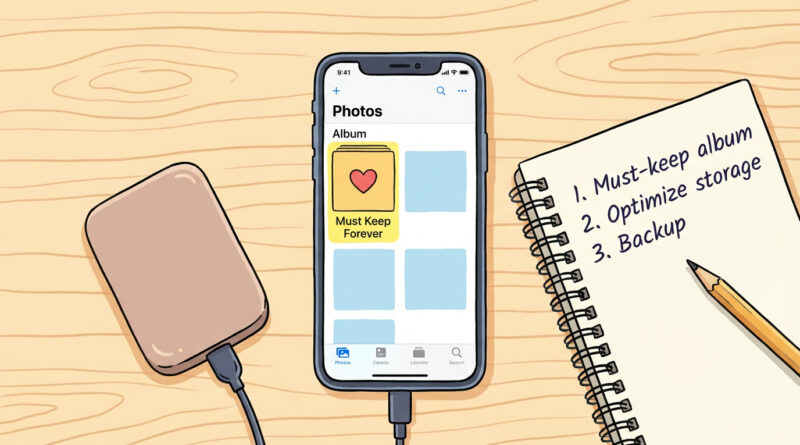
- Create a “Must Keep Forever” album and put only your truly important photos/videos in it.
- Turn on “Optimize iPhone Storage” so your phone keeps smaller versions while iCloud holds the full-quality originals.
- Back up that “Must Keep Forever” album to a computer or external drive so you’re protected even if iCloud fills up.
Step 1: Make a “Must Keep Forever” album (your personal vault)
Open the Photos app. Tap Albums, then tap the + button, and choose New Album. Name it Must Keep Forever.
Now start adding photos you would be genuinely upset to lose. Think: family milestones, trips, pets, old photos of relatives, videos of kids, anything you cannot re-create. Skip the clutter for now. Screenshots, memes, receipts, “which paint color do you like,” and 15 near-identical shots of your lunch do not belong here.
Why this helps
When everything is “important,” nothing is. This album turns one giant messy pile into a smaller set you can protect and back up on purpose.
Step 2: Turn on “Optimize iPhone Storage” (so your phone can breathe)
This is the setting that reduces “storage full” pain without you playing photo Jenga.
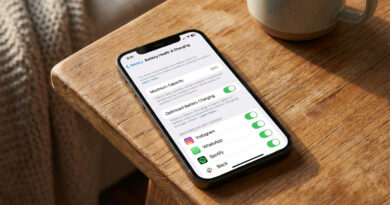
Go to Settings > Photos > under “iCloud Photos,” make sure iCloud Photos is ON. Then select Optimize iPhone Storage.
What “Optimize” actually does (in plain English)
Your full-quality photos and videos live in iCloud. Your iPhone keeps smaller, space-saving versions and downloads the full file when you open or edit something.
This is why your phone can free up space without “deleting your memories.” You still see everything in Photos. It just takes up less room on the device.
The part people miss: Deleting a photo can delete it everywhere
If you have iCloud Photos turned on, your photo library is basically “synced.” That means if you delete a photo on your iPhone, it usually deletes from iCloud too, and from any other Apple device signed in.
So before you do big cleanups, get your “Must Keep Forever” group backed up somewhere besides iCloud.
Step 3: Back up your “Must Keep Forever” album (so you can relax)
You have a few good options. Pick one that feels easiest.
Option A: Back up to a Mac (simple and solid)
Connect your iPhone to your Mac. Open Image Capture (it’s built in). Select your iPhone, then import the photos you want to save. You can also use the Photos app on Mac and export originals from your “Must Keep Forever” album.
Option B: Back up to a Windows PC
Plug your iPhone into your PC. Open the Photos app in Windows, use Import, and save to a folder you can find later. If Windows starts acting weird (it happens), fix the computer first before you retry imports. The same calm “don’t do anything drastic yet” approach applies here as it does with stuck system tasks, like in How to Fix Windows Updates That Get Stuck Without Losing Your Mind.
Option C: Copy to an external drive (the “no subscription” safety net)
Once the photos are on your computer, copy that “Must Keep Forever” folder to an external hard drive or SSD. If you want extra safety, keep a second copy somewhere else (a second drive, or a family member’s house).
Step 4: Clean out the low-stakes stuff without fear
Now that your “Must Keep Forever” items are separated and backed up, you can start trimming the junk with a lot less stress.
Easy wins
Delete screenshots: Photos > Albums > Screenshots. Most people can free a surprising amount here.
Remove duplicates: Photos > Albums > Duplicates (if your iPhone shows it). Merge duplicates instead of guessing.
Big videos: Settings > General > iPhone Storage often shows large attachments and videos. Videos are usually the space hogs.
Quick reality check: What’s stored on your phone vs iCloud?
If Optimize iPhone Storage is on, your phone holds a mix of small versions and some originals it thinks you’ll want soon. iCloud holds the full library.
If you turn Download and Keep Originals on, your phone tries to keep full copies too. That is great for offline access, but it fills your phone faster.
At a Glance: Comparison
| Feature/Aspect | Details | Verdict |
|---|---|---|
| “Must Keep Forever” album | A curated set of your best memories, easy to find and back up | Best first step to reduce anxiety |
| Optimize iPhone Storage | Keeps smaller versions on your iPhone, full quality in iCloud | Best for freeing iPhone space fast |
| Computer/external drive backup | A second copy not tied to iCloud syncing or storage limits | Best “sleep at night” protection |
Conclusion
People are taking more photos than ever, and the storage nags make it feel like you are one tap away from losing something important. The “Must Keep Forever” album plus “Optimize iPhone Storage” gives you a simple, human system. Your best memories are clearly separated and easier to back up. The random clutter is easier to delete without second-guessing yourself. You can avoid surprise charges, stop the constant warnings, and still keep your photos safe.