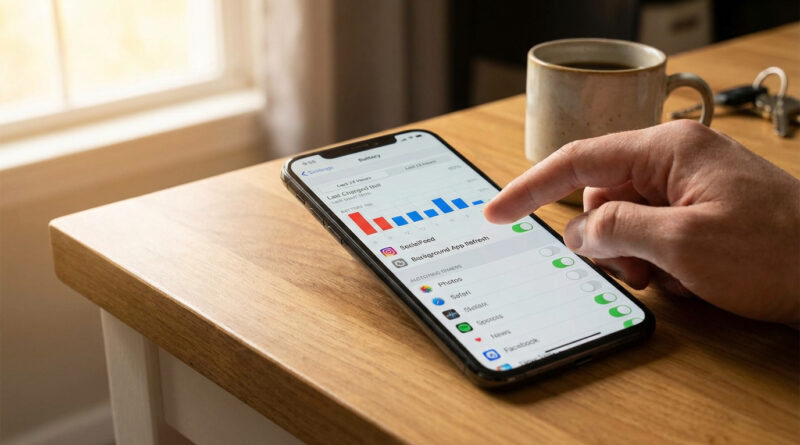
How to Stop Your iPhone Battery From Melting Away With iOS 18
If your iPhone started gulping battery right after iOS 18, you’re not imagining it. It’s extra frustrating when the phone is just sitting on your desk and still dropping fast. Then you start thinking, “Do I need a new phone already?” Usually, no. Right after a big update, iOS does a bunch of behind-the-scenes work like indexing photos, messages, and Spotlight search. That can make battery life look terrible for a day even if nothing is “wrong.” The trick is not to guess. Let your phone tell you what’s actually chewing through power, then shut down the worst offenders without turning off every helpful feature.
⚡ In a Hurry? Key Takeaways
- Wait 24 hours after updating, then check Settings > Battery to see which apps are actually draining power.
- Fix the top 1 or 2 battery hogs first by uninstalling them, limiting location, or turning off background activity.
- Turning off Background App Refresh for apps you don’t truly need live all day gets battery back without “bricking” your phone.
Step 1: Give iOS 18 one full day to calm down
After an iOS update, your phone may run background tasks even when you aren’t using it. Think search indexing, photo analysis, and syncing. That activity burns power and can make the battery graph look scary.
Do this first:
- Give it about 24 hours of normal use.
- Charge like you normally would, and keep the phone on Wi‑Fi when possible.
If the drain improves after that, great. If not, move to the next step and let the Battery screen point the finger.
Step 2: Use your iPhone’s own data instead of guessing
Find the real culprit
Go to Settings > Battery. Then:
- Look at Last 24 Hours first (not “Last 10 Days”).
- Scroll to the app list and sort mentally by the biggest percentages.
- Tap an app to see whether it’s mostly On Screen or Background.
What the results usually mean
If it’s “On Screen”: the app is just something you used a lot. That’s normal. Video, camera, games, and hotspot will do it.
If it’s “Background”: that’s your red flag. An app that keeps working when you’re not using it is often the reason the phone drains while it sits there.
Step 3: Fix only the top 1 or 2 battery hogs
Don’t play whack-a-mole with 20 settings. Start with the top one or two apps in the Battery list, especially if they show heavy background use.
Option A: Uninstall and reinstall (fast sanity check)
If one app is wildly out of line, delete it and reinstall it. Sounds simple, but it clears out weird post-update behavior surprisingly often.
Option B: Stop background behavior for that specific app
Common fixes that don’t ruin your phone:
- Location: Settings > Privacy & Security > Location Services. Set the app to While Using instead of Always.
- Notifications: Settings > Notifications. If an app is spamming alerts, it can keep the phone active.
- Cellular: Settings > Cellular. Turn off cellular data for apps that don’t need it away from Wi‑Fi.
Quick note about weak signals
If you’re in a spot with bad Wi‑Fi or a flaky connection, phones can burn power hunting for signal and switching networks. Different platform, but the idea is the same: keep connections stable. If you also have Android devices at home that keep bouncing off Wi‑Fi, this guide is a good companion: How to Fix Wi‑Fi Dropping on Your Android Phone Without Calling Your Provider.
Step 4: Turn off Background App Refresh for anything you don’t need “live”
This is the big one for “battery draining while idle.” Background App Refresh lets apps update content when you’re not using them. Handy for a few apps. Wasteful for most.
Go to Settings > General > Background App Refresh. Then either:
- Turn it Off for the worst offenders, or
- Keep it on only for apps you truly want updating constantly (maybe messaging, maps, a work tool).
You can also set Background App Refresh to Wi‑Fi instead of Wi‑Fi & Cellular, which often helps.
When to worry (and when not to)
Not a big deal
- Battery drain is bad for the first day after iOS 18, then improves.
- The Battery screen shows one clear app hogging background time.
Worth checking further
- Drain is still extreme after 48 hours and no single app explains it.
- Your phone is hot while doing nothing.
If that’s you, check Settings > Battery > Battery Health. If maximum capacity is very low, you may be dealing with an aging battery too. But most of the time after an update, it’s software behavior, not a suddenly “dead” phone.
At a Glance: Comparison
| Feature/Aspect | Details | Verdict |
|---|---|---|
| Waiting after update | iOS 18 may spend ~24 hours indexing and syncing in the background | Do this first. Often fixes “mystery” drain by itself |
| Settings > Battery (Last 24 Hours) | Shows top apps and whether usage is On Screen vs Background | Best way to stop guessing and target the real hogs |
| Background App Refresh | Lets apps update content when you’re not using them | Turn off for most apps. Keep only what you truly need live |
Conclusion
iOS 18 battery drain is usually fixable without panic-buying a new phone. Give it a day to finish its background chores, then let Settings > Battery show you the top offenders and rein in just the worst one or two. Add a selective Background App Refresh cleanup, and you’ll get back to normal all-day battery life without turning your iPhone into a brick by disabling everything.