How to Stop Your iPhone Battery From Draining Overnight on iOS 18
You go to bed with 60 percent battery, you wake up to 25 percent, or worse, a dead phone. It’s maddening because you were not gaming, streaming, or doing anything “battery heavy.” It can feel like your iPhone is sneaking off and working a night shift. The good news is it’s usually something simple, like an app refreshing in the background, a wireless feature staying busy, or iOS doing quiet maintenance at the worst possible time. Here’s a quick bedtime routine for iOS 18 that takes about 10 seconds, plus one deeper check that helps you catch the one app that’s behaving badly.
⚡ In a Hurry? Key Takeaways
- Before bed: Low Power Mode on. Bluetooth off (unless you need it). Sleep or Do Not Disturb on.
- Once: Turn on Optimized Battery Charging, then check Battery Usage to spot the top overnight app.
- No extra apps needed. You are stopping real background work, not “saving battery” with tricks.
The 10-Second Bedtime Routine (Control Center)
Right before you put your phone down, do this quick three-step sweep. It’s the easiest way to prevent background activity from turning into an overnight battery leak.
Step 1: Turn on Low Power Mode
Swipe down from the top-right corner to open Control Center. Tap the battery icon (Low Power Mode). If you don’t see it, you can add it in Settings, Control Center.
Low Power Mode slows down background tasks and cuts down on things that quietly chew through power while you sleep.
Step 2: Turn off Bluetooth (if you are not using it)
In Control Center, tap Bluetooth off, but only if you are not using an Apple Watch, sleep tracker, earbuds, a car connection, or anything else that needs it overnight.
If you do use a Watch for sleep tracking, leave Bluetooth on. Turning it off can create new annoyances.
Step 3: Turn on Sleep Focus (or Do Not Disturb)
Still in Control Center, tap the Focus button. Choose Sleep if you use it, or Do Not Disturb if you don’t.
This matters more than most people realize. Focus modes reduce notifications and “wake-ups,” which means fewer chances for apps to light up your screen, ping servers, and keep the phone active.
Do These Two “Once” Battery Settings Checks (iOS 18)
The bedtime routine prevents a lot of overnight drain. But if you’re losing 20 to 40 percent regularly, you also want to (1) make charging smarter and (2) find the specific app that’s misbehaving.
1) Turn on Optimized Battery Charging
Go to Settings → Battery → Battery Health & Charging. Turn on Optimized Battery Charging.
This won’t fix a drain problem by itself, but it helps your battery age more slowly. A healthier battery means fewer “surprise” drops over time.
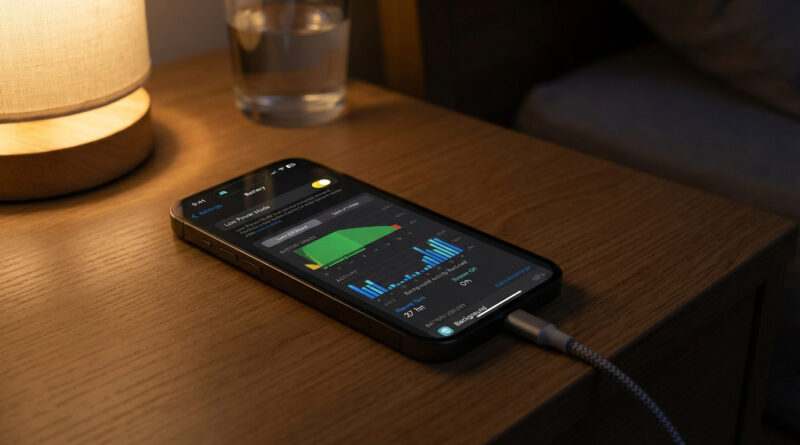
2) Check Battery Usage to catch the overnight culprit
Go to Settings → Battery. Scroll down to Battery Usage by App.
- Look for the app at the top.
- Tap the list and pay attention to timing. If an app shows activity when you were asleep, that’s your clue.
- If it’s a social, shopping, or news app near the top, that’s a common pattern. Those apps love to refresh.
This is the same mindset I recommend when your Mac is acting weird. Don’t guess. Check what’s actually using resources. (If you ever have the “my Mac disk is full” panic, this approach also helps. Start with facts, not random deleting. See How to Fix a Mac That Suddenly Says Its Disk Is Full (Without Deleting Your Photos).)
How to Stop One App From Running All Night
Once you’ve spotted a likely offender, you have one setting that fixes a lot of overnight drain fast.
Turn off Background App Refresh for that app
Go to Settings → General → Background App Refresh.
- Either turn it off for just the problem app, or turn it off entirely if you want the simplest solution.
What changes when you turn it off? The app can still work normally when you open it. It just cannot quietly update itself all night long.
Quick Reality Checks (If You Still Wake Up to a Big Drop)
Make sure it’s not the screen
If your screen is turning on repeatedly overnight, battery will drop fast. Sleep Focus helps, but also check if you have a chatty app sending notifications.
Consider your accessories
An Apple Watch, Bluetooth tracker, or weak Wi-Fi connection can increase background activity. You don’t need to micromanage this, but it’s good context when you’re troubleshooting.
Give it two nights before you judge
Battery graphs can bounce around after iOS updates, restoring from backup, or installing lots of apps. Use the Battery screen to judge trends, not one weird night.
At a Glance: Comparison
| Feature/Aspect | Details | Verdict |
|---|---|---|
| Bedtime Control Center routine | Low Power Mode on. Bluetooth off if unused. Sleep/DND Focus on. | Best first move. Fast and usually fixes “mystery drain.” |
| Optimized Battery Charging | Settings → Battery → Battery Health & Charging. | Good for long-term battery health. Not a direct drain stopper. |
| Background App Refresh control | Turn off for the app that shows overnight usage. | Best “targeted fix” when one app keeps waking the phone. |
Conclusion
If your iPhone is losing a big chunk of battery while you sleep, it’s usually not a failing phone. It’s a phone being allowed to do too much overnight. Use the quick bedtime checklist (Low Power Mode, Bluetooth only if needed, Sleep or Do Not Disturb), then check Battery Usage to find the one app that keeps popping up and shut down its Background App Refresh. No tricks. No extra apps. Just a simple routine that can add hours of real-world battery life and helps you stop guessing and start fixing.