How to Stop Your iPhone Battery From Draining Fast After the Latest iOS Update
You’re not imagining it. After a big iOS update, it’s common for an iPhone to feel warm, drain fast, and suddenly make you wonder if Apple is nudging you toward a new phone. It’s extra frustrating because most “fixes” online tell you to shut off half the features you actually like using, which turns your iPhone into a boring brick. The good news is you usually don’t need extreme battery-saving mode. You need a one-day reset and a quick check of what’s really eating power. Give your phone one full day with lots of charging time, then use the Battery screen to catch the real culprit, which is often one or two apps misbehaving right after the update.
⚡ In a Hurry? Key Takeaways
- For one day after an iOS update, keep your iPhone plugged in whenever you can so it can finish background cleanup without burning through your battery.
- Turn on Optimized Battery Charging, then check Settings > Battery > Last 24 Hours to spot the top 1 to 2 apps draining power.
- Instead of uninstalling everything, log out of the power-hog app(s) and restart your iPhone. You keep your features and usually fix the drain.
Why iPhone battery drain often spikes right after an iOS update
Right after an update, your iPhone does a bunch of housekeeping in the background. Think photo indexing, Spotlight search rebuilding, syncing, and app updates catching up. That work can make the phone feel warm and can hit battery life for a day or two.
The problem is when one app gets “stuck” in a loop. It keeps syncing, refreshing, or using location in the background and your battery takes the blame.
The one-day “let it finish” reset (no feature sacrifice)
Step 1: For one full day, plug in whenever you can
If you can, leave it plugged in at your desk, in the car, or at home. This is not about babying the battery. It’s about letting iOS finish its post-update work while you’re on wall power instead of draining your battery while you’re out.
Try to do this for one full day. Overnight alone is often not enough if you were using the phone heavily while it was updating.
Step 2: Turn on Optimized Battery Charging
Go to Settings > Battery > Battery Health & Charging, then turn on Optimized Battery Charging.
This doesn’t magically fix a rogue app. But it helps your iPhone charge in a smarter way over time, which keeps the battery healthier so you’re not feeling forced into a new phone early.
Find the real culprit (without uninstalling half your apps)
Step 3: Check “Last 24 Hours” and look for one or two hogs
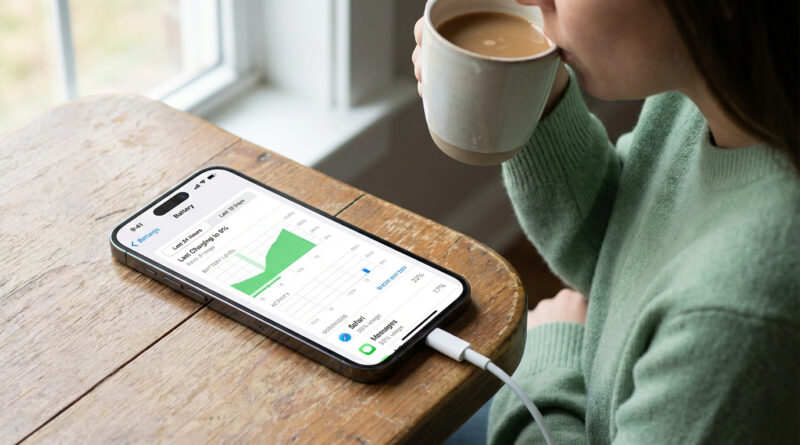
Go to Settings > Battery. Stay on the Last 24 Hours view.
Now look for:
- An app at the top that’s using way more battery than you’d expect.
- High “Background Activity” even when you weren’t really using the app.
- A sudden spike after the update time.
You’re not hunting for 10 small things. You’re trying to catch the top 1 or 2 offenders.
Step 4: Log out of the offender, then restart
For the app(s) that look suspicious, open the app and:
- Go to the account/settings area and log out.
- Close the app.
- Restart your iPhone (power off, then back on).
Logging out forces a clean re-sync the next time you sign in, and the restart clears out stuck background tasks. This is often enough to stop the drain without uninstalling the app, losing settings, or turning off features you enjoy.
What not to do (unless you’ve tried the steps above)
Avoid the panic spiral.
- Don’t uninstall everything right away. You’ll spend an hour rebuilding your phone and may not fix the real problem.
- Don’t turn off every feature (location, background refresh, notifications, 5G) just to survive the day. You’ll “fix” battery life by making your phone less useful.
- Don’t assume you need a new iPhone because of one bad post-update day.
When it’s worth doing one extra check
If your iPhone is still draining badly after a day or two, take a quick look at Settings > Battery again and see if the same app is always on top. If it is, update that app (App Store), then repeat the log-out and restart.
This is the same basic idea that fixes a lot of annoying update weirdness on computers too. If you’ve ever dealt with a PC that restarts at the worst time, the fix is usually about finding the real trigger and setting sane rules, not flipping off everything. If that sounds familiar, see How to Stop Windows 11 From Randomly Restarting Itself.
At a Glance: Comparison
| Feature/Aspect | Details | Verdict |
|---|---|---|
| “One full day plugged in” reset | Lets iOS finish post-update indexing/syncing on wall power instead of your battery | Best first move. Low effort, high payoff |
| Battery screen check (Last 24 Hours) | Shows which app is actually using battery and background activity | Most useful step. Stops guessing |
| Log out of the hog app + restart | Resets stuck syncing/refresh behavior without uninstalling or turning off features | Best “targeted fix.” Keeps your phone feeling normal |
Conclusion
Post-update battery panic is real, and it feels personal when your phone was fine last week. Try the calm approach first. Give your iPhone one full day with extra charging time, turn on Optimized Battery Charging, then use the Battery screen to catch the one or two apps causing the mess. Logging out of those apps and restarting is often the fix. You keep the features you love, you stop wasting time on extreme battery tricks, and you can usually skip the “guess I need a new phone” feeling entirely.