How to Stop Your iPhone Battery From Draining Fast After an iOS Update
You’re not imagining it. Right after an iOS update, it’s common to watch your battery percentage melt away even when you’re barely touching the phone. Then you Google it and every guide says “turn off everything,” which basically turns your iPhone into a boring brick and still doesn’t always stop the drain. The good news is you usually don’t need a dozen tweaks. You need a short, targeted reset and a day of normal use while iOS finishes its behind-the-scenes cleanup (reindexing, photo analysis, app updates, battery stats recalculations). Below is a simple one-day plan that fixes most “iphone battery drain after ios update fix” situations without gutting the features you actually use.
⚡ In a Hurry? Key Takeaways
- Turn off Optimized Battery Charging for 24 hours, then turn it back on.
- In Settings > Battery, disable Background App Refresh only for the top 2 or 3 battery-hog apps.
- This keeps your iPhone usable while iOS finishes post-update tasks. No panic shopping for a new phone.
Why your iPhone drains after an iOS update
Updates don’t just change the look of menus. After the install, iOS does a bunch of chores in the background: Spotlight reindexing, Photos face/object scanning, app updates, iCloud syncing, and recalculating battery analytics. That work uses CPU, storage, and network, which costs battery.
For most people, it settles down within 24 to 48 hours. The trick is getting through that window without disabling half the phone.
The one-day fix that usually works
Step 1 (2 minutes): Turn off Optimized Battery Charging for 24 hours
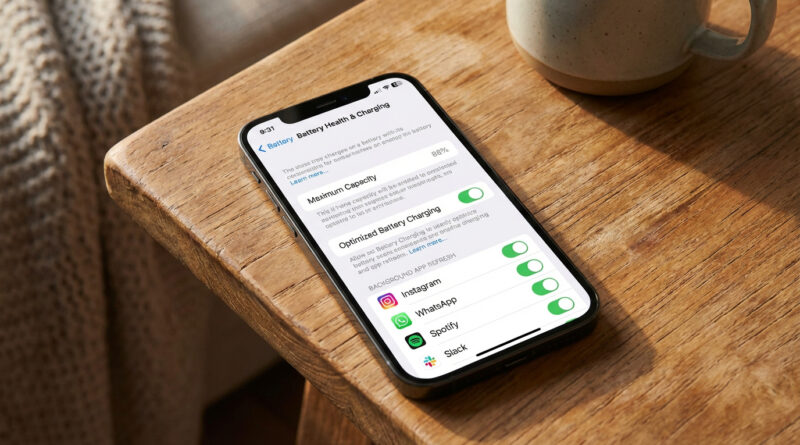
Go to Settings > Battery > Battery Health & Charging. Toggle Optimized Battery Charging off.
Why this helps: Optimized Battery Charging tries to learn your schedule and may pause charging at 80% until it thinks you need a full battery. Right after an update, that “learning” and the charging behavior can feel inconsistent. Turning it off briefly is like giving the system a clean slate.
Important: This is a temporary move. Set a reminder to turn it back on tomorrow.
Step 2 (5 minutes): Identify the real battery hogs
Go to Settings > Battery.
- Scroll to Battery Usage by App.
- Look at the top 2 or 3 apps.
- Tap each one and pay attention to the details (especially if you see a lot of “Background Activity”).
If “Home & Lock Screen” is high right after an update, that can be normal for a day. If one specific app is eating the battery, that’s your target.
Step 3 (3 minutes): Disable Background App Refresh only for those apps
Now do the targeted fix most guides skip.
Go to Settings > General > Background App Refresh. Leave it on globally. Then scroll down and toggle it off only for the top 2 or 3 battery-hungry apps you just found.
Why this works: You keep the iPhone experience intact (maps, mail, widgets, syncing) while stopping the handful of apps that are most likely stuck in a post-update loop.
Step 4 (the rest of the day): Use your phone normally, but keep it simple
For the next 24 hours:
- Charge normally. If you can, do one uninterrupted charge session (plug in and let it finish).
- Keep Wi-Fi on when you’re home. iOS can finish background tasks more efficiently on Wi-Fi than on a weak cellular signal.
- Don’t force-close every app repeatedly. It can make things worse because apps have to cold-start again.
Speaking of Wi-Fi, if your phone is fighting a flaky connection, it can burn battery hunting for a better signal. If your home internet has been weird lately, this laptop-focused guide has the same “stop doing random tweaks, do one clean test” vibe: How to Fix Slow Wi-Fi On Your Laptop Without Buying a New Router.
Step 5 (tomorrow): Turn Optimized Battery Charging back on
After 24 hours, go back to Settings > Battery > Battery Health & Charging and toggle Optimized Battery Charging on again. You want it long-term for battery health, especially if you charge overnight.
What not to do (unless you really have to)
These are the “nuclear options” that get recommended too quickly:
- Turning off all Background App Refresh. It can help, but it’s usually overkill. Target the worst offenders first.
- Disabling Location Services entirely. You’ll break navigation, photos, Find My, and a bunch of useful stuff.
- Resetting all settings immediately. Save that for later if nothing else works.
When it’s not normal post-update drain
After you do the one-day plan, check Settings > Battery again. If you still see fast drain and one app is constantly on top with heavy background activity, try this:
- Update that app in the App Store (developers often push fixes right after iOS releases).
- Restart your iPhone once.
- If it’s still misbehaving, delete and reinstall the app (yes, it’s annoying, but it clears out odd post-update corruption).
If your battery health is very low (for example, Maximum Capacity is in the low 80s or worse), an update can expose an aging battery. In that case, the “fix” might actually be a battery replacement, not a setting.
At a Glance: Comparison
| Feature/Aspect | Details | Verdict |
|---|---|---|
| Optimized Battery Charging | Turn it off for 24 hours post-update, then re-enable | Best “gentle reset” with minimal downsides |
| Background App Refresh | Disable only for the top 2 to 3 battery-hog apps | Most effective targeted fix without ruining the phone |
| “Turn everything off” guides | Kills features like syncing, location, and background updates | Usually unnecessary. Save for extreme cases |
Conclusion
Post-update battery drain is one of those problems that feels scary because it’s sudden, but it’s often temporary and fixable without turning your iPhone into a dumb phone. Do the 24-hour plan: toggle off Optimized Battery Charging, block Background App Refresh only for the biggest battery hogs, then use your phone normally while iOS finishes settling in. It’s a realistic way to stabilize battery life so you don’t panic, waste hours on random tweaks, or buy a new phone you didn’t actually need.