How to Stop Your iPhone Battery From Draining Fast After an iOS Update
You update iOS, everything looks normal… then your iPhone is gasping for air by mid afternoon. Same screen time, same apps, but suddenly you are hunting for a charger like it is 2013. I get it. It feels like the update ruined your battery or Apple is trying to push you into a new phone. Most of the time, it is neither. Right after a big update, your iPhone does a bunch of heavy “housekeeping” in the background, like re-indexing photos, rebuilding search, and refreshing app data. That work is real battery burn, even if you are not touching your phone. The good news: you can help it finish faster, then keep the worst battery hogs under control.
⚡ In a Hurry? Key Takeaways
- Give it 24 hours. After updates, fast drain is often temporary background indexing, not a “bad battery.”
- For one day, plug in whenever you can and leave it on Wi‑Fi with the screen locked so it can finish the heavy work.
- Then turn on Optimized Battery Charging and disable Background App Refresh for the top battery-draining apps to prevent repeat drain.
Why your battery tanks right after an iOS update
When iOS changes, your phone has to re-check and re-organize a lot of stuff behind the scenes. Photos get re-indexed for search, apps do post-update cleanup, and iCloud sync can spike. None of that shows up as “you using the phone,” but it still uses power.
This is also why your phone may feel warm, even if it is sitting there. Warmth plus background work equals faster battery drain.
The 24-hour “settle in” ritual (do this after every big update)
1) Plug it in whenever you can
For the next day, treat charging like topping off a cup of coffee. If you are at your desk, in the car, or near an outlet, plug in. You are not “fixing” the battery. You are giving iOS enough power to finish its background tasks without stealing it from your day.
2) Leave it on Wi‑Fi with the screen locked
Wi‑Fi is usually more efficient than cellular for big background tasks. Locking the screen helps too because the display is one of the biggest power users.
If you can, do this overnight: plug it in, connect to Wi‑Fi, lock the screen, and let it sit.
3) Avoid stress-testing it for a day
Try not to judge battery life during this 24-hour window. It is like a Mac right after you install a big update and Spotlight is busy. You can still use it, but it is not done “settling.”
This is the same idea as my Mac advice in The Best Way to Stop Your Mac from Spinning Beachballs and Slowing to a Crawl. Find what is working hard in the background, let it finish, and the device usually goes back to feeling normal.
After the first day: lock in better battery behavior
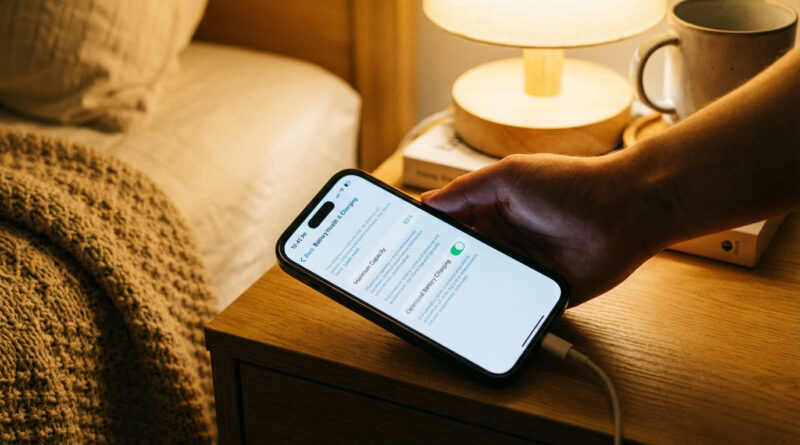
Step 1: Check Battery Health and turn on Optimized Charging
Go to Settings > Battery > Battery Health (or Battery Health & Charging on some versions).
- Turn on Optimized Battery Charging.
- Take a quick look at Maximum Capacity. If it is in the 80s or lower, you might also be dealing with normal battery aging, but the post-update drain can still be temporary.
Step 2: Identify your “top battery list” culprits
Go to Settings > Battery. Scroll to the battery usage list. Look for apps near the top that you did not actively use much.
Two common patterns after updates:
- Social apps that refresh constantly (feeds, messaging, video).
- Location-heavy apps (navigation, delivery, shopping, some weather apps).
Step 3: Turn off Background App Refresh for the worst offenders
Go to Settings > General > Background App Refresh. You can turn it off entirely, but I prefer a targeted approach:
- Leave it on for apps you truly want updating silently (for example, messaging or your work email).
- Turn it off for any app that shows up high in the battery list and does not need to update when you are not using it.
This is the “keep the troublemakers in check” move. It stops repeat background draining once the post-update housekeeping is done.
If it is still draining fast after 48 hours
Do a quick restart
A restart can clear a stuck background process. Simple, boring, effective.
Check for a point update
Go to Settings > General > Software Update. Apple often releases a follow-up update that fixes battery bugs.
Look for obvious red flags
- Your phone is hot most of the day, even when idle.
- Battery drops fast with the screen off.
- One app dominates usage even when you barely open it.
If you see that last one, delete and reinstall that app, or turn off its background permissions (refresh, location, notifications) and see if the battery stabilizes.
At a Glance: Comparison
| Feature/Aspect | Details | Verdict |
|---|---|---|
| First 24 hours after update | iOS re-indexes photos, refreshes apps, and re-syncs data in the background | Normal. Give it time and power to finish. |
| Plugged in + Wi‑Fi + screen locked | Lets heavy background work complete faster without stealing from your battery | Best quick fix for post-update drain. |
| Optimized Charging + targeted Background App Refresh off | Protects long-term battery health and stops “always updating” apps from chewing power | Best long-term habit to keep battery stable. |
Conclusion
That post-update battery panic is real, especially when your phone dies hours earlier than usual. But most of the time, it is a temporary settling-in period, not a permanently “ruined” battery. Do the simple 24-hour routine, then flip on Optimized Charging and rein in Background App Refresh for the apps that keep popping up in your battery list. It is an easy ritual you can repeat after every iOS update, and it can save you from buying chargers and battery packs you do not actually need.