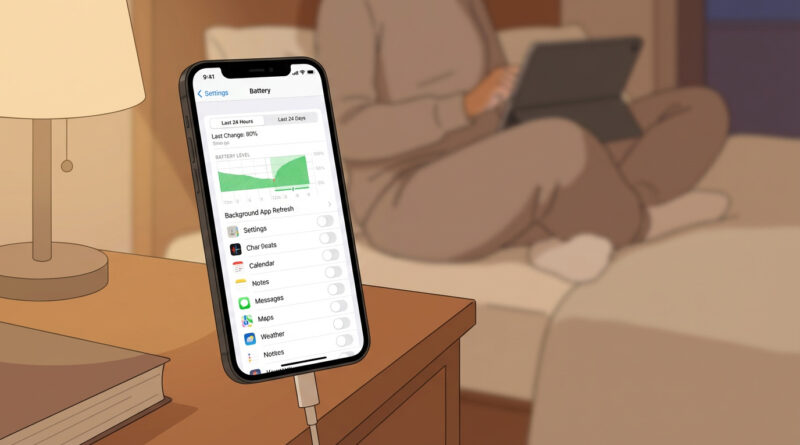
How to Stop Your iPhone Battery From Draining Fast After an iOS Update
You’re not imagining it. Right after an iOS update, it’s common for an iPhone to run hot and chew through battery even if you’re barely touching it. That’s the moment most people think, “Great, the update ruined my phone,” or “Guess I need a new battery.” Usually, neither is true. What’s happening is boring but real: iOS is finishing behind-the-scenes housekeeping, like re-indexing photos and search, re-checking your apps, and syncing iCloud. That extra work can look like sudden battery trouble for a day or two. The goal is to give your phone time to settle down, then cut off the worst background drains without wiping anything. Here’s a calm plan you can try today.
⚡ In a Hurry? Key Takeaways
- Give iOS 24 hours on Wi‑Fi plus frequent charging so it can finish post-update tasks.
- Temporarily turn off Background App Refresh for most apps, keep only 2 or 3 essentials.
- This usually fixes “update battery panic” without a factory reset or a repair visit.
Step 1: Let iOS Finish Its “Quiet Work” (One Full Day)
After an update, iOS often does a bunch of catch-up work that Apple doesn’t put in big flashing letters. You’ll feel it as heat, lag, and battery drain.
For the next 24 hours, do this:
- Keep your iPhone on Wi‑Fi as much as possible (Wi‑Fi is usually more power-friendly than cellular for heavy syncing).
- Plug it in whenever you can, even short top-ups help. Overnight on a charger is ideal.
- Try not to judge battery life during this window. You’re letting the “post-update storm” pass.
This is the iPhone version of not poking a device mid-update. If you’ve ever dealt with a Windows update acting weird, the same calm approach applies. Strip things down, let the system finish, then troubleshoot. I like the mindset in How to Fix Windows Updates That Are Stuck Without Breaking Anything, because it’s the same idea: avoid panic-reboots and do the simple, safe steps first.
Step 2: Temporarily Turn Off Background App Refresh (Keep Only Your Essentials)
If your phone is still draining fast after that “settle down” day, the next likely culprit is apps doing too much in the background. Background App Refresh is useful, but after an update it can turn into a background party you did not approve.
How to change it
Go to Settings > General > Background App Refresh.
- Option A (simple): Set Background App Refresh to Off for everything.
- Option B (my usual recommendation): Leave it on, but toggle off every app except the two or three you truly need updating in the background (common picks are a work chat app, a navigation app you use daily, or a mail app).
How long should you leave it like this?
Give it a day. If battery life improves, you’ve found the main issue. Then you can re-enable apps one by one over time, only for the ones that earn the privilege.
Step 3: Find the App (or Setting) That’s Chewing Battery
Your iPhone will usually tell you who the troublemaker is. Check:
Settings > Battery
- Look at the last 24 hours and last 10 days.
- If an app you barely use is near the top, that’s a strong clue.
- Tap an app’s name to see if the time is mostly Background Activity.
If one app is clearly misbehaving, update it in the App Store. If it’s already updated, try force closing it once, or uninstall and reinstall (only if it’s safe to do so and you know your login).
Step 4: A Few Extra “Low Drama” Checks (Optional, But Often Helpful)
Restart once, after the housekeeping day
A single restart after you’ve let iOS churn for a while can help. Don’t restart five times in an hour. One clean restart is enough.
Make sure you didn’t lose Low Power Mode habits
Settings > Battery > Low Power Mode. If you rely on it, turn it on when you need it. Just remember it limits some background tasks, so it can also “hide” the real culprit.
Check for weak signal spots
If you’re in a low-signal area, your iPhone works harder to stay connected, especially right after an update when syncing is busy. Staying on Wi‑Fi at home helps a lot.
Look at Battery Health, but don’t panic
Settings > Battery > Battery Health & Charging. If your maximum capacity is already very low (for many people, under the low 80s), an iOS update can make existing battery weakness more noticeable. That doesn’t mean the update “broke” it. It just stopped hiding it.
When to Worry (And When Not To)
Not a big deal: The phone is warm, battery drops faster for 24 to 48 hours, then improves.
Worth a closer look: After 2 to 3 days, the phone is still hot at idle, or Battery settings show constant background activity with no clear reason.
Stop and get help: The phone is extremely hot, swells, shuts down repeatedly, or won’t charge normally.
At a Glance: Comparison
| Feature/Aspect | Details | Verdict |
|---|---|---|
| 24-hour “settling” period | Wi‑Fi + frequent charging lets iOS finish indexing, syncing, and app cleanup. | Best first move. Safe and often enough on its own. |
| Background App Refresh control | Turn it off for most apps, keep only 2 or 3 essentials temporarily. | Biggest “quick win” for runaway post-update drain. |
| Factory reset or service visit | Time-consuming, stressful, and usually unnecessary right after an update. | Last resort. Try the calm steps first. |
Conclusion
Post-update battery panic is almost a tradition at this point, especially when social media is full of “your phone is ruined” takes. The good news is you can usually fix it with a low-stress plan: give your iPhone a full day on Wi‑Fi with plenty of charging time, then rein in Background App Refresh so only the apps you truly need can run wild in the background. Most of the time, that’s enough to get your battery (and your sanity) back without spending money or booking a Genius Bar visit.