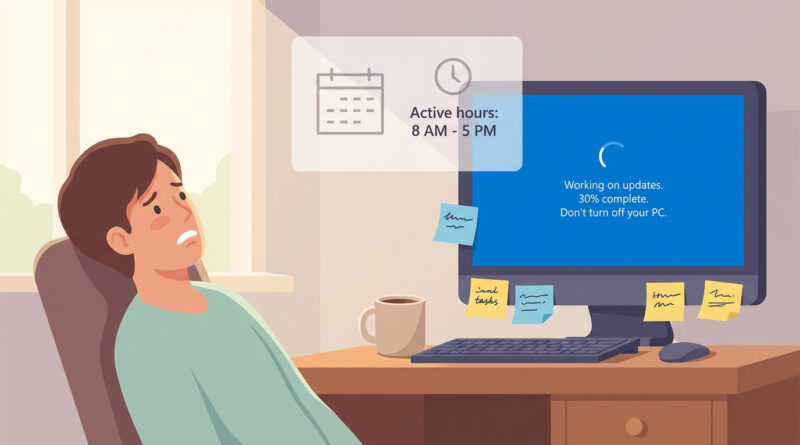
How to Stop Windows 11 From Randomly Restarting Itself
You know that feeling. You finally sit down to work or fire up a game, and Windows 11 decides this is the perfect moment to restart itself. No warning you actually notice. No “hey, did you save?” It’s maddening because it makes you feel like you’re borrowing your own PC, and most online fixes immediately jump into jargon, registry edits, and other stuff you should not have to touch just to keep your computer stable.
The good news is you can usually stop the chaos with three simple moves, all in plain Settings. First, pause updates for a week to stop the surprise restarts right now. Second, set your real Active hours so Windows knows when it’s not allowed to reboot. Third, make a manual restore point so if a bad update slips through later, you can roll back without panic.
⚡ In a Hurry? Key Takeaways
- Pause Windows Update for 1 week to immediately stop most “random” restart behavior.
- Set Active hours to match when you actually use your PC so reboots happen when you’re done.
- Create a manual restore point now, so if an update causes trouble you can undo it fast.
Step 1: Pause updates (the “stop it today” fix)
If Windows is restarting at the worst possible times, updates are often the trigger. Pausing updates buys you breathing room. It also gives Microsoft time to pull or patch a bad update if that’s what’s going on.
How to pause updates for 1 week
1) Click Start, then open Settings.
2) Click Windows Update.
3) Find Pause updates and choose Pause for 1 week.
Why this helps: Windows can’t install the update that’s waiting, so it usually can’t demand the reboot that goes with it.
Good to know: This does not delete updates. It just tells Windows, “Not right now.”
Step 2: Set your real Active hours (so Windows stops rebooting while you’re using it)
Active hours is the setting that tells Windows when you’re typically at the computer. If it’s wrong, Windows may think you’re “away” and restart anyway.
Set Active hours to match your schedule
1) Go to Settings → Windows Update.
2) Click Advanced options.
3) Click Active hours.
4) Set it to your real hours. For example, 9 AM to 11 PM if that’s when you’re most likely working or gaming.
Tip: If you have unpredictable hours, set a wide window. Windows does not need your “ideal” schedule. It needs your realistic one.
Step 3: Make a manual restore point (your easy “undo” button)
This is the part most people skip. Then a weird update lands, something breaks, and you’re stuck. A restore point is a quick safety net that can roll back system changes without you hunting for complicated fixes.
Create a restore point in a minute
1) Click Start and type restore point.
2) Open Create a restore point (it’s a Control Panel result).
3) Under the System Protection tab, make sure protection is On for your main drive (usually C:). If it’s Off, click Configure → choose Turn on system protection → Apply.
4) Click Create.
5) Name it something like Before January updates or Before troubleshooting restarts.
If things go sideways later: Open Start, type restore point again, then click System Restore and pick the restore point you made. It’s not magic, but it’s often a clean way to get back to “yesterday’s working PC.”
If you still get surprise restarts
If your PC keeps rebooting even after pausing updates and setting Active hours, the cause may not be Windows Update. It can be a driver crash or hardware issue. But you can still get useful clues without doing anything risky.
Quick checks that don’t require “expert mode”
Check if Windows is actually scheduling a restart:
Go to Settings → Windows Update. If you see anything like “Restart required” or “Restart scheduled,” that’s your answer.
Look for the simple crash hint:
Click Start, type Reliability Monitor, then open View reliability history. You’ll often see red X entries around the time of the restart. You don’t need to fix everything in there. You just want to know whether this is “update reboot” or “crash reboot.”
When you ask for help, ask better (and get a better answer):
If you use Copilot or ChatGPT to interpret what you’re seeing, don’t paste one giant paragraph and hope. Use a tight prompt like: “I’m a beginner on Windows 11. My PC restarts unexpectedly. Here’s what Reliability Monitor shows at 3:12 PM. Give me a 5-step checklist with no jargon.” I wrote a full guide on that here: The Best Way to Fix AI Chatbots Giving Useless Answers (ChatGPT, Copilot and More).
At a Glance: Comparison
| Feature/Aspect | Details | Verdict |
|---|---|---|
| Pause updates | Stops most update-triggered reboots immediately. One-week resettable pause. | Best “do this first” step |
| Active hours | Tells Windows when not to restart, even if an update is ready. | Best long-term control |
| Manual restore point | Creates a safe rollback option if an update causes instability. | Best safety net |
Conclusion
You’re not imagining it. Lots of people have been dealing with surprise restarts after recent Windows updates, and it’s especially brutal when it costs you unsaved work. Pausing updates for a week stops the bleeding, Active hours puts you back in charge of when restarts are allowed, and a manual restore point gives you a calm “undo” option if something slips through. Do those three today, and your PC should start acting like it’s yours again.