How to Stop Windows 11 From Randomly Restarting After Updates
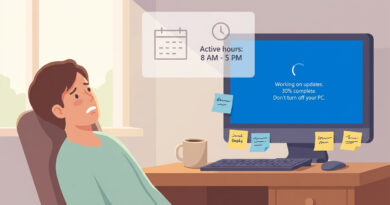
If you’ve ever stepped away for dinner or gone to bed, then came back to find Windows 11 restarted itself and your unsaved work is gone, you’re not imagining things. It feels sneaky. And worse, it makes you feel like you don’t own your own computer. The fix is not some deep “registry” thing. It’s two small habits that put you back in charge: set Active hours so Windows knows when restarting is absolutely not okay, and pick one day a week to restart on your terms before you walk away. Once you do that, updates stop being a surprise attack and start being a quick weekly routine.
⚡ In a Hurry? Key Takeaways
- Set Windows 11 “Active hours” to match your real day so it avoids auto-restarts when you’re likely working.
- Create a simple weekly reminder to restart on your schedule (like Friday after lunch or Sunday night).
- This combo massively cuts surprise restarts and helps protect unsaved work during today’s heavier background update cycle.
Step 1: Set Active hours to match your real life (not the default)
Windows uses “Active hours” as its best guess for when it should not restart your PC. The problem is that many people leave the default settings, or they set a schedule that doesn’t match how they actually use their computer.
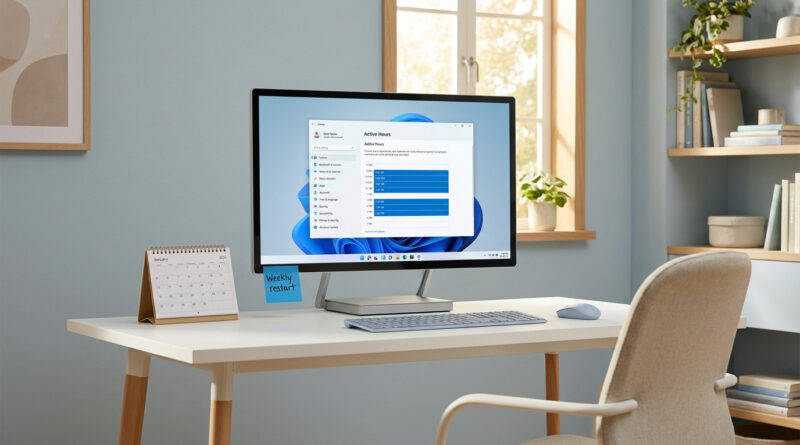
How to set Active hours
1) Open Settings.
2) Go to Windows Update.
3) Click Advanced options.
4) Find Active hours.
You’ll usually see two options:
- Automatically: Windows tries to guess based on usage.
- Manually: You choose a Start and End time.
Pick Manually if you have a predictable schedule. Set it wide. If you use your PC from 8am to 11pm, set Active hours for 8am to 11pm. Don’t be shy. You’re not “wasting” anything by making it realistic.
Important note: Active hours is not magic
Active hours is Windows saying, “I’ll try not to restart then.” It helps a lot, but some updates still want a restart soon. That’s why you also need Step 2.
Step 2: Make restarts boring again with a weekly “restart ritual”
The easiest way to stop random update restarts is to restart before Windows gets the urge to do it for you. Think of it like taking out the trash before it starts to smell.
Pick a weekly time that fits your routine
- Sunday night before bed
- Friday afternoon after you send your last email
- Monday morning before you open everything
Then set a repeating reminder on your phone or calendar called: “Restart PC (2 minutes)”. When it goes off, save your work, close your apps, restart. Done.
This idea is the same reason I like “test scenes” when troubleshooting other update weirdness. It’s a small repeatable habit that keeps you sane. If you enjoy that kind of simple routine, you’ll probably like this approach too: How to Fix iPhone Photos That Look Blurry or Washed Out After iOS Updates.
Optional settings that help (without getting complicated)
Turn off “Restart this device as soon as possible…”
This setting can make Windows more aggressive about restarting right after an update installs.
Go to Settings → Windows Update → Advanced options and look for a toggle that says something like:
- “Restart this device as soon as possible when a restart is required…”
If you see it, turn it Off.
Use restart notifications so Windows has to ask first
In the same Advanced options area, enable options that notify you when a restart is needed. The wording changes slightly over time, but you’re looking for “notify” and “restart.”
One simple safety net: turn on AutoSave where you can
This won’t stop restarts, but it softens the damage:
- Microsoft Office: make sure AutoSave is on (especially if you use OneDrive).
- Google Docs: you’re usually fine since it saves constantly.
- Creative apps: check their autosave or recovery settings.
At a Glance: Comparison
| Feature/Aspect | Details | Verdict |
|---|---|---|
| Active hours | Tells Windows when not to auto-restart. Best when set manually to your real schedule. | Do this first. Big reduction in “surprise” restarts. |
| Weekly manual restart | A repeating reminder to restart at a convenient time, before Windows pressures you. | Best overall fix. Turns chaos into routine. |
| Restart-asap / notifications | Extra settings that reduce aggressive restart behavior and increase warning prompts. | Worth flipping on. Helps, but not a full solution alone. |
Conclusion
Windows 11 updates have been more “background” lately, and that’s exactly why the restarts feel random and rude. The good news is you don’t need a complicated fix. Set Active hours so Windows understands your day, then restart once a week on purpose before you step away. That’s how you keep control of your PC and keep your work safe, even during this wave of updates.