How to Stop Windows 11 From Randomly Restarting After Updates
You’re not imagining it. Windows 11 really can reboot at the worst possible time, mid-document, mid-raid, mid-anything, even after you hit “Pause updates.” That’s what makes it so annoying. It feels like your PC is calling the shots. The good news is you can take control with two simple moves: tell Windows when you actually use your computer (even if that’s basically all day), and give yourself a quick “undo” button before big patches land. Once those are set, updates stop feeling like a surprise attack and start feeling more like something you scheduled on your terms.
⚡ In a Hurry? Key Takeaways
- Set Windows 11 “Active hours” so it won’t auto-restart while you’re working or gaming.
- Create a restore point before major updates so you can roll back fast if a patch causes trouble.
- This combo keeps you in control during buggy update streaks, without turning off security updates entirely.
Why Windows 11 Restarts “Randomly” (Even When You Paused Updates)
Most surprise reboots aren’t truly random. Windows is usually trying to finish installing an update that needs a restart.
Two things trip people up:
- “Pause updates” is temporary, and it doesn’t always stop a restart if an update already downloaded and is waiting to complete.
- Windows schedules restarts outside “Active hours”. If your active hours are short or set to default, Windows thinks it’s being polite. It isn’t.
Fix #1: Set Your Real Active Hours (Go Longer Than You Think)
This is the single biggest “stop restarting during my life” setting in Windows 11. Don’t set it to a neat little 9-to-5 unless that’s truly your use.
How to set Active hours
- Go to Settings.
- Click Windows Update.
- Click Advanced options.
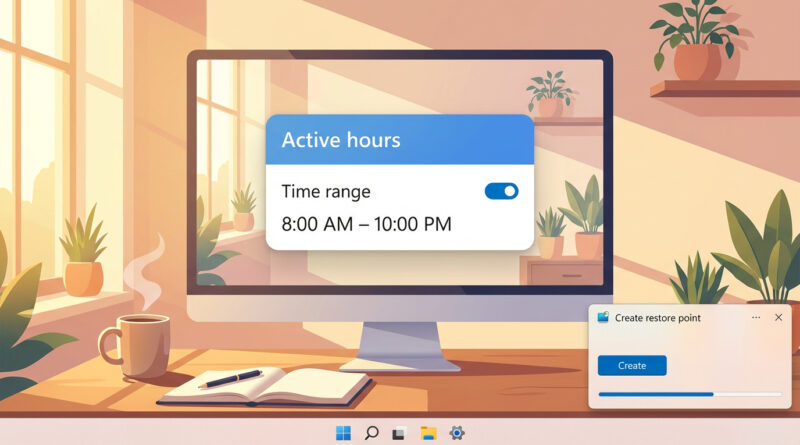
- Click Active hours.
- Set it to Manually, then choose a wide window like 7:00 AM to 11:00 PM.
If you’re on your PC late, set it late. If you’re on it all day, set it all day. You can always adjust later.
Small note: Active hours doesn’t stop every restart forever. It mainly stops Windows from picking the worst possible moment during the hours you said you’re active.
Fix #2: Make a Restore Point Before Major Updates (Your Two-Click Undo)
When updates go sideways, people waste hours guessing. Audio breaks. Bluetooth disappears. Games stutter. A restore point gives you a calm reset button.
Restore points don’t replace backups of your files, but they’re great for undoing system changes like drivers and Windows updates.
How to create a restore point (once, then it’s quick forever)
- Click Start and type Create a restore point, then open it.
- Under the System Protection tab, select your C: drive.
- Click Configure, choose Turn on system protection, and set Max Usage to around 5% to 10%.
- Click Apply.
- Click Create, name it something like Before Jan update, then click Create again.
How to roll back if an update causes issues
- Open Create a restore point again.
- Click System Restore.
- Choose the restore point you made, then follow the prompts.
That’s the difference between “my PC is broken” and “give me five minutes.”
Bonus: Two Extra Settings That Help (Optional, but Worth Checking)
Turn off “Restart as soon as possible” (if you see it)
Some systems show a toggle that makes Windows more aggressive about restarts.
- Go to Settings → Windows Update → Advanced options.
- Look for Restart as soon as possible and turn it Off (if available).
Get clearer troubleshooting steps when you’re stressed
If you end up hunting down what an update changed, it helps to ask for instructions in a way that’s easy to follow. This guide is solid for that: How to Make ChatGPT Give You Clear, Step-by-Step Help Instead of Confusing Walls of Text.
At a Glance: Comparison
| Feature/Aspect | Details | Verdict |
|---|---|---|
| “Pause updates” | Temporary delay. May not stop a restart if an update is already staged. | Okay as a short break, not your main plan. |
| Active hours | Tells Windows when not to auto-restart. Can be set as long as you need. | Best first step to stop “reboot ambushes.” |
| Restore point before updates | Quick rollback if a patch causes glitches, driver issues, or instability. | Your safety net. Makes updates feel safer. |
Conclusion
Windows updates don’t have to feel like a gamble. Set long, realistic active hours so your PC stops rebooting during your time, not Microsoft’s guess. Then make a restore point before major patches so you’ve got a calm “undo” button if the latest update brings weird glitches. With those two habits, you stay in charge during this rough patch of Windows 11 updates, and your computer goes back to being a tool, not a boss.