How to Stop Windows 11 From Randomly Restarting After Updates
You know that sinking feeling. You sit down to work, reach for yesterday’s tabs and notes, and realize Windows restarted overnight. Everything is closed. Maybe that draft email is gone. It feels like your PC is making choices for you, and it is maddening. The good news is you can rein it in. Windows 11 updates are important, but surprise reboots are not. The goal is simple. Tell Windows when you actually use your computer (so it stops picking “helpful” restart times), turn off the setting that allows automatic restarts, and then give yourself a one-click “I’m done for the day” shortcut so updates can install on your schedule. Once you do this, you stay in control, and your work stays where you left it.
⚡ In a Hurry? Key Takeaways
- Set Windows 11 “Active hours” to match your real workday so restarts do not happen while you are using the PC.
- Turn off “Restart this device as soon as possible…” and disable “Restart automatically” so Windows stops rebooting without asking.
- Add a shutdown shortcut (shutdown /s /t 0) so you can end the day cleanly and let updates happen when you choose.
Step 1: Set Active Hours to your real schedule
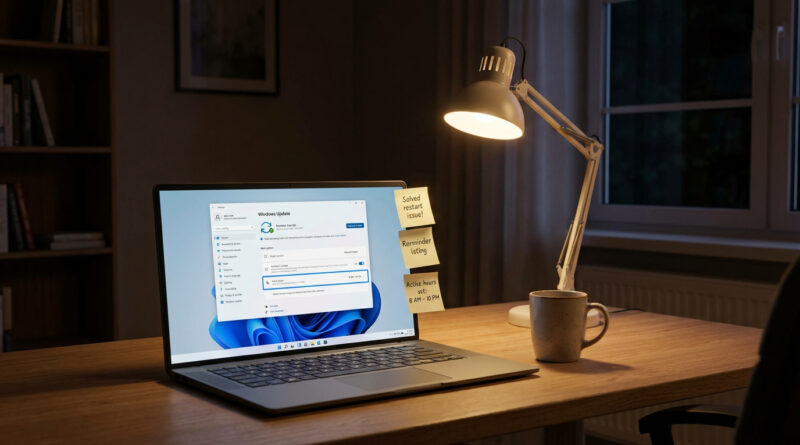
Windows uses “Active hours” as its polite window. If yours are wrong, Windows thinks 2 a.m. is a great time to reboot, even if you left work open overnight.
How to set it
Go to Settings. Then Windows Update. Then Advanced options. Look for Active hours.
You will typically see two choices:
1) Automatically: Windows tries to guess when you are active. This works for some people. It fails badly for night owls, remote workers, and anyone with an inconsistent schedule.
2) Manually: Pick a Start time and End time that cover when you might reasonably be working, including evenings if you sometimes do “one last thing.”
Tip: If you often leave your PC on overnight with tabs open “for the morning,” set Active hours wide enough to protect that habit. You can always change it later.
Step 2: Turn off the setting that triggers surprise restarts
Active hours helps, but it is not the whole story. Windows also has an option that basically says, “Restart ASAP to finish updates.” That is the one that causes the most “Wait, why did you reboot?” moments.
What to turn off
Go to Settings. Then Windows Update.
Look for:
- Restart this device as soon as possible when a restart is required to install an update. Turn this Off.
Also check “Restart options”
From Settings → Windows Update → Advanced options, find Restart options (wording varies slightly by Windows version).
- If you see Restart automatically or similar language, turn it Off.
- If you see Notify me when a restart is required to finish updating, turn it On. Notifications are annoying, but not as annoying as losing your work.
Step 3: Give yourself a one-click “I’m done” shutdown shortcut
This is the part that makes the whole system feel sane again. If Windows is going to need restarts sometimes, you want them to happen after you have actually shut down on purpose.
Create the shortcut
Right-click an empty area on your Desktop. Click New → Shortcut.
For the location, paste:
shutdown /s /t 0
Click Next, name it something like Shut Down Now, then click Finish.
Optional: Make it easy to spot
Right-click the new shortcut → Properties → Change Icon. Pick something obvious so you do not click it by accident.
Use it when you are truly done for the day. Not when you are stepping away for coffee.
Important note: This stops restarts. It does not stop updates
You are not “breaking” Windows Update here. You are just stopping the part where Windows decides the restart timing without you. Updates will still download and wait. Then you restart when it works for you.
If you still wake up to a reboot, check these common culprits
1) You are closing the lid and the laptop is going to sleep (not shutting down)
Sleep keeps your session in memory. That sounds nice, until Windows decides it can restart to finish updating. If you want zero surprises, use the shutdown shortcut at night.
2) “Fast startup” can make shutdown feel inconsistent
Fast startup is a hybrid shutdown that can blur the line between shutting down and hibernating. If you get weird behavior, try turning it off.
Go to Control Panel → Power Options → Choose what the power buttons do → Change settings that are currently unavailable → uncheck Turn on fast startup.
3) Windows is rebooting from a crash, not an update
If your PC is restarting and you see no “Update and restart” history, it might be a driver crash or power issue. Check Reliability Monitor (search it from Start) for “Windows was not properly shut down” or hardware errors.
Quick safety net: Protect your work from any restart
Even with everything set right, life happens. Power blips happen. Apps crash. A simple backup habit saves your week.
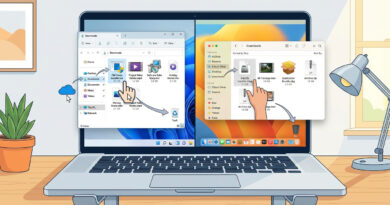
If you ever need to move to a new PC (or you just want an easy way to make sure your key files are safe), this guide is worth a read: The Best Way to Move From an Old Windows Laptop to a New One Without Losing Anything. The “Move Me” folder idea is also a great everyday backup habit, not just a migration trick.
At a Glance: Comparison
| Feature/Aspect | Details | Verdict |
|---|---|---|
| Active hours | Tells Windows when not to restart. Set manually if your schedule is not predictable. | Do this first. Big reduction in surprise reboots. |
| “Restart ASAP” update setting | Allows Windows to restart quickly after updates instead of waiting for you. | Turn it off. This is the usual culprit. |
| Shutdown shortcut (shutdown /s /t 0) | One click to fully shut down so you choose when Windows gets its restart window. | Best “peace of mind” move. Simple and effective. |
Conclusion
Windows updates are fine. Random restarts are not. Once you set Active hours correctly, turn off the automatic restart options, and use a simple shutdown shortcut when you are actually done for the day, your PC stops acting like a bossy coworker. You get your tabs back. You keep your meeting notes open. And you do not lose half-written emails just because an update decided it was more important than your time.