How to Stop Random Apps From Hijacking ‘Open With’ on Your Mac
Nothing makes you feel crazier than a Mac that keeps “forgetting” what app you picked. You set a PDF to open in Preview, then suddenly it’s launching in Chrome again. Or your photos keep jumping into some editor you tried once. And you are stuck right clicking “Open With” over and over, just to do the same thing you already told macOS to do.
The fix is hidden in a spot Apple does not exactly advertise. You need to change the default app for that file type, not just for that one file. Once you do, every file with that extension will open the way you want. It takes about 30 seconds, and it saves you from the daily “why is it doing that again?” routine.
⚡ In a Hurry? Key Takeaways
- Right click a file, choose Get Info, set your preferred app under “Open with,” then click “Change All.”
- If an app update steals the default again, repeat the same steps once and you are back in control.
- This changes the default for the whole file type, not just one file, so it is the time-saving fix.
Why “Open With” keeps getting hijacked
When you use “Open With” from the right click menu, macOS can treat it like a one-off choice. Some apps also try to make themselves the default after an update, especially for common stuff like PDFs, images, and video files.
The goal is to set a system-wide default for that file type so macOS stops guessing.
The permanent fix: set the default using Get Info
Step-by-step
1) Find any file of the type that is annoying you. Example, a .pdf, .jpg, .mp4, .docx, etc.
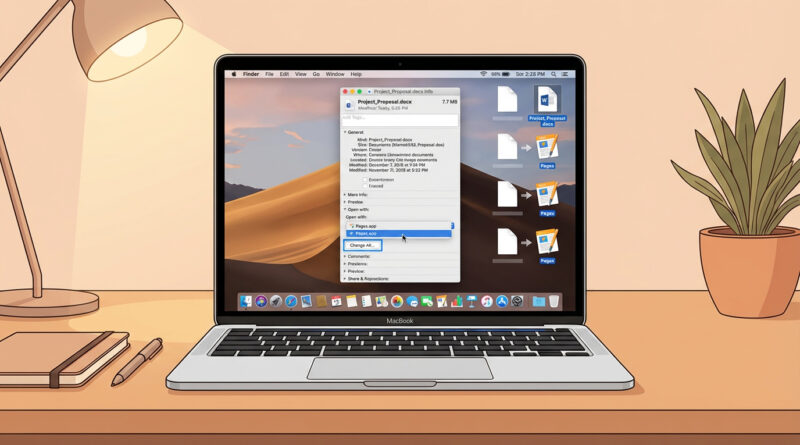
2) Right click it, then click “Get Info.”
3) In the Info window, find “Open with.” If it is collapsed, click the little triangle to expand it.
4) Pick your preferred app from the dropdown. If you do not see it, choose “Other…” and select it manually.
5) Click “Change All…”, then confirm. This is the magic button. It tells macOS, “Use this app for every file like this from now on.”
If it still opens in the wrong app, check these two things
1) Make sure you changed the right file type
Some files look similar but are different types. A photo might be .jpg, .jpeg, .png, or .heic. You may need to repeat the steps once per type.
2) App updates can reset defaults
Yes, it happens. The good news is you do not need a new trick. Just repeat the same “Get Info” and “Change All” steps once after the update and you are done.
A quick note for anyone who switches between Mac and Windows
This “defaults getting reset” thing is not just a Mac quirk. If you also have a Windows PC and you are tired of the OS trying to push you into Microsoft’s preferred choices, you will probably relate to The Best Way to Make Windows 11 Stop Nagging You About Microsoft Accounts. Different problem, same vibe: a setting is there, it is just hidden behind extra clicks.
At a Glance: Comparison
| Feature/Aspect | Details | Verdict |
|---|---|---|
| Right click “Open With” | Often affects only that file, or only temporarily | Fine for one-time use |
| Get Info → “Open with” | Lets you set the preferred app for that file type | Best way to take control |
| “Change All” button | Applies your choice to every file with that extension | Permanent fix, big time saver |
Conclusion
Once you use Get Info and click “Change All,” you stop playing whack-a-mole with “Open With.” It is a small, slightly hidden box that turns a repeat annoyance into a one-and-done setting. If an app update ever resets it, just repeat the same steps once. Either way, you get a permanent fix instead of a workaround, and you save real time if you open photos, documents, or videos all day.