How To Stop Netflix And Other Streaming Apps From Blocking Your VPN Overnight (Without Giving Up On Privacy)
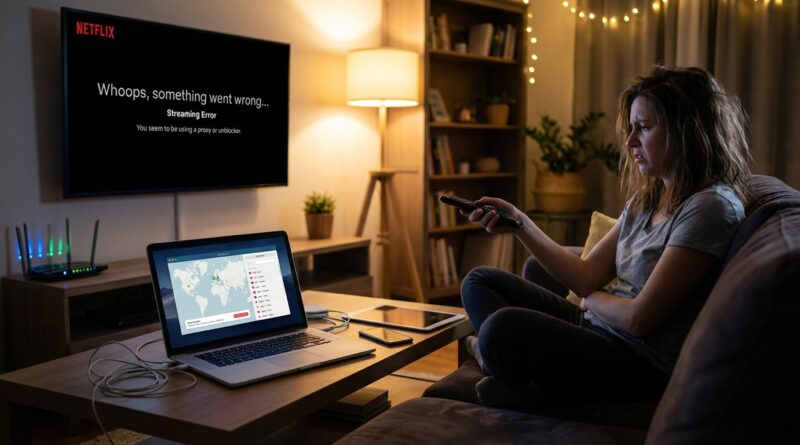
You open Netflix, Disney Plus or F1 TV the same way you did yesterday, with your VPN on, and suddenly nothing works. One device shows a geo-block message. Another throws a weird error code. A third just spins forever. It is maddening, especially when you are paying for both the streaming service and the VPN and were not trying to do anything unusual. If this has started happening in the last day or so, you are not imagining it. Streaming companies regularly tighten their detection systems, and sometimes those changes hit certain apps, devices or TV platforms before others. The good news is that this usually does not mean your VPN is broken. It means the app, your DNS settings, your device cache or that specific VPN server has been flagged. The fix is often much simpler than people think, and you usually do not have to give up on privacy just to watch your own subscription again.
⚡ In a Hurry? Key Takeaways
- Your VPN is often not fully “blocked.” More commonly, one server, one app cache, or one device DNS setting has been identified by the streaming app.
- Start by switching VPN servers, clearing the streaming app cache, signing out and back in, and checking for DNS or location leaks on the affected device.
- You can usually keep your privacy by using split tunneling, router-level VPN rules, or a better server choice instead of turning your VPN off everywhere.
Why your VPN suddenly stopped working with Netflix and other streaming apps
The short version is this. Streaming services are getting better at spotting shared VPN traffic.
They do it in a few common ways. They look for IP addresses used by lots of people at once. They compare your apparent location with your DNS requests. They check location data from the device itself. And on smart TVs and streaming sticks, they sometimes rely on app-level checks that are stricter than what you see in a browser on a laptop.
That is why your phone might still work while your Fire Stick does not. Or your laptop plays Netflix in a browser, but the TV app refuses.
So if you are searching for vpn not working with netflix and other streaming apps, the real issue is usually not one big failure. It is a mix of small checks that no longer line up cleanly.
The first thing to understand. This is usually a device problem, not a household problem
People often assume the VPN company has been completely blocked overnight. Sometimes that happens for a specific server range, but more often only one part of your setup is failing.
If it works on one device but not another
That points to one of these:
- The app on the failing device has cached your real location or an old connection.
- The failing device is using your ISP’s DNS instead of the VPN’s DNS.
- Location services are turned on and the app is using GPS or Wi-Fi location data.
- Your VPN app on that device is using a protocol the streaming service now flags more easily.
If it fails on every device
That usually means:
- The VPN server you chose has been identified by the streaming service.
- Your router or Smart DNS settings are clashing with the VPN.
- Your VPN app updated and changed protocols or settings in the background.
Do this first, in order, before you spend an hour poking random settings
1. Switch to a different server in the same country
This is the easiest fix and often the one that works.
If you normally use a VPN server in, say, New York or London, disconnect and pick another server in the same region. Not a nearby country. Not “fastest.” Another server in the exact country the service expects.
Why this helps. Streaming apps often block a known IP range, not your whole VPN provider.
2. Fully close the streaming app and clear its cache
This matters more than people think. Apps can keep old location data, DNS data and login tokens.
On Android TV and Fire TV:
- Go to Settings
- Open Applications or Manage Installed Applications
- Select Netflix, Disney Plus, F1 TV or the app giving trouble
- Force Stop
- Clear Cache
If that still does not work, clear app data too, but be aware you may need to sign in again.
On iPhone and iPad, you usually need to offload or reinstall the app. On laptops, sign out, close the browser, and clear cookies for the affected streaming site.
3. Reconnect the VPN and check for DNS leaks
If the app sees your ISP’s DNS while your IP says you are somewhere else, that is a red flag.
Use your VPN provider’s leak test page if they have one, or any trusted DNS leak test in a browser. You want the DNS server country to match the VPN location you chose, or at least to be clearly owned by the VPN provider.
If the DNS result shows your home broadband company, that is likely the problem.
4. Turn off location services for the streaming app if your device allows it
This is a big one on phones and tablets. Some apps compare GPS or Wi-Fi location against your network location.
If the app asks for location permission, deny it unless it truly needs it.
5. Try a different VPN protocol
Inside your VPN app, look for protocol settings such as WireGuard, OpenVPN, IKEv2 or “Automatic.”
If it is on Automatic, try manually switching. WireGuard is usually fast, but some services react differently to specific protocols. A quick change here can fix a connection that looked dead.
How to fix it on the devices people are struggling with most
Fire Stick and Fire TV
This is where many people get tripped up because Fire TV apps can keep stale data for longer than expected.
- Disconnect the VPN
- Force stop the streaming app
- Clear cache
- Open the VPN app and choose a new server in the same country
- Reconnect
- Restart the Fire Stick if needed
- Reopen the streaming app
If it still fails, restart both the Fire Stick and your router. It sounds boring, but it can clear old DNS routes.
Smart TVs
Smart TVs are often the fussiest because they may not support the full VPN app properly, or they may use hard-coded DNS behavior.
If your TV has a native VPN app, try changing servers and clearing the streaming app cache. If that does not help, a better option is often to run the VPN on your router, or use a separate streaming device instead of the TV’s built-in apps.
This is not because the TV is “bad.” It is just usually less flexible than a phone or laptop.
Phones and tablets
Check app permissions. Especially location. Then:
- Switch servers
- Turn airplane mode on for 10 seconds, then off
- Reconnect the VPN
- Clear the app cache or reinstall
On mobile data, some streaming apps behave differently than on home Wi-Fi. Test both if you can.
Laptops and desktops
If the app works in one browser but not another, the browser profile is usually the culprit.
- Open a private browsing window
- Log in there first
- If it works, clear cookies and site data in your main browser
Also check whether your browser has location permission enabled for the site. If yes, turn it off.
How to keep your privacy without switching the VPN off for the whole house
This is the part many people miss. You do not need to choose between privacy and streaming.
Use split tunneling
Many VPN apps let you choose which apps use the VPN and which do not.
That means you can keep your browser, banking, messaging and general web traffic inside the VPN while letting one stubborn streaming app use your normal connection if needed.
It is not a perfect answer, but it is a lot better than dropping the VPN entirely.
Use router rules if your VPN supports them
Some router setups let you send only certain devices through the VPN. That is handy if, for example, your work laptop and phones stay protected while the lounge TV uses the regular line.
This also cuts down on the “why does this work upstairs but not downstairs” confusion.
Use your VPN provider’s streaming or optimized servers if they offer them
Some VPN companies label servers for streaming, video or specific regions. These are often rotated more often to avoid being flagged.
It is not magic. But it can save time.
What not to do
When streaming suddenly breaks, people tend to make five changes at once. Then they have no idea which one helped.
Try to avoid this:
- Do not keep hopping between countries at random
- Do not leave location services on while testing
- Do not use browser extensions and full-device VPN at the same time unless you understand which one has priority
- Do not forget to clear app data after switching server regions repeatedly
- Do not assume a DNS leak is impossible just because the VPN says “connected”
When the problem is actually your VPN provider
Sometimes the simplest answer really is the right one. If none of your provider’s servers in a country work, across multiple devices, and they all fail in the same way, your provider may be in a bad patch.
At that point, check the provider’s status page, support chat or subreddit if they have one. If lots of people started reporting the same issue in the last 24 hours, you have your answer.
A decent provider will usually rotate fresh IPs or suggest a server that still works.
A simple troubleshooting plan that works for most people
- Pick one affected device
- Switch to a different server in the same country
- Clear the streaming app cache
- Reconnect the VPN
- Check for DNS leaks
- Turn off location permissions
- Try a different VPN protocol
- If it works, repeat the same fix on the other devices
That order matters. It saves you from chasing ten possible causes at once.
At a Glance: Comparison
| Feature/Aspect | Details | Verdict |
|---|---|---|
| Switching VPN server | Fastest first fix. Usually solves blocks tied to one flagged IP address or server range. | Best first step |
| Clearing app cache and data | Removes stale location, DNS and login data that can keep triggering geo errors. | Very effective on Fire Stick and smart TVs |
| Turning VPN off completely | Will often restore playback, but it also removes privacy protection for all traffic on that device. | Last resort, not the best long-term fix |
Conclusion
If your usual setup suddenly stopped working, you are in very good company. In the last 24 hours there has been a noticeable spike in people finding that their normal VPN plus streaming combo works on one device and fails on another, which is enough to ruin a perfectly good evening. The important thing is not to panic and not to switch everything off at once. In most cases, this is a server, DNS, cache or app-permission issue, not a sign that you must give up on privacy. Work through the fixes in a calm order, starting with a new server in the same country, then app cache, DNS checks and location permissions. That simple routine works far more often than random tinkering. With a bit of method, you can usually get Netflix, Disney Plus, F1 TV and similar apps playing again on phones, Fire Sticks, smart TVs and laptops, while still keeping the privacy you paid your VPN for in the first place.