How to Stop iPhone Storage From Always Being Full Without Paying for More iCloud
That “iPhone Storage Almost Full” alert is the worst kind of nag. You delete a couple photos, maybe toss one app you barely use, and somehow the warning comes right back. It can feel like you’re being pushed to buy more iCloud, even when you just want your phone to stop yelling at you. The good news is you don’t need a dramatic purge. You need a repeatable cleanup move that actually sticks.
⚡ In a Hurry? Key Takeaways
- Use Offload App to remove big apps while keeping their documents and settings.
- Turn on Optimize iPhone Storage in Photos so your phone stores smaller versions.
- Do this once a month and you’ll reclaim space without losing memories or breaking apps you might need later.
Why deleting random stuff never “fixes” it
iPhone storage fills up in sneaky ways. Photos and videos grow over time. Apps cache data. Messages keep attachments. Then iOS needs some breathing room for updates and day-to-day tasks.
So when you delete a few items here and there, you might free up a little space. But the real space hogs are still sitting there. Or they come back fast.
The calm fix: Offload apps instead of deleting them
This is the trick most people miss. Deleting an app usually means you’re also deleting its local data and you may have to set it up again later. Offloading removes the app itself but keeps your documents and settings saved on your phone.
How to offload apps (the right way)
On your iPhone, go to:
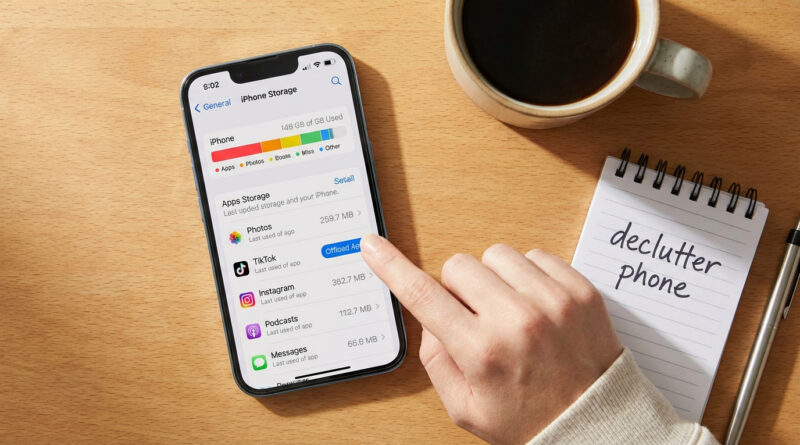
Settings → General → iPhone Storage
Give it a few seconds to load. You’ll see a list of apps sorted by size. Tap a large app you rarely open, then choose Offload App.
Later, if you need it again, just tap the app icon on your Home Screen and it re-downloads. Your stuff is still there.
Which apps are “safe” to offload?
Good candidates:
- Games you don’t play often
- Shopping apps you only use occasionally
- Travel apps (airlines, hotels) between trips
- Streaming apps if they’re holding downloads you don’t need
Be a little careful with apps that store data only on the phone (some audio recorders, niche note apps). If you’re not sure, open the app first and make sure it’s syncing or backed up.
Optional: turn on “Offload Unused Apps” automatically
If you want your iPhone to do this for you:
Settings → App Store → Offload Unused Apps
This doesn’t delete your data. It just removes apps you haven’t used in a while when space is tight.
Stop Photos from eating your phone alive (without deleting memories)
If you take lots of photos and video, this is usually the biggest win. The setting you want is Optimize iPhone Storage. It keeps the full-size originals in iCloud and stores smaller, space-saving versions on your iPhone.
Turn on Optimize iPhone Storage
Go to:
Settings → Photos → Optimize iPhone Storage
Your phone may take a while to sort itself out, especially if you have years of photos. Plug in and use Wi-Fi when you can.
If your Wi-Fi is flaky and uploads stall, fix that first. This guide is for Windows, but the idea (stable Wi-Fi beats everything) still applies: How to Fix Wi-Fi That Keeps Dropping on Windows Without Calling Your Internet Provider.
Important note about iCloud
This doesn’t magically give you unlimited storage. If your iCloud storage is already full, Photos can’t upload new originals. But even with the free iCloud tier, many people still get real relief from offloading apps and cleaning up the biggest local offenders.
A simple once-a-month routine that actually works
1) Check what’s really taking space
Settings → General → iPhone Storage. Wait for the list to load. Look at the top 5 items. Don’t guess. Use the list.
2) Offload 2 to 5 big “rarely used” apps
That alone often frees up a few GB without any stress. And you can bring apps back anytime.
3) Make sure Photos is optimizing
Settings → Photos → Optimize iPhone Storage. If it’s on, great. If not, flip it on and let it do its thing overnight on Wi-Fi.
4) Reboot once
This is not magic, but it helps iOS recalculate storage and clear some temporary files. Turn the phone off, then back on.
At a Glance: Comparison
| Feature/Aspect | Details | Verdict |
|---|---|---|
| Deleting apps | Removes the app and often removes local data and logins. Reinstalling can be annoying. | Use only for apps you truly never want again. |
| Offloading apps | Removes the app but keeps documents and settings saved. Easy to restore later. | Best “monthly cleanup” move for most people. |
| Optimize iPhone Storage (Photos) | Full-size photos live in iCloud, smaller versions stay on the phone. Frees space over time. | Biggest long-term win if your camera roll is the problem. |
Conclusion
You don’t need to play whack-a-mole with random deletes every time your iPhone complains. Offload a few big, rarely used apps, then let Photos optimize storage so your phone isn’t trying to carry your entire photo library at full size. Do that once a month and you’ll have a calm, repeatable routine that frees space without losing memories or breaking apps you might need later.