How To Stop Fake “Your Device Is Hacked” Pop‑Ups Before They Empty Your Bank Account
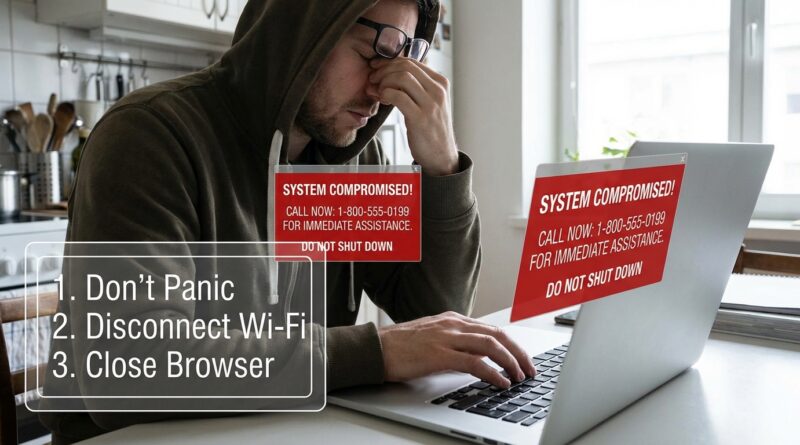
You’re trying to read an article, check your email, or shop for socks, and suddenly your screen explodes with warnings. “Your device is hacked.” “Do not shut down.” “Call Microsoft now.” “Apple Security Alert.” It’s scary on purpose, and that rush of panic is exactly what the scammers want. The good news is this. In most cases, these are not real system alerts. They are just nasty web pages designed to frighten you into calling a fake support number, handing over your credit card, or installing junk software that makes things worse. If you want to know how to stop fake virus pop up tech support scam tricks before they cost you money, the fix is usually simple. Don’t tap the warning. Don’t call the number. Don’t install anything. Close the page, clear the browser data, and check your notification settings so the same site cannot keep pestering you.
⚡ In a Hurry? Key Takeaways
- Real virus warnings do not tell you to call a random phone number in a browser pop-up. Treat those as scams.
- If a page won’t close, force-close the browser or restart the device, then clear browser history, site data, and notification permissions.
- Never give remote access, passwords, card numbers, or banking info to anyone who appears in one of these alerts.
First, take a breath. This is usually a fake web page, not proof your device is infected.
These scams are built to feel urgent. Loud beeps. Flashing red boxes. A robotic voice. A countdown timer. Sometimes the page locks your screen in full-screen mode so it feels like your whole phone or laptop is taken over.
That does not mean your device is actually hacked.
Most of the time, you landed on a malicious website, clicked a bad ad, or accidentally allowed a sketchy site to send browser notifications. The scammer’s real goal is simple. Get you to panic before you think.
How to spot a fake “your device is hacked” pop-up
Here are the biggest red flags:
It tells you to call a phone number right now
That is the classic tech support scam move. Apple, Microsoft, Google, and your bank do not splash random browser pages with urgent phone numbers for malware help.
It says do not close the page
A real security warning from your device does not beg you to keep a webpage open.
It uses scare tactics
Warnings like “your photos will be deleted,” “bank accounts at risk,” or “hackers are watching you now” are meant to push you into acting fast.
It wants payment or an app install
If the next step is “buy this antivirus,” “install this cleaner,” or “pay a support fee,” back away.
It appears inside your browser
If the message looks like part of a website tab, not your operating system’s normal security panel, that’s a clue. Browser alerts are easy for scammers to fake.
What to do right away
If one of these pages pops up, do these steps in order.
1. Do not tap the warning itself
Do not hit “scan now,” “remove virus,” “allow,” or “call support.” Even the big friendly button that says “close” can sometimes trigger more junk.
2. Close the browser tab or app
If you can, close the tab. If the tab refuses to close, close the whole browser app.
On iPhone or iPad: swipe up from the bottom or double-click Home, then swipe the browser away.
On Android: open recent apps and swipe the browser away, or use Force Stop in Settings if needed.
On Windows: press Ctrl + Shift + Esc to open Task Manager, then end the browser task.
On Mac: press Command + Option + Escape, choose the browser, then Force Quit.
3. Turn off Wi-Fi for a moment if the page keeps reappearing
This can stop the site from reloading while you get control back.
4. Reopen the browser carefully
If your browser asks whether to restore the last session or reopen closed tabs, choose no if you can. You do not want to reload the scam page.
How to stop fake virus pop up tech support scam pages from coming back
Closing the page is step one. The next step is making sure the site cannot keep buzzing you with fake warnings.
Clear browser history and site data
This helps remove cached junk, cookies, and site permissions tied to the bad page.
In Chrome: Settings, Privacy and Security, Clear Browsing Data.
In Safari on iPhone or iPad: Settings, Safari, Clear History and Website Data.
In Safari on Mac: Safari, Settings, Privacy, Manage Website Data.
In Edge: Settings, Privacy, Search, and Services, Clear Browsing Data.
In Firefox: Settings, Privacy & Security, Cookies and Site Data.
Remove notification permissions from shady sites
This is a big one. Many people click “Allow” on a website without thinking, then the site starts sending fake alerts that look almost official.
Go into your browser’s site settings and look for Notifications. If you see strange websites listed as Allowed, remove or block them.
Check for names you do not recognize, misspelled brands, or weird addresses full of random letters.
Turn off full-screen tricks
Some scam pages use full-screen mode to feel more convincing. Press Esc on a computer if you can. On phones, just force-close the browser.
What not to do
This part matters just as much as the cleanup.
Do not call the number
If you call, the scam usually moves fast. The person may sound calm, professional, and helpful. They may ask to remote into your computer, “run a scan,” and then demand payment to fix invented problems.
Do not install random “security” apps from the page
Some are useless. Some are aggressive adware. A few are outright dangerous.
Do not give remote access to your device
If a stranger connects to your computer, they may snoop around, steal files, lock the device, or try to log in to your bank while you watch.
Do not enter passwords or card details
No legitimate security cleanup starts with paying a stranger from a browser warning.
How to check whether your device is actually infected
Most fake pop-ups are just fake. But if you want peace of mind, do a calm check after you close the page.
Run your built-in security tools
Windows: Use Windows Security and run a scan with Microsoft Defender.
Mac: Make sure macOS is updated. Apple includes built-in protections like XProtect and Gatekeeper.
iPhone and iPad: True infections from ordinary web browsing are rare. Focus on removing bad website permissions and keeping iOS updated.
Android: Use Google Play Protect and review recently installed apps.
Look for real warning signs
These include brand-new apps you did not install, constant redirects in your browser, unusual battery drain tied to a suspicious app, or accounts showing login alerts you did not expect.
If you do not see those signs, the odds are good you just hit a scam page and not a full device compromise.
If you already clicked or called, do this next
Don’t beat yourself up. These scams work because they are designed to hit people when they are distracted or scared.
If you gave them remote access
Disconnect from the internet. Uninstall the remote access tool they told you to use. Run a security scan. Change your passwords from a different trusted device, starting with email and banking.
If you gave them a password
Change it right away. If you reused that password anywhere else, change those too. Turn on two-factor authentication where possible.
If you gave them card or bank information
Call your bank or card issuer using the number on the back of your card, not the one from the pop-up. Ask them to watch for fraud, freeze the card if needed, and review recent transactions.
If you paid them
Contact your bank fast. You may still have options to dispute the charge. Time matters.
Simple ways to avoid this mess in the future
You do not need to become a cybersecurity expert. A few habits make a huge difference.
Keep your browser and device updated
Updates patch the holes scammers and malicious ads like to use.
Be stingy with notification permissions
If a random website asks to send notifications, the safest answer is usually no.
Use a built-in pop-up blocker
Modern browsers already include protections. Make sure they are turned on.
Install software only from official app stores or vendor websites
If a webpage says you need a special cleaner or codec, that is often your cue to leave.
Pause before reacting to fear
This may sound simple, but it works. Scammers win when they control the tempo.
At a Glance: Comparison
| Feature/Aspect | Details | Verdict |
|---|---|---|
| Browser pop-up warning | Often uses full-screen tricks, fake logos, loud alerts, and a phone number to call | Assume scam until proven otherwise |
| Real built-in security alert | Comes from your operating system or trusted security software, not a random webpage asking for payment | Check calmly, but do not panic |
| Best response | Force-close browser, clear site data, remove notification permissions, scan with trusted built-in tools | Fast, safe, and usually enough |
Conclusion
Fake tech support and fake virus pop-ups are exploding because fear works. They count on people being busy, worried, and not wanting to make the wrong move. The smartest response is not a fancy one. It’s a calm one. Close the page. Don’t call. Don’t install. Clear the browser junk and review notification permissions. That simple routine can protect your money, your logins, and your confidence online without wiping your device or paying for sketchy apps. If you remember one thing, make it this. A real security problem can be checked step by step. A scam tries to rush you. Slow down, and you take the power back.