How to Stop Chrome From Reloading Every Tab After Sleep on Your MacBook
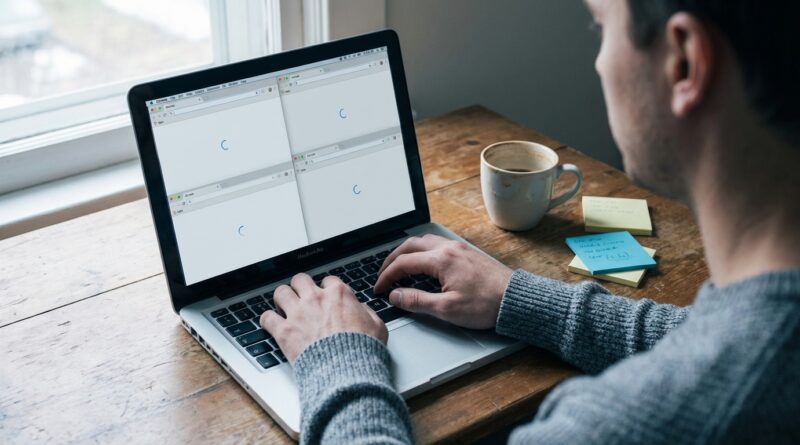
You crack open your MacBook, expecting to jump right back into work, and Chrome acts like it has never seen your tabs before. Everything reloads. Dashboards sign out. Docs and forms reset. That half-finished thought sitting in a text box is gone. It is maddening, especially if your browser is basically your desk, your notebook, and your workbench all at once.
If you are trying to stop Chrome reloading tabs after sleep on your MacBook, the short version is this. You usually cannot fully disable it with one clean switch inside Chrome anymore. But you can reduce it a lot by turning off Memory Saver, checking Chrome’s tab discard behavior, stopping extensions that unload tabs, and making sure macOS is not squeezing Chrome for memory while your Mac sleeps. The goal is not some magic hidden setting. It is making Chrome less aggressive, so your tabs stay put more often and your laptop still runs well.
⚡ In a Hurry? Key Takeaways
- Chrome tab reloads after sleep on MacBook are usually caused by Memory Saver, tab discarding, extensions, or macOS memory pressure.
- Start by turning off Chrome Memory Saver, reviewing chrome://discards, and removing any tab sleeping or session manager extensions.
- You do not need risky cleanup apps or more RAM first. A few browser and Mac settings usually make the biggest difference.
Why Chrome Keeps Reloading Tabs After Sleep
Chrome is trying to be helpful. That is the annoying part.
On a MacBook, especially one with lots of tabs open, Chrome may unload background tabs to save memory and battery. Then when you wake the laptop, those tabs have to reload. If the tab was a web app, a cloud IDE, or a page with a form, that reload can feel like a small disaster.
There are four usual suspects:
- Chrome Memory Saver, which puts tabs to sleep.
- Tab discarding, where Chrome dumps inactive tabs from memory.
- Extensions that “optimize” memory by suspending tabs.
- macOS memory pressure, which pushes Chrome to be more aggressive.
The tricky bit is that sleep itself is not always the direct cause. Sleep is just when you notice the damage.
First Fix: Turn Off Chrome Memory Saver
This is the first place I would look. It is also the easiest.
How to disable it
- Open Chrome.
- Click the three-dot menu in the top-right corner.
- Go to Settings.
- Click Performance.
- Turn Memory Saver off.
If you do not want to turn it off completely, Chrome also lets you add sites that should always stay active. That is handy for things like Gmail, Slack, Notion, Figma, banking sites, web dashboards, and cloud development tools.
Use the exception list if you need a middle ground
In the same Performance section, look for the option to keep certain sites always active. Add the web apps that hurt the most when they reload.
This is often the sweet spot. You still let Chrome save memory on throwaway tabs, but your important work tabs stop getting wiped out.
Check Whether Chrome Is Discarding Tabs
Chrome has a hidden page that shows which tabs it considers disposable. Very cheerful word for something that can wreck your workflow.
Open Chrome’s discard page
Type this into the address bar:
chrome://discards
You will see a list of tabs and some technical details. Look for clues like whether a tab is marked as discardable or has been discarded before.
On some Chrome versions, you may be able to manually toggle or inspect tab behavior here. Even when you cannot fully control it, this page is useful because it confirms what is happening. If your favorite dashboard keeps getting discarded, now you know it is not your imagination.
What to do with that information
If the same sites keep getting dumped, add them to Chrome’s “Always keep these sites active” list. It is the cleanest fix for repeat offenders.
Audit Your Extensions
This one catches a lot of people.
Many MacBook users installed an extension ages ago to “save battery” or “sleep tabs” and forgot all about it. Then Chrome updates, macOS changes, and suddenly tabs are reloading far more than before.
What to look for
- Tab suspender extensions
- Session managers
- Memory cleaner tools
- Battery saver extensions
How to check
- In Chrome, click the puzzle piece icon.
- Open Manage Extensions.
- Disable anything related to tab sleeping, suspending, or memory cleanup.
- Put your MacBook to sleep and test again.
Do not skip this step. Extensions often fight with Chrome’s own memory tools, and that combination can make tab reloads much worse.
Make Sure Chrome Reopens Where You Left Off
This will not stop every reload, but it can reduce the pain when Chrome itself restarts or crashes.
- Open Chrome Settings.
- Click On startup.
- Select Continue where you left off.
Again, this is not the main fix for sleep-related tab refreshes. But it is a good safety net.
Check Your Mac’s Memory Pressure
If your MacBook is low on available memory, Chrome is much more likely to start unloading tabs. This is especially common if you have Chrome, Zoom, Slack, Photoshop, and a couple of huge web apps all open together.
How to check memory pressure in macOS
- Open Applications.
- Go to Utilities.
- Open Activity Monitor.
- Click the Memory tab.
- Look at the Memory Pressure graph at the bottom.
If it is mostly green, you are probably fine. If it is yellow or red, your Mac is under strain, and Chrome will behave more aggressively.
What actually helps
- Quit apps you are not using.
- Restart Chrome once in a while if it has been open for days.
- Reduce the number of active browser windows, not just tabs.
- Use Chrome’s site exceptions so only important tabs stay awake.
You do not need to go on a wild goose chase with random “Mac cleaner” apps. In fact, I would avoid them.
Turn Off Low Power Mode While Testing
MacBooks can get more aggressive with background tasks when battery-saving settings are in play. It is not always the root cause, but it can push Chrome in the wrong direction.
Check it here
- Open System Settings.
- Click Battery.
- Look for Low Power Mode.
- Turn it off temporarily and test Chrome after sleep.
If the reloads calm down, you have found a useful clue. You can then decide whether battery life or tab persistence matters more for your setup.
What About Chrome Flags?
You may see forum posts telling you to change hidden flags. Be careful.
Chrome flags come and go. Names change. Some do nothing on current versions. Others create weird side effects later. If you are trying to stop Chrome reloading tabs after sleep on your MacBook, the stable fixes are still the best ones. Use the regular Settings menu first. Use chrome://discards to investigate. Keep flags as a last resort, not a first move.
If You Use Web Apps All Day, Pick Your “Do Not Touch” Tabs
This is the practical fix for people who live in the browser.
Think about which tabs truly need to stay alive:
- Project management boards
- Messaging apps
- Cloud IDEs
- Admin dashboards
- Any tab with a long form or unsaved notes
Add those sites to Chrome’s always-active list. Let the junk tabs sleep. That gets you most of the benefit without turning your MacBook into a space heater.
When the Problem Is Really a Site Log-In Timeout
Sometimes Chrome is not the only villain here.
Some sites log you out after inactivity for security reasons. So when you wake your MacBook, it looks like Chrome “nuked” the tab, but the site itself has expired your session.
If a specific service always signs out after sleep, test whether it does the same in another browser like Safari. If it does, the site is likely enforcing a timeout. You may not be able to stop that part.
A Good Troubleshooting Order
If you want the fastest path, do this in order:
- Turn off Memory Saver.
- Add your important sites to the always active list.
- Check chrome://discards.
- Disable tab sleeping or memory-saving extensions.
- Check Activity Monitor for memory pressure.
- Test with Low Power Mode off.
- Update Chrome and macOS.
That order keeps things simple. It also helps you avoid changing five things at once and having no idea which one worked.
At a Glance: Comparison
| Feature/Aspect | Details | Verdict |
|---|---|---|
| Memory Saver | Chrome’s built-in tool can put inactive tabs to sleep and trigger reloads after wake. | Best first setting to change. |
| Extensions | Tab suspenders and memory cleaners often make the problem worse or duplicate Chrome’s own behavior. | Disable and test before doing anything drastic. |
| Mac memory pressure | If macOS is low on memory, Chrome gets much more aggressive about unloading tabs. | Important to check if you keep dozens of tabs and apps open. |
Conclusion
If Chrome keeps reloading tabs after sleep on your MacBook, you are not imagining it, and you are definitely not the only one annoyed by it. The good news is that this usually comes down to a few specific settings, not some mysterious hardware failure. Start with Memory Saver, check tab discarding, clean up extensions, and make sure your Mac is not under heavy memory pressure. For people juggling dozens of tabs, web dashboards, and cloud IDEs, fixing this is a real productivity win. Less waiting. Fewer lost forms and notes. And a MacBook that still feels quick, without diving into sketchy tweaks or assuming you need to buy more RAM.