How to stop ChatGPT from using your chats for training
If you have been asking, “how do I stop ChatGPT from using my chats for training?”, you are not overreacting. A lot of people are suddenly wondering whether their prompts, uploads, and personal details are being fed back into AI systems. The annoying part is that the control does exist, but it is tucked away in settings many people never open. The good news is this is one of the easier privacy fixes you can do.
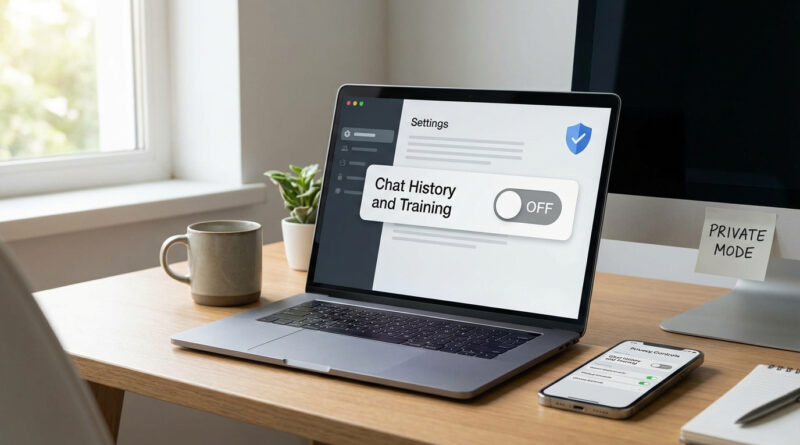
On ChatGPT, you can turn off training by opening Settings and disabling the option that lets OpenAI use your content to improve models. On the web, click your profile icon, then go to Settings, then Data Controls. On mobile, tap the menu, then Settings, then Data Controls. Once you switch it off, your future chats will not be used to train models. It only takes a minute, and for many people, it is the difference between “maybe this is fine” and actual peace of mind.
⚡ In a Hurry? Key Takeaways
- Yes, you can stop ChatGPT from using future chats for training by turning off the training option in Data Controls.
- On web and mobile, go to Settings, then Data Controls, and disable the content training setting.
- This improves privacy, but you should still avoid pasting highly sensitive information into any chatbot unless you truly need to.
Where to find the setting
If your main goal is simple, here is the short version.
On the ChatGPT website:
Click your profile picture or name in the lower corner. Open Settings. Choose Data Controls. Look for the setting that says your content can be used to improve the model, then turn it off.
On the ChatGPT mobile app:
Tap the menu icon. Open Settings. Tap Data Controls. Turn off the option for using your content to improve models.
That is the core answer to “how to stop ChatGPT from using my chats for training.” If you only needed the quick fix, you are done.
What this setting actually changes
This is the part that trips people up. Turning the setting off does not mean ChatGPT stops storing every trace of your account activity instantly. It means your future conversations are not used to train or improve the models.
In plain English, it is a training opt-out. It is not the same thing as making your chats disappear from your account, and it is not exactly the same as deleting your chat history.
What it does do
It stops eligible future chats from being used for model training.
What it does not do
It does not magically erase older chats you already had. It also does not mean there is zero data handling behind the scenes. Some information may still be kept for safety, abuse prevention, billing, legal reasons, or account features.
What about files, personal details, and sensitive prompts?
This is where common sense still matters. Even with training turned off, you should think twice before uploading tax records, medical documents, passwords, client contracts, or anything else you would not want copied into the wrong place.
Why? Because privacy settings reduce risk. They do not turn an online service into a locked filing cabinet.
A good rule is simple. If the information would be painful to leak, avoid pasting it unless there is a clear reason and you trust the service for that use.
How to be extra careful
If privacy is your main concern, a few habits help a lot:
1. Turn off training first
Do this before starting chats that include personal or work material.
2. Use Temporary Chat when available
Temporary chats are designed for more limited retention and are generally a better choice when you do not want a conversation hanging around in your history.
3. Delete old conversations you no longer need
If your sidebar is full of old chats with personal details, clean it up. Less stored history usually means less worry.
4. Remove names and account numbers
If you just need writing help or analysis, replace private details with placeholders. “Client A” is safer than a real client name.
Does this apply to old chats too?
Usually, this setting is about future chats, not a rewind button for the past. If you have old conversations you no longer want sitting there, delete them manually from your history.
If you are especially concerned about anything you already entered, check the company’s current privacy documentation and help pages inside your account. These details can change over time, and the wording matters.
Why people get confused
Honestly, the wording is not always crystal clear. Companies often say things like “improve the model” or “train our systems,” and regular people hear something much bigger. That leads to fair questions.
Are my chats being read by a human? Are my files part of the next model? Does turning this off stop all storage? Those are not silly questions. They are exactly the questions people should ask.
The easiest answer is this. If you want the best available privacy choice in ChatGPT, turn off the training setting, use temporary chats when possible, and avoid sharing highly sensitive data.
At a Glance: Comparison
| Feature/Aspect | Details | Verdict |
|---|---|---|
| Training setting | Turn it off in Settings, then Data Controls, to stop future chats from being used for model training. | Worth doing immediately |
| Old chat history | The setting does not usually remove or rewrite past conversations. You may need to delete old chats yourself. | Review and clean up if needed |
| Sensitive information | Even with training off, avoid sharing passwords, financial records, medical files, or confidential work documents unless necessary. | Still be cautious |
Conclusion
If you came here wondering how to stop ChatGPT from using my chats for training, the answer is refreshingly simple. Open Settings, go to Data Controls, and switch off the training option. That one change will not solve every privacy concern on earth, but it does give you a clear, practical step you can take in under two minutes on web or mobile. That matters right now, because AI privacy questions are only getting louder. People want straight answers, not vague promises. This is one of those small settings that can make you feel back in control, and that is exactly the kind of fix worth sharing.