How to Safely Use ChatGPT and Other AI Tools Without Leaking Private Stuff
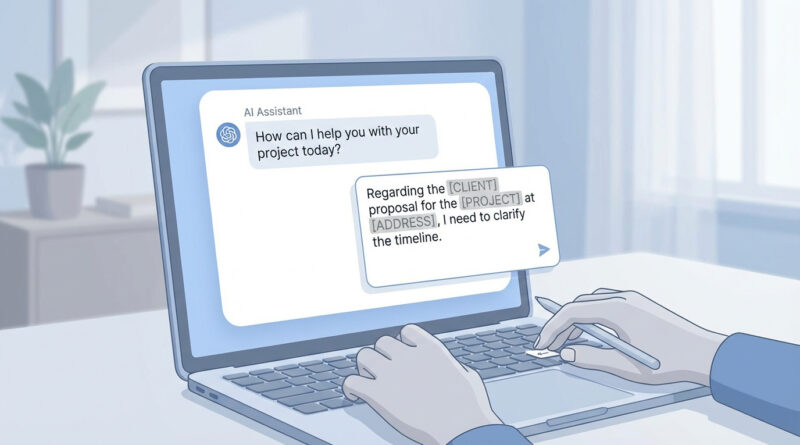
I get it. AI tools are fun and genuinely useful, but there’s a knot-in-your-stomach feeling right before you paste something from work, school, or a client. You’re not being paranoid. You’re being smart. The hard part is that “safe” isn’t always obvious, and policies (if they exist) are often vague. Here’s the simple rule I use: before you paste anything, pause and ask, “Would I be okay if this text ended up in a company training presentation with my name removed?” If the answer is no, don’t paste it as-is. Strip out names, dates, addresses, and any numbers that look like logins or IDs. Then swap them with short labels like [CLIENT], [PROJECT], or [AMOUNT]. You still get helpful AI output, without accidentally handing over private details.
⚡ In a Hurry? Key Takeaways
- Use one mental filter: “Would I be okay if this showed up in a training slide with my name removed?”
- If not, redact. Replace names, dates, addresses, and ID-like numbers with labels like [CLIENT] or [INVOICE_ID].
- You can still get great answers. You’re just feeding the AI the “shape” of the problem, not the sensitive bits.
The One-Question Privacy Check (My Favorite Habit)
Most people get tripped up because they treat AI like a private notebook. It feels private. It’s a chat box. But depending on the tool and settings, your text may be stored, reviewed for safety, used to improve systems, or at least kept longer than you expect.
So make it simple. Before you paste, ask:
“Would I be okay if this text ended up in a company training presentation with my name removed?”
If you hesitate, that’s your answer. Redact first.
What You Should Almost Never Paste
Here’s the “don’t do it” list. If you need help with any of these, describe the situation instead of pasting the raw content.
Passwords, one-time codes, and recovery info
Anything that logs you in. Passwords, MFA codes, recovery phrases, password reset links, even “security question” answers. Don’t test them. Don’t “check if this looks strong.” Just don’t paste them.
Personal identifiers (yours or anyone else’s)
Full names tied to other details, home addresses, phone numbers, birthdays, license numbers, passport numbers, student IDs, employee IDs, patient IDs.
Client or company confidential material
Contracts, internal emails, customer lists, private meeting notes, pricing sheets, non-public roadmaps, legal documents, HR issues. Even if it seems harmless, it can contain “breadcrumbs” that identify people or projects.
Anything protected by law or policy
Medical info, student records, regulated financial data, or anything your workplace labels as confidential. If your company has an AI policy, follow it even if it feels strict.
How to Redact So the AI Still Helps
Redacting doesn’t mean you have to make the prompt useless. The trick is to keep the structure and meaning, while removing the identifying details.
Swap sensitive details with short labels
Replace:
- Names with [CLIENT], [MANAGER], [VENDOR]
- Projects with [PROJECT] or [APP_NAME]
- Money with [AMOUNT] or [BUDGET]
- Dates with [DATE] or [TIMELINE]
- IDs with [INVOICE_ID], [CASE_ID], [ORDER_NUMBER]
Example: before and after
Too specific (don’t paste):
“Hi, I’m emailing about Acme Co’s unpaid invoice #483991. The amount is $14,820 due on Jan 12, 2026. Please call me at 555-0199. The account is under John Smith.”
Redacted (safe enough for most general help):
“Draft a polite but firm follow-up email about an unpaid invoice. [CLIENT] has invoice [INVOICE_ID] for [AMOUNT] that was due on [DATE]. Ask for a status update and offer to resend the invoice.”
You’ll still get a strong email. You just removed the parts that could hurt you later.
Keep the “shape” of the problem
AI is great at patterns. Tone, structure, explanations, summaries, checklists, brainstorming. It does not need the real customer name to write a customer-friendly message. This is like troubleshooting a phone camera: you get better results when you use a repeatable, simple method instead of flipping every switch. That’s why I like the “default habit” approach in How to Fix iPhone Photos That Look Blurry or Washed Out After iOS Updates. Same idea here. One small routine beats guesswork.
Quick “Safe Prompt” Templates You Can Steal
For work emails
Prompt: “Rewrite this email to sound calm and professional. Keep it under 120 words. Remove any blame. Context: [SITUATION]. Here’s my draft (redacted): …”
For documents you can’t share
Prompt: “I can’t paste the document, but here’s a summary of what it says: [SUMMARY]. I need a one-page outline for a response that includes: [POINTS].”
For school help
Prompt: “Help me understand this concept using a simple example. My assignment topic is [TOPIC]. Don’t write the full answer for me. Ask me 3 questions to guide my thinking.”
Extra Safety Checks (Worth 30 Seconds)
Look for hidden identifiers
People remember to remove names, but forget things like:
- File paths (they can include your username or company structure)
- Ticket numbers and case IDs
- Unique error screenshots with customer info in the corner
- Metadata in copied text (signatures, footers, internal links)
Be careful with “Can you review this contract?” requests
If it’s a real contract, don’t paste the whole thing. Ask for a checklist of clauses to look for, or paste a heavily edited excerpt that removes the parties, numbers, and any deal-specific terms.
When in doubt, summarize instead of paste
A summary is usually enough to get the answer you need, and it’s safer by default.
At a Glance: Comparison
| Feature/Aspect | Details | Verdict |
|---|---|---|
| The “training slide” rule | Ask one question before pasting: would you be okay seeing it reused with your name removed? | Best everyday filter for quick decisions |
| Redaction method | Remove names, dates, addresses, and ID-like numbers. Replace with labels like [CLIENT], [DATE], [AMOUNT]. | Keeps prompts useful while reducing risk |
| Summarize vs. paste | Describe the situation and goals instead of sharing the original document. | Safest option when you’re unsure |
Conclusion
You don’t need to swear off AI tools, and you don’t need to wait for perfect company policies to get value from them. Just build one small habit: the “training slide” question, then redact and label the sensitive bits. It’s easy to remember, fast to do, and it lets you use ChatGPT and other AI helpers with a lot more confidence in everyday life.