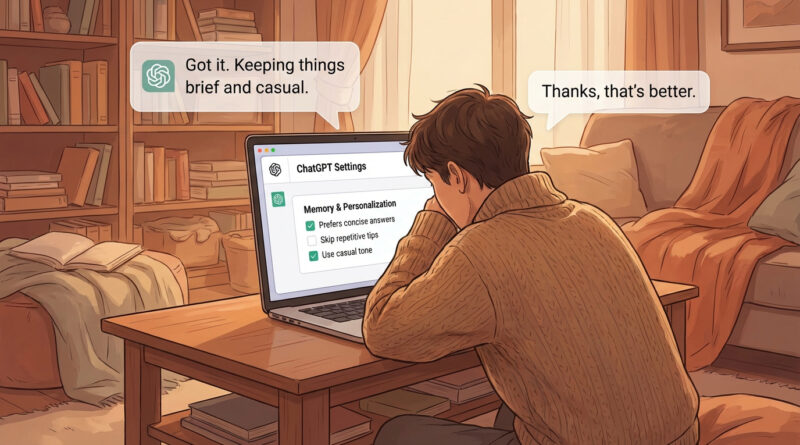
How to Make ChatGPT Actually Remember Your Style and Stop Repeating Useless Tips
It’s maddening when ChatGPT acts like it’s meeting you for the first time. You tell it you’re on Windows, you hate long step lists, and you already tried the obvious stuff. Then it turns around and suggests “restart your computer” like it’s brand new advice. The good news is you can fix a lot of this with one small setup change. You’re basically teaching ChatGPT your “house rules” so it stops defaulting to generic, one size fits all help.
⚡ In a Hurry? Key Takeaways
- Turn on Memory (or Personalization) in settings and tell it your preferences in plain English.
- Keep your “rules” short and specific, then paste one reminder line at the start of new chats.
- You’re in control. You can view, edit, or clear what it remembers if it ever feels off.
Why ChatGPT Keeps Sounding Like a Generic Help Desk
ChatGPT isn’t trying to annoy you. It’s trying to be safe and broadly useful, which usually means it falls back on “standard troubleshooting.” That’s why you keep seeing the same usual suspects: restart, clear cache, reinstall, update drivers, repeat.
Also, separate chats often behave like separate “rooms.” Unless you give it a reason to carry your preferences forward, it will default back to factory settings behavior.
The Fix: Teach It Your “House Rules” Once
Open ChatGPT’s settings and look for something like Memory, Personalization, or Custom Instructions. The exact wording changes depending on the app and platform, but the idea is the same: you get a spot to tell it how you like to work.
What to write (keep it boring and direct)
Write your preferences like you’re texting a helpful coworker. For example:
“I use Windows 11 and Android. Keep step lists to five steps max. Assume I already tried restarting. Never suggest reinstalling unless I ask. Ask one clarifying question if needed, then give the best answer.”
What this does (and what it doesn’t)
This doesn’t make ChatGPT magically know everything about you. It just gives it a default style and workflow so it stops wasting your time with advice you hate.
Make It “Snap Back” Faster in New Chats
Even with Memory on, it helps to kick off a new chat with one short reminder line. Think of it like telling a new cashier, “Same order as usual.”
Use a one-liner you can paste anywhere
Here are a few good options:
- “Use my house rules: Windows/Android, max 5 steps, no reinstall unless I ask.”
- “Skip basics. Give me the quickest path, then alternatives.”
- “Talk to me like I’m comfortable with settings, but not command line.”
This tiny habit saves more time than people expect, especially if you bounce between work tasks and random tech problems.
Be Specific About What You’re Sick of Hearing
If there’s one tip you never want again, say so. ChatGPT cannot read your mind. It can follow preferences really well when you spell them out.
Examples that work:
- “Don’t tell me to clear cookies unless the issue is login-related.”
- “If you suggest a setting change, tell me the exact menu path.”
- “Give me one best answer first. Don’t give me ten options.”
You’re Not “Being Watched.” You’re Setting Defaults.
A lot of nervous users avoid Memory because it sounds creepy. But the point is control. You can usually:
- See what it thinks it remembers
- Edit items that are wrong
- Delete individual memories
- Clear everything and start fresh
If it ever starts making weird assumptions, don’t argue with it. Just fix or delete the memory and move on.
A Helpful Way to Think About This
Setting ChatGPT’s Memory is like setting your preferred default app. You’re telling the system, “Use this choice unless I say otherwise.” If that idea sounds familiar, it’s the same vibe as fixing file defaults on a Mac. Once you set it, your day gets smoother. (If you’ve ever had a random app steal your file associations, you’ll appreciate this: How to Stop Random Apps From Hijacking ‘Open With’ on Your Mac.)
At a Glance: Comparison
| Feature/Aspect | Details | Verdict |
|---|---|---|
| Memory/Personalization | Stores your preferences so replies match your devices, tone, and boundaries (like “no reinstall”). | Best long-term fix for repeated generic advice. |
| One-line reminder at the start | A quick “snap back” prompt that forces the right style in new chats. | Fastest win. Do this even if Memory is on. |
| Editing and clearing saved info | You can review, delete, or reset what’s remembered if it becomes inaccurate or too personal. | Good for peace of mind. You stay in charge. |
Conclusion
If ChatGPT keeps forgetting your preferences and repeating the same tired tips, don’t fight it one chat at a time. Set your “house rules” in Memory or Personalization, keep them short, and start new chats with a quick one-line reminder. Done right, ChatGPT stops feeling like a one size fits all helper and starts feeling tuned to you. That saves time, cuts down on the same old advice, and reminds you that you control what’s remembered instead of feeling watched.