How to Make Android Notifications Less Annoying So You Only See What Matters
Your Android probably means well. But when you get pings from apps you barely use, the important stuff (a real text, a work message, a flight update) gets buried. That is frustrating, and it can start to mess with your focus and sleep. The good news is you do not have to uninstall half your phone or spend an hour wandering through Settings. You can tame notifications in real life, as they happen, in about five minutes.
⚡ In a Hurry? Key Takeaways
- Set a 5-minute timer and “clean up” notifications as they pop up by long-pressing them.
- For useless alerts, turn off that notification category or set it to Silent instead of swiping it away.
- You are not deleting apps or missing emergencies. You are just telling your phone what deserves noise.
The 5-minute rule: fix notifications in the moment
Here is the small habit that makes a big difference. Set a five minute timer. Then, for one day, whenever a useless notification shows up, do not swipe it away on autopilot.
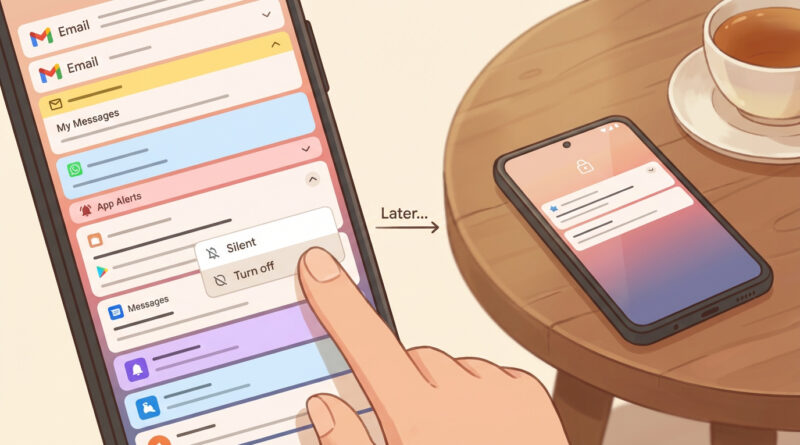
Instead, tap and hold the notification. Your phone will show options like Turn off, Silent, or Settings.
Make a quick call:
- Turn off if you never want that kind of alert again.
- Silent if it is sometimes useful, but not worth a sound, vibration, or status bar drama.
- Keep if it is truly important (texts, security alerts, banking, travel, calendar reminders).
Why this works better than digging through Settings
The Settings app is a maze because Android notifications are not one switch per app. Most apps have multiple categories. A shopping app might have categories for shipping updates (useful), sales (annoying), and “we miss you” nudges (please no).
When you long-press the actual notification you just received, Android takes you straight to the right category. No guessing. No hunting.
It is the same idea as sorting photos into “keep forever” vs “everyday stuff” so you can clean up without anxiety. If you liked that kind of simple sorting approach, you might also like How to Stop Your iPhone Photos from Filling Up iCloud and Still Keep Them Safe. Different problem, same mindset: separate what matters from the noise.
Step-by-step: the “tap and hold” cleanup (Android 12, 13, 14, 15)
1) Long-press the notification
From your lock screen or notification shade, press and hold the notification.
2) Choose your level: Off, Silent, or Default
Pick one:
- Off: Best for pure junk. You can still open the app whenever you want.
- Silent: Best for “nice to know” updates. They will show up quietly without interrupting you.
- Default (or similar): Keep the sound and pop-up behavior for critical stuff.
3) If you see “Settings,” tap it once
This is where you can fine-tune by category. You might see toggles like “Promotions,” “Tips,” “News,” “Recommended for you.” Those are usually safe to turn off.
What to silence first (quick wins)
If you want a cheat sheet, these are the usual culprits:
- Shopping apps: Promotions, deals, back-in-stock (unless you truly want them).
- Social apps: “Suggested post,” “People you may know,” “Trending.” Keep direct messages if you want.
- Games: Energy refills, daily rewards, “come back” reminders.
- News apps: Breaking news can be useful, but most “top stories” pings can go Silent or Off.
Do Not Disturb: the safety net for focus and sleep
Notification cleanup stops the long-term noise. Do Not Disturb is what protects you during the moments you need quiet.
Try this tonight:
- Go to Settings > Notifications (or Sound) > Do Not Disturb.
- Set a schedule for sleep hours.
- Allow exceptions for the people and apps you really need (calls from family, alarms, maybe your doorbell cam).
This way, even “allowed” notifications do not wreck your bedtime.
Common worries (so you do not overdo it)
“What if I miss something important?”
Start with Silent when you are unsure. Silent still delivers the notification, it just stops yelling at you.
“Will this break the app?”
No. Turning off a notification category does not uninstall the app or stop it from working. It only stops interruptions.
“Why do some apps turn notifications back on?”
A few apps try to re-enable alerts after updates or when you reinstall. If a spammy notification returns weeks later, long-press it again and shut that category back down. It takes five seconds.
At a Glance: Comparison
| Feature/Aspect | Details | Verdict |
|---|---|---|
| Swiping notifications away | Fast, but the same junk comes back tomorrow. | Feels productive. Solves nothing. |
| Long-press cleanup (Off/Silent by category) | Adjusts the exact type of alert that annoyed you, right when it happens. | Best balance of speed and control. |
| Do Not Disturb schedules | Blocks interruptions during focus and sleep windows. You choose exceptions. | Best for bedtime and deep work. Pair with cleanup. |
Conclusion
You do not need a perfect notification setup. You need a phone that knows what matters to you. Set a five minute timer, then long-press useless notifications for one day and turn that category off or set it to Silent. By bedtime, your phone will already be calmer. Do it a little each day and the noise drops fast. Less buzzing means better focus, fewer distractions, and an easier time winding down at night, without becoming a settings expert.