How to Fix Windows 11 Updates Stuck at 100% Without Losing Your Stuff
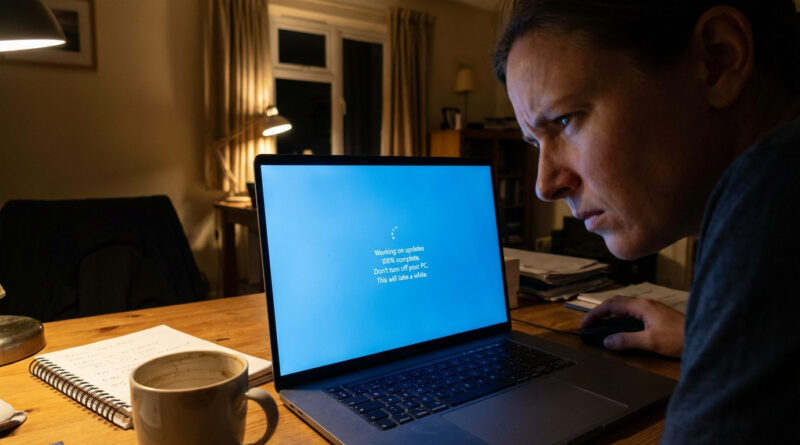
You’re not imagining it. A Windows 11 update stuck at 100% can sit there forever, especially during the restart phase, with that spinning circle mocking you. And the scariest part is the “Should I turn it off?” question. You’re worried you’ll corrupt Windows or lose your files. The good news is that a frozen update screen usually isn’t actively writing anything anymore. If nothing has changed for 45 minutes, you can safely take control, get back into Windows, and nudge the update process back onto a normal track without wiping your PC.
⚡ In a Hurry? Key Takeaways
- If the screen has not changed for 45 minutes, hold the power button to shut down, then reboot into Safe Mode with Networking.
- In Safe Mode, run Windows Update Troubleshooter, then free up at least 10 GB before trying the update again.
- This method is designed to fix the stall without command-line steps or resetting your PC, so your personal files stay put.
First, make sure it’s actually stuck
Windows updates can “look” frozen when they are just slow. If you still see occasional disk activity (your drive light flickering) or the percent changes, let it ride.
But if the update has been sitting at 100% (or the same restart screen) with no change for 45 minutes, treat it as stuck.
Step 1. Do the safe shutdown (yes, really)
What to do
Press and hold your PC’s Power button for about 10 seconds until it turns off.
Wait 10 seconds. Then turn it back on.
Why this usually doesn’t eat your files
Your documents and photos are not stored “inside the update.” They’re on your drive like usual. When an update is truly stuck, forcing a shutdown is often the only way to break the loop and get Windows to recover on next boot.
Step 2. Boot into Safe Mode with Networking
On the next boot, start tapping F8 or Shift + F8 repeatedly. If your PC supports it, you’ll reach recovery options.
If you see a menu, choose:
Troubleshoot → Advanced options → Startup Settings → Restart
Then pick Safe Mode with Networking (often option 5).
Quick note: Some Windows 11 PCs ignore F8 because they boot too fast. If that happens, you can usually trigger recovery by turning the PC on and off during boot a couple of times until you see “Preparing Automatic Repair.”
Step 3. Run the Windows Update Troubleshooter
Once you’re in Safe Mode with Networking:
Settings → System → Troubleshoot → Other troubleshooters → Windows Update → Run
Let it finish and apply whatever fixes it suggests.
If you want a slightly slower, gentler approach next time (before you do a hard shutdown), see How to Fix Windows Updates That Get Stuck and Won’t Finish. It includes a smart trick: briefly disconnecting from Wi‑Fi to see if the update completes offline.
Step 4. Free up at least 10 GB (this prevents the repeat stall)
This is the part people skip, then the update gets stuck at 100% again.
Do this before you retry:
Easy wins that won’t hurt your system
1) Clear Downloads (carefully)
Open File Explorer → Downloads. Delete things you recognize like old installers (.exe, .msi), duplicate files, and huge downloads you no longer need. If you’re unsure about something, move it to an external drive or leave it.
2) Empty the Recycle Bin
Right-click Recycle Bin → Empty.
3) Use Storage cleanup
Settings → System → Storage → Temporary files
Select safe items like Temporary files and Windows Update cleanup (if offered), then remove.
Aim for 10 GB free. More is better.
Step 5. Try the update again (back in normal mode)
Restart the PC normally.
Then go to:
Settings → Windows Update → Check for updates
Let it run. If it starts installing again, that’s a good sign. Expect one or more restarts.
What if it freezes again at 100%?
If it stalls again for 45 minutes, repeat the Safe Mode steps and run the troubleshooter one more time. After you’re back in Windows, you can also pause updates for 7 days so you can get work done and try again when you’re ready. The walkthrough in How to Fix Windows Updates That Get Stuck and Won’t Finish covers that option too.
At a Glance: Comparison
| Feature/Aspect | Details | Verdict |
|---|---|---|
| When to shut down | If the update screen shows no change for 45 minutes | Safe and reasonable for a true freeze |
| Best repair step | Boot Safe Mode with Networking, run Windows Update Troubleshooter | Fixes common update loop issues without scary tools |
| Preventing the next stall | Free at least 10 GB (Downloads, old installers, temporary files) | High impact. Stops repeats more often than people expect |
Conclusion
When your Windows 11 update is stuck at 100%, the hardest part is getting past the fear of touching anything. The 45-minute rule, Safe Mode with Networking, the Windows Update troubleshooter, and freeing up 10 GB is a calm, safe way out. No command lines. No wipe. Just a practical reset of the update process so your PC stays secure and usable today, without hours of waiting or a repair shop visit you probably don’t need.