How to Fix Wi‑Fi Dropping on Your Android Phone Without Calling Your Provider
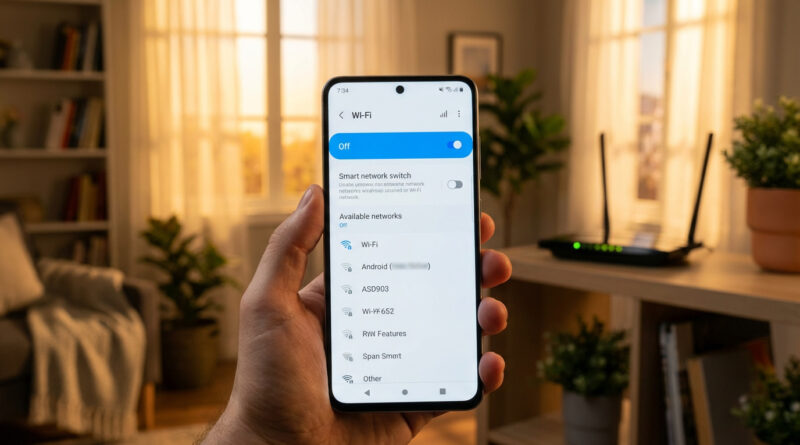
Nothing makes you feel more cursed than this. Your Android phone drops Wi‑Fi mid-scroll or right when the show gets good, but the TV, laptop, and everyone else’s phone are fine. Then you do the annoying ritual. Toggle Wi‑Fi off and on. Wait. Refresh. Repeat. The good news is this is often your phone “helping” a little too much. Many Androids have a setting that quietly switches you to mobile data when Wi‑Fi looks weak for a second, then flips back, which feels like the Wi‑Fi is breaking. The fix is simple. Forget the network, reconnect, then turn off the “smart” switching option so your phone stops second-guessing the connection and stays locked to Wi‑Fi.
⚡ In a Hurry? Key Takeaways
- Forget your Wi‑Fi network and reconnect, then disable “Switch to mobile data” or “Smart network switch.”
- Look under the Wi‑Fi network’s “Advanced” options (or Android’s “Network preferences”) for the toggle.
- This reduces Wi‑Fi/mobile data ping-pong, saves cellular data, and stops random buffering.
Why it’s happening (even when your Wi‑Fi is fine)
Your router can be working perfectly and your phone can still act up. The most common reason is a feature meant to keep you “online” by switching to mobile data the moment Wi‑Fi looks slow or unstable.
That sounds helpful. In real life, it causes constant back-and-forth. Apps hate that. Streams buffer. Pages half-load. And you end up babysitting the Wi‑Fi toggle.
Fix it: Forget the network, reconnect, then turn off the “smart” switch
Step 1: Forget the Wi‑Fi network
Samsung (common path): Settings. Connections. Wi‑Fi. Tap the gear icon next to your network. Tap “Forget.”
Pixel / stock Android (common path): Settings. Network & internet. Internet. Tap your Wi‑Fi network. Tap “Forget.”
Don’t worry, this does not harm your router. It just clears the saved connection on your phone so you can reconnect cleanly.
Step 2: Reconnect, then open Advanced options
Reconnect to the same network and enter the password. Then tap the network name again (or the gear icon) to open its details.
Look for:
- Advanced
- Network preferences
- Intelligent Wi‑Fi (Samsung wording)
Step 3: Turn off the setting that flips you to mobile data
Disable any option with a name like:
- Switch to mobile data
- Smart network switch
- Auto switch to mobile network
- Adaptive connectivity (on some phones)
After you turn it off, your phone is much more likely to stay on Wi‑Fi even if the signal wobbles for a moment. That’s what you want for smooth streaming and scrolling.
Quick checks if it still drops
Make sure “Auto-connect” is on for that network
In the Wi‑Fi network details, confirm Auto-connect (or “Connect automatically”) is enabled. Otherwise your phone may hesitate to rejoin after a brief dip.
Turn off VPN temporarily (just to test)
If you use a VPN, pause it for a minute and see if the drops stop. Some VPNs are great, but a flaky server can feel like “Wi‑Fi issues.”
Restart your phone once after changing the setting
Not always required, but it helps the network stack reset. Think of it like telling your phone, “New rules. Stick to Wi‑Fi.”
A small mindset shift that helps
A lot of tech problems come from “smart” features trying to guess what you want. Sometimes you just want the device to listen. Same energy as stopping your PC from rebooting when it feels like it. If that’s been driving you nuts too, here’s a solid guide: How to Stop Windows 11 From Randomly Restarting After Updates.
At a Glance: Comparison
| Feature/Aspect | Details | Verdict |
|---|---|---|
| Smart switching (Wi‑Fi to mobile data) | Phone swaps to cellular when Wi‑Fi briefly weak, then swaps back | Turn it off for stability |
| Forgetting and re-adding the network | Clears old connection data and forces a fresh handshake | Worth doing first |
| Result | Less bouncing between Wi‑Fi and mobile data, fewer stalls | Smoother streaming and scrolling |
Conclusion
If every other device is fine, your router probably isn’t the villain. Your phone is. Forget the network, reconnect, then shut off the “Smart network switch” or “Switch to mobile data” option so it stops second-guessing your Wi‑Fi. That one change usually ends the constant ping-pong between Wi‑Fi and mobile data, gives you a smoother connection, saves your data, and keeps buffering from showing up at the worst possible moment.