How to Fix USB Devices Not Recognized on Windows 11 After the Latest Update
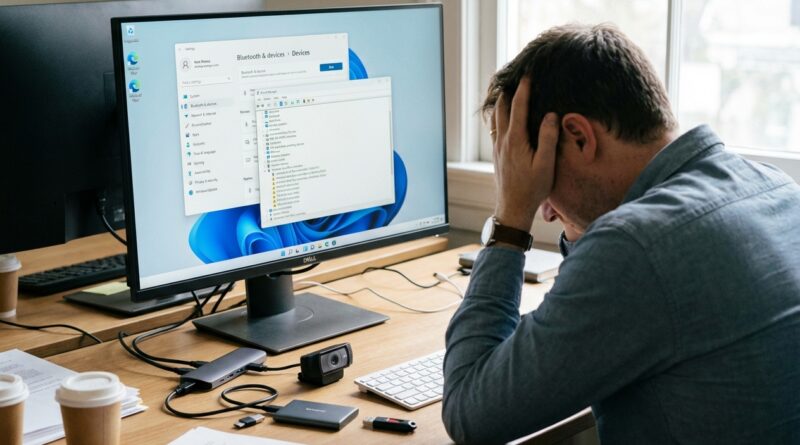
You plug in a USB drive, webcam, keyboard or USB-C hub, and Windows 11 acts like nothing happened. No chime. No pop-up. No new drive in File Explorer. It is one of those problems that feels small until it wrecks your whole day. If this started right after a recent Windows update, you are not imagining it. A lot of people have seen USB devices stop working after routine security and feature patches, especially with docks, external drives and webcams. The good news is that this is often a software or power setting issue, not a dead port or broken gadget. That means there are a few simple things worth trying before you spend money on a new hub or book a repair. Start with the quick checks, then move to Device Manager, power settings and update rollback if needed. Most people can get things working again in under 30 minutes.
⚡ In a Hurry? Key Takeaways
- If you have a usb device not recognized windows 11 after update problem, the fastest fixes are a full restart, trying a different port, and reinstalling the USB controller in Device Manager.
- Turn off USB power saving, check for optional driver updates, and remove the latest Windows update only if the issue started right after it.
- If the same device fails on multiple computers, or one specific port never works with anything, it may be a hardware fault rather than a Windows bug.
Start with the simple stuff first
It sounds obvious, but these quick checks solve a surprising number of cases.
1. Restart the PC properly
Not Shut down. Restart. Windows 11 can keep some low-level hardware states in memory, especially with Fast Startup. A real restart forces it to load USB drivers again from scratch.
2. Try a different USB port
If you are using a front port, move to a rear port. If you are using a USB-C hub, plug the device directly into the laptop or desktop if possible. Hubs and docks are often the first thing to break after a driver or power-management change.
3. Test the device on another computer
This is the fastest way to separate a Windows problem from a dead device. If your flash drive, webcam or keyboard works elsewhere, your device is probably fine.
4. Try a different cable
This matters most for webcams, phones, external SSDs and USB-C accessories. A charge-only cable can make a device look dead. A worn cable can also fail right after an update simply because Windows has become less forgiving about bad connections.
Check Device Manager for hidden clues
If Windows sees the hardware but cannot use it, Device Manager usually tells the story.
How to open it
Right-click the Start button and click Device Manager.
What to look for
Expand these sections:
- Universal Serial Bus controllers
- Disk drives
- Cameras
- Keyboards
- Sound, video and game controllers
Look for:
- A yellow warning triangle
- An item called Unknown USB Device
- A device that appears greyed out or keeps disappearing
Quick fix inside Device Manager
- Right-click the problem device.
- Choose Uninstall device.
- If you see a box for removing the driver, leave it unchecked unless you know you have the correct driver ready.
- Click Uninstall.
- Restart your computer.
Windows will usually reinstall the correct basic driver on reboot.
Reinstall the USB controllers
If several USB devices stopped working at once, the problem may be with the controller rather than the device itself.
- Open Device Manager.
- Expand Universal Serial Bus controllers.
- Right-click each item called USB Root Hub, Generic USB Hub, or Host Controller.
- Click Uninstall device.
- Do this one at a time. If your keyboard and mouse are USB, save your work first.
- Restart the PC.
This sounds dramatic, but it is a standard fix. Windows puts the USB controller drivers back during startup.
Turn off USB power saving
Recent updates sometimes change how aggressively Windows tries to save power. That is great for battery life, not so great when your dock, webcam or external drive keeps vanishing.
Disable power saving for USB hubs
- Open Device Manager.
- Expand Universal Serial Bus controllers.
- Double-click each USB Root Hub or Generic USB Hub.
- Go to the Power Management tab.
- Untick Allow the computer to turn off this device to save power.
- Click OK.
Turn off USB selective suspend
- Open Control Panel.
- Go to Power Options.
- Click Change plan settings next to your active plan.
- Click Change advanced power settings.
- Expand USB settings.
- Set USB selective suspend setting to Disabled.
- Click Apply, then OK.
If you use a laptop, test both on battery and while plugged in. Some USB-C docks behave differently depending on power state.
Check Windows Update for optional drivers
This is the part many people miss. Windows may have installed a general update, but skipped the specific driver your motherboard, chipset or USB controller now needs.
- Open Settings.
- Go to Windows Update.
- Click Advanced options.
- Click Optional updates.
- Look for driver updates related to chipset, USB, Thunderbolt, camera, audio or dock hardware.
- Install the relevant ones and restart.
If you have a branded laptop from Dell, HP, Lenovo, Asus or Acer, also check that maker’s update app. Those tools often have USB and chipset fixes before Windows pulls them in.
Update or roll back the driver manually
If the issue started right after the latest update, a newer driver may be bad. Or Windows may have swapped a good manufacturer driver for a generic one.
To update
- Open Device Manager.
- Right-click the problem device.
- Choose Update driver.
- Click Search automatically for drivers.
To roll back
- Right-click the device and choose Properties.
- Open the Driver tab.
- Click Roll Back Driver if the button is available.
If that button is greyed out, download the older driver from your PC maker or motherboard maker’s support page and install it manually.
If the problem began right after a Windows update, uninstall that update
This is worth trying when the timing is obvious. Everything worked yesterday, Windows updated overnight, and now your ports are acting dead.
- Open Settings.
- Go to Windows Update.
- Click Update history.
- Scroll down and click Uninstall updates.
- Find the most recent quality or feature update.
- Click Uninstall.
- Restart the PC and test again.
You do not need to remove every update. Start with the newest one installed just before the USB trouble began.
Do not forget BIOS, chipset and Thunderbolt updates
This sounds advanced, but the idea is simple. Windows talks to your hardware through layers of firmware and drivers. If those layers are out of sync after an update, USB problems can show up.
Check your laptop or motherboard support page for:
- BIOS or UEFI updates
- Chipset drivers
- Thunderbolt or USB4 drivers
- Dock firmware updates
Only use files from the manufacturer. If you are nervous about BIOS updates, skip that step unless the support notes specifically mention USB fixes.
What to do if your USB drive is missing from File Explorer
Sometimes the port works, but the drive letter did not show up.
- Right-click the Start button.
- Click Disk Management.
- Look for your USB drive in the list.
If you see it there but not in File Explorer:
- Right-click the partition and choose Change Drive Letter and Paths
- Add a drive letter if it does not have one
If the drive shows as unallocated or asks to be initialized, stop if the data matters. That can mean file system corruption. At that point, focus on recovery first, not formatting.
How to tell if it is really a hardware problem
This is the point where you stop blaming Windows and start looking at the physical gear.
It is probably software if:
- Multiple USB devices failed right after the same update
- The device works on another computer
- The port works again after a restart or driver reinstall
- Your USB-C dock works only sometimes, or only after sleep
It is probably hardware if:
- The same port never detects anything at all
- The device fails on every computer you try
- The port feels loose, damaged or overheats
- You see visible damage on the cable, connector or hub
If only one port is dead and all others work, that often points to physical damage. If all ports quit after an update, that usually points to drivers, firmware or power settings.
One last reset that often helps
If you are on a laptop, shut it down fully, unplug the charger, and disconnect all USB gear. Wait a minute. Then power it back on and reconnect one device at a time. This can clear a stuck controller state, especially after docking station problems.
At a Glance: Comparison
| Feature/Aspect | Details | Verdict |
|---|---|---|
| Quick fixes | Restart, change ports, remove the hub, test another cable, try the device on another PC | Best first step. Fast and low risk. |
| Windows-side fixes | Reinstall USB controllers, disable power saving, install optional drivers, roll back bad drivers or updates | Most likely to solve update-related USB failures. |
| Hardware diagnosis | Device fails everywhere, only one port is dead, connector is loose, cable is damaged | Good sign it is time to repair or replace hardware. |
Conclusion
If your USB setup suddenly stopped working after a Windows 11 update, do not jump straight to the worst-case scenario. In the last day there has been a real spike in reports of USB ports and USB-C hubs failing after routine updates, and that can throw work from home users and students into chaos fast. The good news is that many cases come down to a driver mismatch, an overzealous power setting, or a recent patch that needs to be rolled back. Work through the steps in order. Start simple, then move to Device Manager and update history. That approach can save you time, money and an unnecessary trip to the repair shop. More than anything, it gives you back some control over how Windows treats your devices, instead of leaving you stuck staring at a silent USB port and wondering what broke.