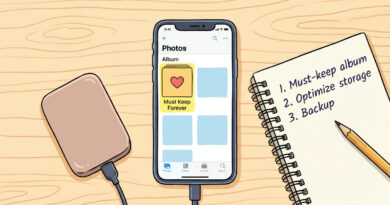
How to Fix “Storage Almost Full” on Your Phone Without Paying for More iCloud or Google One
Your phone says “storage almost full,” you delete a bunch of photos, maybe even remove a couple of apps, and somehow the warning is still there. That is maddening. It also makes a lot of people feel like their iPhone or Android is lying to them. The good news is that this problem is usually not about needing more iCloud or Google One. It is often caused by hidden junk: cached files, downloaded videos, duplicate photos, old message attachments, offline maps, podcast episodes, and app data that keeps growing in the background. If you go after the right stuff in the right order, it is very realistic to get back 10 to 30GB without paying for another subscription or buying a new phone. Start slow, do the safest cleanup first, and you can usually get your phone back to taking photos, installing updates, and working normally again.
⚡ In a Hurry? Key Takeaways
- Your phone is often full because of hidden app data, downloads, caches, and attachments, not just photos.
- Check storage by category first, then clear message attachments, offline media, downloads, and oversized apps before deleting personal files.
- You can usually reclaim a lot of space safely without paying for more cloud storage, as long as you avoid deleting backups you still need.
Why your phone feels “full” even when you already deleted stuff
This is the part that trips people up. Deleting a few photos or apps does not always free space right away, and it does not always hit the biggest storage hog.
Phones fill up with more than camera photos. Think streaming downloads, WhatsApp media, TikTok cache, browser files, old voice notes, giant text attachments, and failed system update files. On iPhone, “System Data” can swell. On Android, cached files and app storage can quietly balloon.
Also, deleted photos may still be sitting in a “Recently Deleted” folder. So you did delete them. Your phone just has not fully let go yet.
Step 1: Check what is actually using the space
On iPhone
Go to Settings > General > iPhone Storage. Wait a minute for the colored bar and app list to finish loading.
Look for the biggest categories or apps. Common culprits are Photos, Messages, Safari, Music, Podcasts, Netflix, YouTube, Instagram, and any app with lots of downloads.
On Android
Go to Settings > Storage, or on some phones Settings > Battery and device care > Storage.
Then tap into categories like Photos, Videos, Audio, Documents, Apps, and Trash. Samsung, Pixel, and other Android phones may word this a little differently, but the idea is the same.
Do not start deleting random things yet. Spend two minutes finding the top three space users. That is where the big wins are.
Step 2: Empty the places where deleted stuff still hangs around
Photos trash folders
On iPhone, open Photos > Albums > Recently Deleted. Permanently delete what you no longer need.
On Android, check Google Photos > Collections or Library > Trash. Also check your phone maker’s Gallery app trash folder if you use Samsung Gallery or another local gallery app.
This one step alone can free several gigabytes.
Files trash folders
Open the Files app on iPhone, or Files/My Files on Android, and look for a Recently Deleted or Trash section. Downloads often sit there after you think they are gone.
Step 3: Clear the biggest hidden junk first
Message attachments
Text messages are sneaky. One family group chat full of videos can eat more space than a whole photo album.
On iPhone: Go to Settings > General > iPhone Storage > Messages. Review large photos, videos, GIFs, stickers, and attachments. Delete the biggest ones first.
On Android: Open Google Messages or Samsung Messages and look through conversations with lots of media. In apps like WhatsApp, go to Settings > Storage and Data > Manage Storage. That screen is often gold. It shows exactly which chats and videos are taking over.
Streaming app downloads
Netflix, Disney+, Spotify, YouTube Premium, Apple Music, Audible, and podcast apps all store offline content locally.
Open each app and delete old downloads you are not using. People forget about this constantly, especially after a trip.
Browser cache and offline reading lists
On iPhone: For Safari, go to Settings > Safari > Clear History and Website Data. If you use Chrome, clear browsing data inside Chrome.
On Android: Open Chrome or Samsung Internet and clear cached browsing data. If a browser is using several gigabytes, that is not unusual.
You may get signed out of some sites, so make sure you know your passwords first.
Downloads folder
Open the Downloads folder. Be ruthless. Old PDFs, ZIP files, memes, copied videos, and mystery files from months ago are prime clutter.
Step 4: Tackle oversized apps the smart way
Sometimes the app itself is small, but its data is huge. Social apps are the usual suspects.
On iPhone: Offload or delete apps
Go to Settings > General > iPhone Storage. Tap a large app.
You will often see two options:
Offload App removes the app itself but keeps your documents and settings.
Delete App removes the app and its data.
Offloading is the safer first move for apps you still use. Deleting is better for apps with bloated caches if you do not mind signing in again.
Apps like Instagram, TikTok, Facebook, Reddit, and Spotify can shrink dramatically after a delete-and-reinstall.
On Android: Clear cache, then review app storage
Go to Settings > Apps, choose a large app, then check Storage.
Clear Cache is usually safe. It removes temporary files.
Clear Storage or Clear Data is more drastic. It resets the app like it is newly installed, so use that only if you are comfortable signing in again and losing local app settings.
Start with apps that show huge cache or data use and that are easy to sign back into.
Step 5: Find duplicate and near-duplicate photos without deleting your memories
You do not need to go on a photo massacre. Just clean the obvious repeats.
On iPhone
Open Photos > Albums > Duplicates if your phone offers it. Merge duplicates.
On Android
Google Photos may suggest clutter cleanup, and some phone maker gallery apps have duplicate or similar-photo tools. If not, sort by size or date and look for repeated screenshots, burst shots, and downloaded memes.
Another easy win is screenshots. People keep hundreds of them for no reason. Receipts, directions, random social posts, temporary codes. Delete those before touching family photos.
Step 6: Check for downloaded maps, podcasts, and voice notes
These are easy to forget and often huge.
- Google Maps or Apple Maps: delete offline maps you no longer need.
- Podcasts: remove downloaded episodes and turn on auto-delete after listening.
- Voice memos and recorder apps: long recordings can be surprisingly large.
- WhatsApp, Telegram, Signal: media auto-download can quietly eat storage.
Step 7: If “System Data” or “Other” is huge, do this next
This is where people start feeling like the phone is gaslighting them. Fair enough.
On iPhone
If System Data is abnormally large, try these in order:
- Restart the phone.
- Clear Safari history and website data.
- Delete old iOS update files if they appear under iPhone Storage.
- Make sure installation files are not half-downloaded.
- Update iOS if possible, because some versions handle storage reporting badly.
If it is still wildly high after that, the nuclear option is a full backup and restore. I would save that for last because most people can avoid it.
On Android
If Other or System is very large, restart first, then clear caches for the biggest apps, empty trash folders, and review downloads. Some Android phones also have a built-in cleanup tool in the storage menu. It is worth using.
Step 8: Make sure cloud settings are not confusing the issue
This is the annoying mix-up. Your phone storage and your cloud storage are not the same thing.
You can have room in iCloud but no room on the phone. Or the opposite. The warning you care about here is the one about space on the device itself.
If you use iCloud Photos or Google Photos, check whether originals are still stored on the phone. On iPhone, Optimize iPhone Storage can help. On Android with Google Photos, use the Free up space tool only if your photos have fully backed up and you are comfortable accessing many of them from the cloud.
If you are trying to avoid paying for more storage, the safest move is to use cloud tools as cleanup helpers, not as an excuse to ignore local junk.
A simple order that works for most people
If you want the least stressful path, do it in this order:
- Check storage breakdown.
- Empty Recently Deleted and Trash folders.
- Delete message attachments and app downloads.
- Clear browser data and app caches.
- Remove duplicate photos and screenshots.
- Offload or reinstall the biggest bloated apps.
- Restart the phone and recheck storage.
That order avoids deleting important personal stuff until you know you actually need to.
How much space can you realistically get back?
More than people think.
- Light cleanup: 5 to 10GB
- Typical cleanup: 10 to 20GB
- Heavy cleanup with lots of downloads and message media: 20 to 30GB or more
The biggest gains usually come from downloaded video, message attachments, duplicate media, and social app bloat.
What not to do
- Do not delete backups before checking what they are.
- Do not clear app data for banking or authenticator apps unless you know your login details and recovery method.
- Do not assume cloud storage and phone storage are the same warning.
- Do not delete all your photos first. That is often not where the best savings are.
At a Glance: Comparison
| Feature/Aspect | Details | Verdict |
|---|---|---|
| Fastest space recovery | Empty Recently Deleted, clear trash, remove streaming downloads, delete message attachments | Best first move for most people |
| Safest cleanup | Clear cache, browser data, old downloads, duplicate screenshots, offline maps and podcasts | Low risk, good payoff |
| Last-resort fix | Delete and reinstall bloated apps, or back up and restore if System Data stays absurdly high | Use only if the simpler steps did not work |
Conclusion
If your phone keeps insisting storage is full when it feels like you already cleaned everything, you are not imagining it. “My storage is full but it is not” posts are exploding again this week for a reason. The fix is usually not another monthly plan. It is finding the hidden stuff your phone does a bad job of explaining. Go category by category, hit trash folders, message attachments, app downloads, caches, and oversized apps first, and you can often reclaim 10 to 30GB without spending a cent. That can keep an older iPhone or Android usable for another year or two, stop the photo and update headaches, and save you from subscription creep. That is the whole point here. Make the phone you already own work properly again.