How To Fix “Storage Almost Full” On Android When You’ve Already Deleted Everything
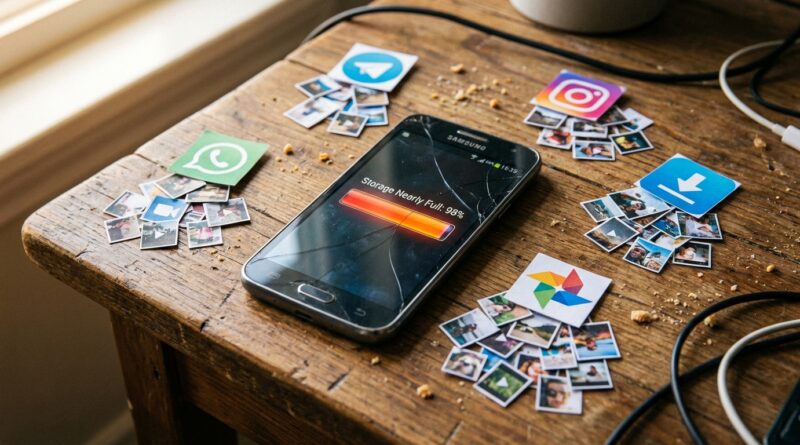
That “storage almost full” warning can make you want to throw your phone across the room. You delete photos, clear out the trash, uninstall apps you barely used, and somehow Android still acts like it is packed to the ceiling. Meanwhile the phone gets slower, the camera refuses to save pictures, and even basic app updates fail. If you have been searching for “android storage almost full but nothing to delete,” the good news is this usually means your space is being eaten by hidden stuff, not your visible files. Think app caches, offline downloads, old WhatsApp media, system leftovers, and giant files buried in folders you never open. The fix is usually much faster than people expect. In many cases, you can free up several gigabytes in 10 to 15 minutes without resetting your phone or deleting anything important.
⚡ In a Hurry? Key Takeaways
- The biggest hidden storage hogs on Android are usually app cache, downloaded media inside apps, and files in the Downloads folder, not your photo gallery.
- Start with Settings > Storage, then clear cache for the biggest apps and check WhatsApp, Telegram, TikTok, Spotify, YouTube, and Downloads.
- Do not randomly delete “System” files or app data unless you know what it does. Clearing cache is usually safe. Clearing data signs you out and wipes local app files.
Why your Android says it is full even after you deleted things
This is the part Android does a poor job of explaining.
When you delete photos and uninstall apps, you only remove the obvious stuff. But your phone also stores temporary files, downloaded videos, app thumbnails, voice notes, old update packages, maps for offline use, and backups created by apps themselves. Over time, that hidden pile can get huge.
On older or budget phones with 32 GB or 64 GB of storage, a few gigabytes of junk is enough to cause real problems. Android also needs some free breathing room to install updates and run smoothly. So even if you technically still have a little space left, the phone may act like it is full.
Start here: Check what is actually using the space
Open Settings, then go to Storage. On some phones it may be under Battery and device care, Device care, or About phone.
You are looking for the categories taking up the most room, such as:
- Apps
- Images
- Videos
- Audio
- Documents
- Other
- System
If Other looks weirdly large, that is usually the clue. “Other” often includes app cache, downloads inside apps, temporary files, and leftovers Android does not label clearly.
Fix #1: Clear cache from the worst offender apps
This is the quickest win, and it is safe in most cases.
How to do it
Go to Settings > Apps. Tap a large app like Chrome, TikTok, Instagram, Facebook, Spotify, YouTube, WhatsApp, or Google Maps. Then tap Storage and choose Clear Cache.
Repeat this for the biggest apps first.
What clearing cache does
It removes temporary files the app can rebuild later. You usually will not lose messages, photos, or account details.
What not to tap by accident
Clear Data or Manage Storage can wipe app files, sign you out, or remove offline content. Sometimes that is useful, but do it on purpose, not by mistake.
Fix #2: Check WhatsApp and other messaging apps
For many people, this is the real answer.
WhatsApp, Telegram, Messenger, and Signal can quietly save years of photos, videos, GIFs, voice notes, stickers, and forwarded junk. Deleting items from your gallery does not always remove the copies inside the app.
In WhatsApp
Open WhatsApp > Settings > Storage and data > Manage storage.
You will see:
- Large files
- Files forwarded many times
- Chats using the most storage
Delete the bulky stuff first. A few old family group videos can free up gigabytes.
Also check these apps
- Telegram, especially auto-downloaded media
- Messenger, for saved photos and video cache
- Signal, for media history
Fix #3: Open the Downloads folder. It is often a mess.
The Downloads folder is like the kitchen junk drawer of your phone. PDFs, APK files, memes, screenshots from websites, duplicate photos, and random files all end up there.
Open your phone’s Files app, My Files, or File Manager. Then check:
- Downloads
- Large Files
- Documents
- Installation files or APKs
Sort by size if your file app allows it. That one old movie file or 2 GB app installer can be the whole problem.
Fix #4: Delete offline downloads inside streaming apps
This one catches a lot of people out because those files do not always show up neatly in the gallery.
Open apps like:
- Spotify
- YouTube Premium
- Netflix
- Disney+
- Amazon Prime Video
- Google Maps
Look for downloaded songs, playlists, shows, films, and offline maps. These can take up several gigabytes each.
If your phone is very tight on space, remove downloads and re-download only what you really use.
Fix #5: Empty the phone’s trash bins properly
You already emptied Recently Deleted in your gallery, which is smart. But there may be more than one trash bin.
Check these places:
- Google Photos > Bin
- Samsung Gallery > Recycle Bin
- Files by Google > Trash
- Gmail, if you download lots of attachments
- Google Drive, if you store and sync files locally
Trash folders often keep files for 30 days before they are really gone.
Fix #6: Use Files by Google if your phone’s storage screen is confusing
If your built-in file manager is vague, install Files by Google from the Play Store. It is one of the easiest tools for non-tech users.
It can point out:
- Junk files
- Duplicate files
- Blurry photos
- Large videos
- Unused apps
- Memes and downloaded images
This is a much safer route than poking around random folders and deleting things you do not recognize.
Fix #7: Check your camera and social apps for drafts and saved edits
Some apps keep your unfinished work quietly in the background.
Check:
- TikTok drafts
- CapCut projects
- Instagram drafts
- Photo editing apps with exported copies
- Screen recorder folders
Video drafts are especially greedy. A few half-finished clips can take more room than your whole photo gallery.
Fix #8: Restart the phone after cleaning
This sounds too simple, but do it.
Sometimes Android holds onto temporary space reports until after a restart. Rebooting can also clear small temporary files and help the system recalculate free storage correctly.
If you just spent 10 minutes deleting things and the number barely moved, restart before you panic.
Fix #9: If “System” storage looks huge, update first, then be careful
Every Android phone uses a chunk of storage for the operating system. That part is normal. But sometimes it looks larger after updates, failed downloads, or manufacturer bloat.
What you can safely do
- Install any pending system update if one is available
- Clear cache from large apps
- Delete downloaded update files if your phone shows them
- Restart the phone
What you should not do
Do not use sketchy “system cleaner” apps from the Play Store that promise miracle space savings. Many are full of ads, and some make things worse.
Also do not start deleting random folders with names you do not understand inside Android or system directories.
Fix #10: Move photos and videos to the cloud or a computer, then remove local copies
If your storage is genuinely full and not just clogged with junk, you may need to move your biggest files elsewhere.
Good options:
- Google Photos backup, then use Free up space
- Transfer files to a laptop or desktop
- Copy files to a microSD card, if your phone supports one
- Use an external USB-C flash drive
The key part is this: make sure the files are fully backed up before deleting them from the phone.
When to use “Clear Data” or reinstall an app
If one app is taking absurd space and clearing cache barely helps, it may be storing too much local junk.
That is when you can consider:
- Clear Data, if you are okay signing back in and re-downloading content
- Uninstall and reinstall, which often wipes bloated local storage
This works well for social apps, browsers, shopping apps, and apps that have become messy over time.
Just remember, clearing data is more serious than clearing cache.
If nothing works, your last resort is a backup and factory reset
I would not start here, but sometimes it is the cleanest fix.
If your phone has years of leftovers, corrupted app data, and failed updates, a factory reset can recover a surprising amount of space and speed. Back up your photos, contacts, messages, and important files first. Then reset and only reinstall the apps you actually use.
It is a hassle, yes. But on an old phone, it can feel like a fresh start.
How much free space should you try to keep?
A good rule is to leave at least 10 percent to 15 percent of your storage free. On a 64 GB phone, that means aiming for roughly 6 GB to 10 GB free if possible.
That breathing room helps with:
- App updates
- Camera saving photos and videos
- Smoother performance
- System updates
At a Glance: Comparison
| Feature/Aspect | Details | Verdict |
|---|---|---|
| Clear Cache | Removes temporary files from apps like Chrome, TikTok, Instagram, and Maps without usually deleting your personal data. | Best first step. Safe and fast. |
| Delete App Downloads | Targets offline videos, music, maps, WhatsApp media, and social drafts that often do not appear clearly in the gallery. | Biggest space saver for most people. |
| Factory Reset | Wipes the phone completely and removes years of leftover clutter, but requires a full backup first. | Last resort. Very effective, but more work. |
Conclusion
If your Android keeps saying storage is full even after a cleanup, you are not imagining things. The missing space is usually hiding in app cache, messaging media, downloads, offline files, and old leftovers that Android labels badly. The upside is that these are often easy wins. Right now a lot of people are stuck on older or budget Android phones with 64 GB of storage or less, and every new WhatsApp video, TikTok draft and OS update eats into that. Fixing invisible storage hogs is one of the fastest ways to make an existing phone feel new again, avoid out-of-space errors during critical app updates and delay having to buy a new device. Spend 15 minutes on the steps above, and there is a very good chance your phone will stop complaining and start acting normal again.