How To Fix Smart Home Devices That Randomly Show “No Response” Without Buying a New Hub
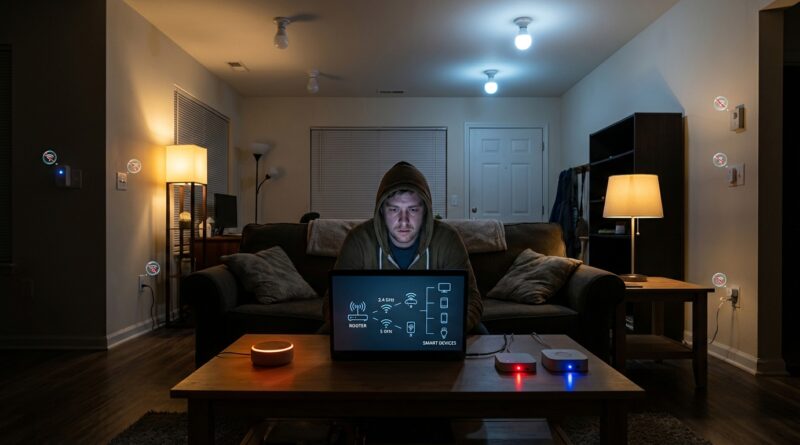
Nothing makes a smart home feel less smart than walking into a room and seeing “No Response” everywhere. Your lights worked yesterday. Your plug ran the coffee maker this morning. Then suddenly Alexa, Google Home, or Apple Home acts like half your house vanished. It is maddening, especially when you have already rebooted the router, unplugged the hub, reopened the app, and muttered a few words not fit for polite company. The good news is this problem often has less to do with a “dead” device and more to do with how your network is handling Wi‑Fi, Thread, Matter, and old smart gear all at once. Before you factory reset every bulb in the house or spend money on a shiny new hub, start with a router-first checkup. In many homes, that is where the real fix lives, and it usually takes about 20 minutes.
⚡ In a Hurry? Key Takeaways
- Most smart home devices no response fix cases come down to network confusion, not broken hardware.
- Check your router settings first, especially 2.4GHz Wi‑Fi, mesh roaming, client isolation, and Thread border router placement.
- Do not factory reset everything at once. Test one failing device, fix the network, then reconnect only if needed.
Why “No Response” happens so often now
Smart homes used to be simpler. A few Wi‑Fi bulbs. Maybe a hub for sensors. Done.
Now people mix old 2.4GHz plugs, newer mesh Wi‑Fi systems, Matter devices, Thread border routers, voice assistants, and maybe an ISP-supplied router that was never set up with any of this in mind. That mix can work beautifully. It can also go sideways fast.
When your app says “No Response,” it usually means one of three things:
- The device is on but cannot reach your network properly.
- The hub or platform can see the device, but the app cannot talk to it reliably.
- Your network changed something, and the device did not adapt well.
That last one is the sneaky part. A router update, a mesh node move, a renamed Wi‑Fi band, or a new Matter accessory can be enough to knock older devices into a sulk.
Start here before you reset anything
1. Find out which devices are failing
Do a quick pattern check.
- If only Wi‑Fi plugs and bulbs are failing, suspect your router or Wi‑Fi band settings.
- If only sensors or battery devices are failing, suspect a hub, Thread network, or weak signal.
- If Apple Home, Alexa, and Google Home all show the same devices offline, the device or network is usually the issue.
- If only one app shows “No Response,” the cloud service or platform sync may be the problem.
This matters because it tells you where to look first. One bad bulb is annoying. Twenty devices dropping at once is usually a network clue.
2. Check whether the device still has power
It sounds obvious, but start there. A smart switch someone turned off at the wall, a GFCI outlet that tripped, or a sensor with a dying battery can create a fake network mystery.
If the device has an LED, see if it looks normal. If it has a physical button, press it. If it responds manually but not in the app, that points back to the network.
3. Reboot in the right order
Most people reboot everything in a random panic. I get it. But order helps.
- Restart the router or mesh primary unit.
- Wait two to three minutes for internet and local network traffic to settle.
- Restart any smart home hubs, speakers, or border routers.
- Then power cycle one failing device, not all of them.
This gives your home network time to rebuild connections instead of creating a traffic jam.
The router-first playbook that fixes most cases
Make sure 2.4GHz still exists
Many smart home gadgets, especially older bulbs and plugs, only use 2.4GHz Wi‑Fi. If your router is pushing devices too aggressively to 5GHz or 6GHz, or if band steering is acting up, setup and reconnection can fail.
Check your router app or web settings and confirm:
- 2.4GHz is enabled.
- Your smart device supports the security mode you are using. WPA2 is still the safest bet for many older devices.
- You are not using a setting that blocks older IoT gear from joining.
If your router combines bands under one network name, that is usually fine, but some picky devices hate it. If one device refuses to reconnect, create a temporary 2.4GHz-only network if your router allows it, connect the device, then move on.
Turn off client isolation or AP isolation
This setting blocks devices on your network from talking to each other. It is useful for guest networks. It is terrible for smart homes.
If your smart bulb is on a guest network, or your hub is isolated from your phone, your app may report “No Response” even though the device is technically online.
Keep smart home gear on your main network when possible. If you use a dedicated IoT network, make sure local device communication is allowed.
Check mesh Wi‑Fi node placement
Mesh systems are great until a smart plug in the garage keeps hopping between weak nodes like a confused tourist. Some low-cost smart devices do not handle roaming well. They cling to a distant node, get flaky, and then disappear from the app.
Try this:
- Move a mesh node closer to trouble spots.
- Do not place nodes next to TVs, microwaves, metal shelves, or behind furniture.
- If your app allows it, see which node the device is using.
If one corner of the house always has problems, this is a strong suspect.
Look for DHCP or IP address confusion
Here is the plain-English version. Your router gives every device an address on your network. If that process gets messy, devices can show up, disappear, and then reappear like they are playing peekaboo.
In your router settings, look for:
- Very short DHCP lease times
- IP conflicts
- A full device table on older routers
If you can, reserve IP addresses for hubs, bridges, and important controllers. You usually do not need to do this for every bulb, but hubs and border routers benefit from having a stable address.
If you use Matter or Thread, check this next
You may have too many border routers, or the wrong one is in charge
Matter and Thread are supposed to make smart homes easier. Often they do. But if you have an Apple TV, HomePod mini, Nest Hub, Echo device, and a few Thread accessories all competing in the same space, things can get weird.
Thread devices rely on a border router to connect that low-power mesh to your wider network. If the border router is in a bad location, temporarily offline, or switching roles, some devices go dark.
What to do:
- Keep at least one reliable border router in a central spot.
- Restart border routers one at a time, not all at once.
- If problems started after adding a new Matter device, remove that one from the equation for a test.
You are looking for timing. If everything broke after one new gadget arrived, that gadget may not be the villain, but it may have exposed a weak network setup.
Do not mix platforms blindly
A Matter device can often work in multiple ecosystems, but setup still needs a stable “home base.” If you first added it to one platform and then tried to share it into another while your network was flaky, the result can be a house full of “No Response” messages.
For a true smart home devices no response fix, get the device stable in one ecosystem first. Then add sharing later.
What to do if only Apple Home says “No Response”
Apple Home is especially sensitive to home hub issues and local network changes.
- Make sure your Home hub, like an Apple TV or HomePod, is online and updated.
- Confirm your iPhone is on the same home Wi‑Fi, not bouncing onto cellular.
- Open the Home app and see whether the issue affects one room or the whole home.
If the whole home is flaky, restart the active home hub and router. If just a few accessories fail, check whether they are Bluetooth, Wi‑Fi, or Thread. Bluetooth accessories are often the first to get cranky when distance is the issue.
What to do if only Alexa or Google Home says devices are offline
If the manufacturer app still works, but Alexa or Google Home says the device is offline, the issue may be account linking or cloud sync rather than your actual device.
Try these steps:
- Open the brand’s own app and confirm the device works there.
- Disable and re-enable the Alexa skill or relink the Google Home service.
- Run device discovery again.
This is one case where resetting the bulb itself is usually overkill.
The 20-minute smart home devices no response fix checklist
- Test one failing device manually.
- Confirm whether the problem affects one brand, one room, or the whole house.
- Restart router first, then hubs, then one problem device.
- Check that 2.4GHz Wi‑Fi is enabled and usable.
- Make sure smart devices are not on an isolated guest network.
- Check mesh node placement and weak-signal areas.
- Reserve IPs for hubs and key controllers if possible.
- Verify your main Thread border router is online and placed well.
- If only one platform shows errors, relink that platform before resetting hardware.
- Reset only the stubborn device that still refuses to reconnect.
When a factory reset actually makes sense
Sometimes, yes, a reset is the right move. Just not as step one.
Reset a device if:
- It no longer appears in its own manufacturer app.
- It will not reconnect after the router and hub are stable.
- It was moved from one network to another and never properly rejoined.
- Its firmware update failed and left it in a weird state.
Reset one device. Prove the fix. Then repeat only if needed. That saves you from spending your evening re-pairing twelve light bulbs because one plug had a tantrum.
How to stop this from happening again
Keep your smart home boring
Boring is good. Boring means reliable.
- Do not rename your Wi‑Fi unless you really have to.
- Keep hubs plugged into stable power.
- Put border routers and mesh nodes in open, central places.
- Avoid moving smart plugs and sensors around the house constantly.
Update carefully, not all at once
Router firmware updates, hub updates, and app updates can all help. They can also introduce fresh headaches. If your home is finally stable, do not update every piece of it on the same night.
Update in stages. If something breaks, you will know where to look.
Keep one simple network note
You do not need a spreadsheet worthy of NASA. Just jot down:
- Your router model
- Your mesh app name
- Which device acts as your main home hub or border router
- Which gadgets are 2.4GHz-only
Next time a device ghosts your app, you will troubleshoot faster.
At a Glance: Comparison
| Feature/Aspect | Details | Verdict |
|---|---|---|
| Router settings | 2.4GHz disabled, guest network isolation, mesh roaming, or IP conflicts can make devices appear offline. | First place to check. Fixes the most problems without buying new gear. |
| Matter and Thread setup | Border router placement and multi-platform sharing can cause flaky behavior if the network is already unstable. | Usually fixable with better placement and a cleaner setup order. |
| Factory resets | Helpful only after network checks fail and one device clearly cannot reconnect. | Use as a last resort, not your opening move. |
Conclusion
When your smart home starts throwing “No Response” errors, it is easy to assume your gadgets are old, your hub is dying, or your only option is buying new hardware. Most of the time, that is not true. As homes mix older Wi‑Fi bulbs and plugs with newer Matter and Thread devices, these dropouts are becoming more common, and the best fix is usually a calm, router-first cleanup. Check the network bands. Check isolation settings. Check mesh placement. Check your hub and border router before you wipe every accessory in sight. That simple playbook protects the money you already spent on lights, plugs, and sensors, and turns an ugly late-night troubleshooting session into a repeatable 20-minute fix you can use again the next time a brand-new gadget decides to ghost your home app.