How to Fix Slow Wi-Fi On Your Laptop Without Buying a New Router
Your phone says the Wi-Fi is fast, but your Windows or Mac laptop crawls the moment you stream, hop on Zoom, or download anything. That’s maddening, especially because every forum tells you to blame your router or your internet company. Before you reboot the router for the tenth time, do one simple “sit next to the router” test that stops the guessing. You’re going to (1) reconnect fresh on the laptop, (2) do a quick 2.4 GHz vs 5 GHz check, and (3) give your laptop its own Wi-Fi name so it stops bouncing between bands without asking. This takes about 10 minutes and usually tells you, very clearly, whether today’s problem is your laptop, your router settings, or just where you’re sitting.
⚡ In a Hurry? Key Takeaways
- Test right next to the router first. If the laptop is fast there, the issue is distance, walls, or band switching, not your internet plan.
- Forget the Wi-Fi network on the laptop and reconnect fresh, then briefly test with 5 GHz turned off to compare.
- Create a separate Wi-Fi name just for laptops (like “Home-Laptops”) to stop random hopping between 2.4 GHz and 5 GHz.
Step 1: Do the “sit next to the router” reality check
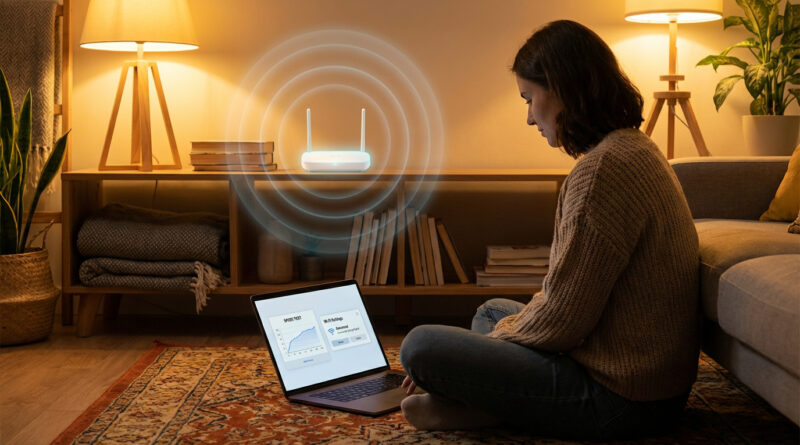
Bring your laptop to the same room as your router. Yes, right next to it. This is the fastest way to separate “Wi-Fi signal problem” from “laptop problem.”
Now run a speed test on the laptop (use the same site you use on your phone). Also try one real-world task, like starting a video call or downloading a large file. Speed tests are useful, but real apps tell the truth.
What the result means
If your laptop is fast next to the router: your internet is fine and your laptop can be fine. The slow-down is likely band switching, interference, or the layout of your home.
If your laptop is still slow next to the router: focus on the laptop’s Wi-Fi settings, drivers, VPN/security apps, or the router’s compatibility with that laptop.
Step 2: “Forget” the Wi-Fi network and reconnect fresh
This sounds basic, but it fixes a lot. Laptops can hang onto old settings, old passwords, or a weird connection profile that phones don’t use.
Windows 11/10
Go to Settings → Network & internet → Wi‑Fi → Manage known networks. Select your home network. Click Forget. Then reconnect like it’s the first time.
macOS
Go to System Settings → Wi‑Fi → Details (next to your network) → Forget This Network. Reconnect and re-enter the password.
If you’re thinking “this feels too simple,” you’re not wrong. It is simple. It’s also the cleanest way to wipe out junk connection history without factory-resetting anything. It’s the same idea as battery troubleshooting on phones: don’t nuke everything first. Identify the one thing that’s misbehaving, then reset just that. If you like that approach, this is the same vibe as How to Stop Your iPhone Battery From Draining Fast After the Latest iOS Update.
Step 3: Temporarily turn off 5 GHz to run one clean test
Modern routers usually broadcast two Wi‑Fi “bands”:
2.4 GHz: reaches farther, goes through walls better, often slower but steadier.
5 GHz: usually faster, but range is shorter and it can drop more easily through walls.
Here’s the trick: many routers “combine” both bands under one Wi‑Fi name (one SSID). Your laptop may hop between them at the worst time. Phones often handle this better, or you simply use your phone closer to the router more often than you think.
How to test
Log into your router settings (often something like 192.168.0.1 or 192.168.1.1 in a browser). Find Wi‑Fi settings.
- Turn off 5 GHz just long enough to test.
- Reconnect the laptop if needed.
- Run one speed test and try one real task.
- Turn 5 GHz back on.
What you’re looking for: does the connection become steadier on 2.4 GHz even if raw speed is lower? If video calls stop glitching, you just learned something important.
Step 4: Create a separate Wi-Fi name just for laptops
This is the fix that helps most people long-term. You create a second Wi‑Fi name (or split the existing one) so your laptop doesn’t “band bounce.”
What to do
In your router Wi‑Fi settings, set up two network names, for example:
- Home-Laptops (choose the band you want the laptops to stay on)
- Home-Phones or keep your current Wi‑Fi name for everything else
Two common setups:
- Stability setup: Put laptops on 2.4 GHz for better range and fewer dropouts. Great for video calls in back rooms.
- Speed setup: Put laptops on 5 GHz if you work close to the router and want faster downloads.
Then, on the laptop, “forget” the old combined network and connect only to the new laptop Wi‑Fi name. This stops the silent switching that makes a laptop feel cursed.
Quick checks if it’s still slow (and your phone is still fine)
1) Make sure the laptop isn’t stuck in a “power saver” Wi‑Fi mode
Windows: Settings → System → Power & battery. Try Balanced or Best performance while testing. Some laptops aggressively save power and it hits Wi‑Fi performance.
2) Pause VPNs, security apps, and “web protection” features for one test
A VPN or security filter can slow a laptop without affecting your phone. Turn it off for five minutes and try the same download or call. If it fixes it, you’ve found the culprit.
3) Update the Wi‑Fi driver (Windows) or check for a macOS update
Outdated Wi‑Fi drivers can cause weird speed and stability issues, especially after major OS updates.
4) Check where you’re sitting
Metal desks, thick walls, mirrors, aquariums, and TVs can all mess with signal. If the laptop is fine next to the router but bad in your usual spot, that’s not “your internet.” That’s physics.
At a Glance: Comparison
| Feature/Aspect | Details | Verdict |
|---|---|---|
| Speed test next to router | Confirms whether the laptop can be fast at all, without walls or distance in the way | Best first step to stop guessing |
| Temporarily disabling 5 GHz | Forces a clean 2.4 GHz test so you can compare stability vs raw speed | Great diagnostic move, turn it back on after |
| Separate Wi‑Fi name for laptops | Stops laptops from hopping between “good” and “bad” bands mid-call or mid-stream | Most practical long-term fix without buying hardware |
Conclusion
When your phone is flying but your laptop is dragging, it’s easy to feel stuck and blame the router, your provider, or bad luck. The sit-next-to-the-router test plus a clean reconnect tells you what’s really happening. And giving laptops their own Wi‑Fi name is the quiet fix that prevents the problem from coming back. A lot of people are stuck with flaky laptop Wi‑Fi while phones work fine, so a short sit-down test next to the router and a separate Wi‑Fi name for laptops helps the community stop guessing and quickly confirm whether the laptop, router or room layout is really to blame today.