How To Fix Password Managers That Suddenly Stop Autofilling On Your Phone Or Laptop
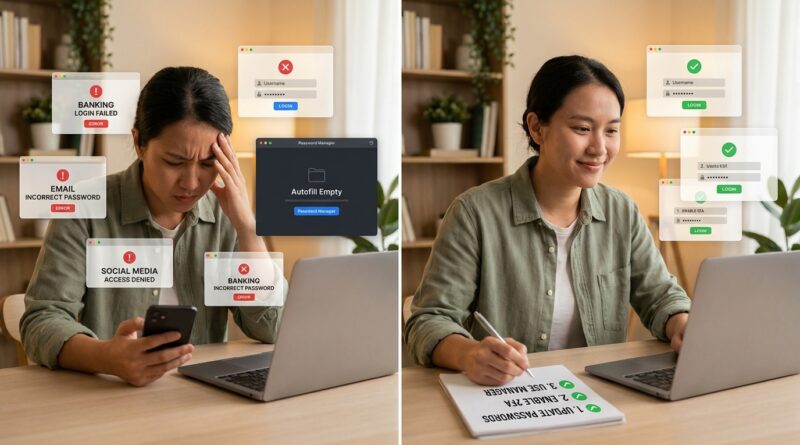
Nothing spikes your blood pressure quite like a password manager that worked yesterday and suddenly refuses to fill anything today. One tap turns into hunting for logins, copying passwords by hand, and wondering if your bank, browser, phone, or password app is the thing that broke. If your password manager autofill not working issue appeared right after an app, browser, or phone update, you are not imagining it. This has been happening to a lot of people lately. The good news is that most autofill failures come down to a few common causes, and you can usually narrow them down in minutes instead of burning an entire afternoon. The trick is to test the right layer in the right order: the password manager itself, the browser extension, the phone or laptop autofill setting, and finally the website or app you are trying to sign into. Start there, and this gets much less mysterious.
⚡ In a Hurry? Key Takeaways
- If autofill suddenly stops, check updates, extension permissions, and your device’s autofill settings before resetting passwords.
- Test one login in a different browser or app. That quickly tells you if the problem is the password manager, the browser, the OS, or the site.
- Do not keep guessing passwords. Too many failed tries can lock you out of banking, work, and health accounts.
Why this keeps happening
Autofill sits in the middle of several moving parts. Your password manager has to talk nicely to your browser or mobile operating system. The browser has to allow the extension or built-in password tool to run. The website or app has to present its login fields in a way autofill recognizes. If any one of those changes, the whole thing can fail.
Lately, updates have been a big trigger. Browsers tighten extension rules. Phone makers shuffle autofill options into new menus. Some apps add extra security layers that block automatic filling on purpose. And some websites redesign their sign-in pages so the password field loads in a weird way that managers do not detect properly.
First, figure out where the break actually is
Before you start reinstalling things, do a quick test. This saves time.
Test 1: Try a different site
If autofill fails on one website but works everywhere else, the website is probably the problem. That is annoying, but it is also good news because your password vault is likely fine.
Test 2: Try a different browser
If your login fills in Chrome but not Safari, Edge, or Firefox, the browser or extension is the likely culprit.
Test 3: Try the password manager app directly
Open your password manager and search for the login manually. If the entry is there and looks correct, your vault is fine. The problem is probably with autofill, not your saved passwords.
Test 4: Try one app and one website on your phone
If autofill works in websites but not inside apps, your phone’s autofill service setting may have changed after an update.
How to fix it on a laptop or desktop
Check that the browser extension is still enabled
This is the number one fix. Browser updates sometimes disable extensions, log them out, or strip away site access.
Open your browser’s extensions page and confirm:
- The password manager extension is enabled
- You are signed in to the extension
- It has permission to run on websites
- It is allowed in private or incognito mode if you use that
Some browsers now set extensions to “when clicked” instead of “on all sites.” That means the icon is installed, but autofill will not appear unless you manually allow it.
Restart the browser completely
Not just the tab. Quit the browser fully, then reopen it. On Windows, check the system tray. On Mac, use Quit from the browser menu. A browser left running in the background can hold onto broken extension sessions.
Update both the browser and the password manager
An old extension talking to a new browser is a common source of trouble. Update both sides. Then try again.
Turn off competing autofill tools
If your browser’s built-in password manager and a third-party password manager are both trying to help, they can trip over each other.
Pick one main autofill tool. Then disable the others for passwords. You can usually leave address and payment autofill alone if you want, but for logins, one boss is best.
Clear the login page and reload it
Sometimes a cached page loads a broken sign-in form. Refresh the page hard, or open it in a private window. If autofill works there, the site cache or cookies may be part of the problem.
Check if the website changed its sign-in flow
Many sites now ask for your email on one screen and your password on the next. Some password managers handle this well. Some do not. If your manager can fill the username but not the password, the site may have switched to a multi-step login that needs a newer extension version or a manual click on the password manager icon.
How to fix it on an iPhone or iPad
Make sure your password manager is selected as the autofill provider
After iOS updates, this setting can change. Go to Settings, then Passwords, then Password Options. Confirm AutoFill Passwords is on and your preferred password manager is checked.
Check for app updates
Open the App Store and update your password manager. App makers often rush out fixes after iOS changes something.
Restart the phone
It sounds basic because it is basic. It also works more often than people want to admit.
Test Safari versus an app
If autofill works in Safari but not in a banking or shopping app, the app may be blocking or limiting autofill. Some apps only partially support it. In that case, use the password manager’s keyboard suggestion, share sheet, or manual copy option instead of waiting for the usual prompt.
How to fix it on Android
Check the Autofill service setting
Android updates and phone maker skins sometimes move this around. Search Settings for “Autofill” and confirm your password manager is selected as the default service.
Allow accessibility or overlay permissions if your manager needs them
Some password managers use extra permissions to detect login fields in apps. If those permissions got revoked during an update, autofill can seem dead even though your vault is still there.
Disable battery optimization for the password manager
On some Android phones, aggressive battery saving quietly stops background helpers from running properly. Search for battery optimization, find your password manager, and set it so the phone does not keep putting it to sleep.
Try Gboard or your phone keyboard suggestions
Sometimes the login prompt appears through the keyboard instead of a pop-up. Tap into the username or password field and look above the keyboard for a password suggestion.
When the site or app is the real problem
This is more common than people think. A website can break autofill by changing field names, placing login boxes inside odd pop-ups, or using security code that blocks automated filling. Banking, tax, health, and work portals are frequent offenders because they keep changing login screens in the name of security.
If one stubborn site is the only place where your password manager autofill not working problem shows up, try this:
- Open the password manager entry manually and copy the username first
- Paste the username, move to the password field, then use the manager’s copy password option
- Save the website as a matching URL in your password manager if the site changed from one sign-in address to another
- Check if the saved login is attached to the old domain or subdomain
That last one matters a lot. If your saved login is linked to example.com but the sign-in page now lives at login.example.com or secure.example.com, some managers stop offering it automatically until you update the saved URL.
What not to do when autofill stops
Do not reset your password right away
If the saved password is still correct and only autofill is broken, a reset just creates more confusion. Now you are dealing with both a technical issue and a changed password.
Do not keep guessing
A few bad tries can trigger security lockouts or fraud alerts, especially with financial accounts.
Do not uninstall the app before confirming your vault is synced
Most password managers sync to the cloud, but not always instantly. Before uninstalling anything, make sure your latest logins are present on another trusted device or visible in the web vault if your service offers one.
A simple step-by-step troubleshooting order
If you want the shortest path, use this order:
- Open the password manager directly and confirm the login exists
- Try the same login on another site or app
- Try another browser or another device if possible
- Check extension or autofill settings
- Update the password manager, browser, and operating system
- Restart the device
- Check URL matching for the saved login
- Only then consider reinstalling the extension or app
That order helps you avoid the classic trap of changing five things at once and not knowing which one mattered.
How to make this less painful next time
Keep one backup way to get into your vault
Make sure you know your main master password. If your password manager offers emergency access, recovery codes, or a web vault, set that up now instead of during a panic.
Save recovery codes for critical accounts
Email, banking, tax, health portals, and work accounts should all have recovery options stored somewhere safe. Autofill issues are annoying. Account lockouts are much worse.
Do a quick post-update check
After a major browser or phone update, test one or two important logins while you are calm. It is much better to spot a problem on a random Tuesday than five minutes before a payroll deadline.
Keep your saved URLs tidy
If a service changes its sign-in address, update the saved entry. Autofill depends heavily on matching the right website.
At a Glance: Comparison
| Feature/Aspect | Details | Verdict |
|---|---|---|
| Most common cause | Browser extension disabled, logged out, or missing permission after an update | Check this first on laptops and desktops |
| Most common phone fix | Autofill provider setting changed, app permissions revoked, or battery restrictions blocking the manager | Very fixable once you find the right menu |
| When it is not your fault | The website or app changed its login flow, uses unusual fields, or blocks automatic fill for security | Use manual fill and update the saved URL if needed |
Conclusion
If your password manager suddenly stops autofilling, the smartest move is not panic. It is diagnosis. More services are tightening security behind the scenes, and browsers and mobile operating systems keep changing the rules that autofill depends on. That leaves normal people stuck right when they need fast access to banking, tax, health, or work accounts. The upside is that most of these failures are fixable once you know where to look. Check the password manager, then the browser or device setting, then the site itself. That simple process can save you hours of frustration, help you avoid unnecessary password resets and lockouts, and leave you with a safer, more reliable sign-in setup for the next round of updates.