How to Fix iPhone Bluetooth That Keeps Dropping in Your Car Without Going to the Dealer
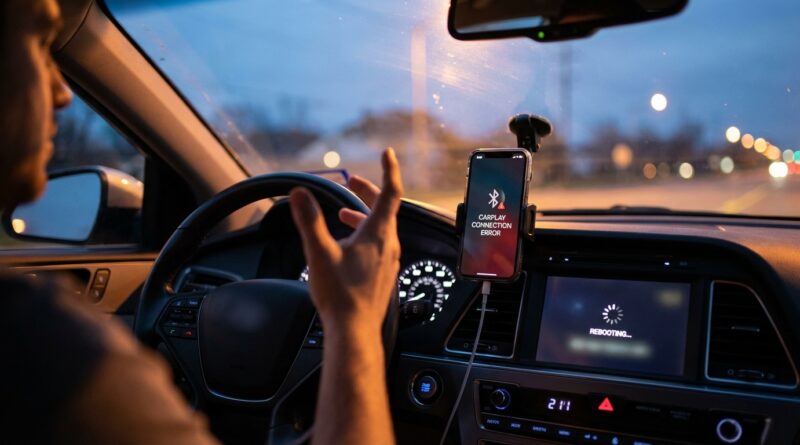
You are not imagining it. Few things are more annoying than getting in the car, seeing your iPhone connect, and then having the audio chop, the call freeze, or CarPlay drop out right when you need directions. It feels random, but most of the time it is not. The usual problem is that your iPhone, your car’s head unit, and sometimes even a worn cable are all trying to handle Bluetooth and CarPlay in slightly different ways. Newer iPhones are often less forgiving with older car systems, especially if the car has not had a software update in years. The good news is you usually do not need a dealer visit to fix it. A simple reset-and-reconnect process solves a lot of these cases. Start with the phone, then the car, then the cable if you use CarPlay. Work through the steps below in order, and you can usually stop the disconnects in one driveway session instead of wasting another week hoping it somehow fixes itself.
⚡ In a Hurry? Key Takeaways
- Your iPhone Bluetooth keeps disconnecting in the car most often because of a bad pairing, old car software, wireless interference, or a flaky cable if CarPlay is involved.
- The fastest fix is to delete the phone from the car, delete the car from the iPhone, restart both, and pair them again from scratch.
- Do the setup while parked. Test after each step so you do not spend money on dealer diagnostics for a problem you can fix at home.
Why this keeps happening
Car Bluetooth is one of those features that sounds simple and often is not. Your iPhone may be handling calls, music, contacts, messages, and CarPlay, all at the same time. Your car’s system might be trying to do the same thing with older hardware and older software.
That mismatch is why iphone bluetooth keeps disconnecting in car complaints have become so common. The phone updates every year. The dashboard usually does not.
There are a few usual suspects:
- Corrupted or outdated Bluetooth pairing data
- Old infotainment software in the car
- Wireless interference from other saved phones or accessories
- A failing Lightning or USB cable for wired CarPlay
- Settings conflicts between Bluetooth audio and CarPlay
- Battery or background settings on the iPhone
Start with the easiest fixes first
1. Turn Bluetooth off and back on
Yes, this is basic. It also works more often than people want to admit.
On your iPhone, go to Settings > Bluetooth, turn it off, wait 10 seconds, then turn it back on. Do not just tap the quick Bluetooth button in Control Center. That does not always fully reset the connection.
Then restart the car and see if the connection holds for a full drive.
2. Restart the iPhone
If the phone has been up for days or weeks, restart it. A clean reboot can clear a stuck wireless process.
Once it powers back on, unlock it before you start the car. Some vehicles are picky about reconnecting to a locked phone during startup.
3. Remove extra Bluetooth devices
If your iPhone is also trying to talk to AirPods, a smartwatch, an OBD adapter, or another car accessory, disconnect those for testing.
You do not need to permanently remove everything. Just strip the setup down so the car is the only active connection. If the dropouts stop, you found your clue.
Do the full re-pair, the right way
This is the step that fixes the most stubborn cases.
Delete the car from the iPhone
Go to Settings > Bluetooth, tap the info button next to your car, then tap Forget This Device.
Delete the iPhone from the car
Open the car’s phone or Bluetooth menu and remove your iPhone there too. If the car has a list of paired devices, clear out old phones you no longer use.
Restart both sides
Restart the iPhone. Then turn the car fully off. Open and close the driver’s door if needed so the system fully powers down. Wait a minute before starting it again.
Pair from scratch
Pair the phone again as if it were brand new. Allow contacts and favorites to sync if the car asks. Then test calls and music separately.
If you skip one side of the delete process, the same broken handshake can come right back. Wipe both ends and start clean.
If you use CarPlay, check the cable even if charging still works
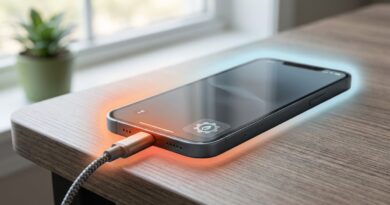
This catches a lot of people. A cable can still charge your phone and still be bad for data. That means wired CarPlay can cut in and out even though the battery icon says everything is fine.
Try a different short, good-quality cable. If possible, use an Apple cable or a certified replacement. Also inspect the USB port in the car. Dust and pocket lint can make the connection loose enough to drop when you hit a bump.
If your car supports both Bluetooth and wired CarPlay, the system can also get confused about which path should handle audio. Plug in the cable first, then wait for CarPlay to load before starting music or maps.
Check for software updates on both the phone and the car
Update iOS
Go to Settings > General > Software Update. If there is an update, install it when you are on Wi-Fi and have time.
Check the car maker’s update options
Many drivers assume car software can only be updated at the dealer. Not always. Some brands offer updates by USB, over Wi-Fi, or through an owner portal. Search your car make, model, and year with “infotainment update” or “Bluetooth update.”
If your head unit has never been updated, this is worth doing. Older systems often get quiet fixes for iPhone compatibility problems.
Change these iPhone settings if the problem keeps coming back
Turn off Wi-Fi briefly for testing
This sounds odd, but wireless CarPlay and Bluetooth can trip over each other in some cars. Turn off Wi-Fi on the iPhone for one test drive and see if Bluetooth becomes stable.
If it does, the issue may be tied to wireless CarPlay negotiation rather than plain Bluetooth audio.
Disable VPN if you use one
A VPN should not break Bluetooth directly, but it can make CarPlay apps, calls, and data-heavy features behave strangely enough that it feels like the Bluetooth link is dropping. Turn it off for one drive and compare.
Reset Network Settings
If nothing else has worked, go to Settings > General > Transfer or Reset iPhone > Reset > Reset Network Settings.
This will erase saved Wi-Fi passwords, Bluetooth pairings, and some network settings. It is a bit annoying, but it can clear up deep connection glitches that normal restarts do not touch.
Car-specific things people miss
The car may be auto-connecting to the wrong phone
If your spouse’s phone or an old work phone is still saved, the car may bounce between devices or keep trying to reconnect to another one in the background. Make your iPhone the priority device if the car allows it.
USB ports are not all equal
Some cars have one port for CarPlay data and another that only charges. If you move the cable to a different port, the phone may connect halfway, then fail. Check the labels or owner’s manual.
Low power states can affect startup
Some vehicles put the infotainment system into a sleep mode that does not wake cleanly. If your connection fails mostly on short trips but works after a full shutdown, that points to the car more than the phone.
A simple driveway test that saves time
Here is the fastest way to narrow it down.
- Park the car and pair the iPhone fresh.
- Test a phone call for two minutes.
- Test music streaming for five minutes.
- If you use CarPlay, test with a different cable.
- Turn off Wi-Fi and test again.
- Remove all other paired phones from the car and retest.
If calls fail but music works, the issue is likely the Bluetooth hands-free profile. If everything fails only when the cable is plugged in, look at CarPlay or the cable. If the phone works perfectly in another car, your car’s head unit is the likely problem.
When it is probably the car, not the iPhone
Sometimes the phone gets blamed for everything. Sometimes the dashboard deserves it.
The car is the more likely culprit if:
- Multiple iPhones have the same disconnect problem
- Your iPhone works fine in rental cars or other vehicles
- The head unit freezes, reboots, or forgets settings
- Bluetooth and CarPlay problems started after a battery change or jump start
In that last case, a weak car battery or unstable voltage can cause weird infotainment behavior. It is not the first thing to check, but it is real.
When to stop troubleshooting and get help
If you have reset the pairing, updated iOS, tried another cable, removed other devices, and checked for car software updates, you have already done the smart home fixes.
At that point, the next step is usually a firmware update, infotainment reset, or hardware check on the car side. That still does not always mean a dealer. A good independent car audio shop can often spot head unit issues faster and cheaper.
At a Glance: Comparison
| Feature/Aspect | Details | Verdict |
|---|---|---|
| Re-pairing Bluetooth | Delete the car from the iPhone, delete the iPhone from the car, restart both, then pair again. | Best first fix. Solves many random disconnect issues. |
| Cable and CarPlay check | A cable can charge fine but still fail on data. Test a different cable and the correct USB port. | High-value test if dropouts happen with maps or CarPlay. |
| Software updates | Update iOS and check whether the car maker offers an infotainment or Bluetooth update. | Important for newer iPhones paired with older head units. |
Conclusion
If your iphone bluetooth keeps disconnecting in car setups, the fix is usually less dramatic than it feels in the moment. Most cases come down to a bad pairing, a tired cable, too many competing devices, or an older head unit struggling to keep up with a newer phone. The trick is to stop guessing and work through a simple order of checks. Start fresh, test one change at a time, and you can often sort it out tonight in the driveway. That matters because car and phone problems are getting more common, not less, as newer phones meet older dashboards. The official advice is often too generic to be useful. A real-world playbook saves wasted dealer visits, gets your calls and maps working again, and helps you deal with the mixed-generation tech most people actually own.