How To Fix Apps That Keep Crashing Or Freezing On Your Phone Without Wiping It Clean
Your phone probably is not dying. It just feels that way when the same few apps suddenly start crashing, freezing, or bouncing you back to the home screen over and over. If that has been happening in the last 24 hours, you are not alone. This kind of mess often shows up after a rushed app update, a server-side change from Google or Apple, or a bug that slips through and hits lots of people at once. The good news is you usually do not need to factory reset your phone to fix it. In fact, wiping everything is one of the last things I would recommend. The smarter move is to test one thing at a time, starting with the safest steps first. That helps you protect your photos, messages, banking apps, and sign-ins while narrowing down whether the problem is the app, your phone, or the service itself.
⚡ In a Hurry? Key Takeaways
- Start with the app itself. Check for an update, force close it, and try again before touching bigger settings.
- If several apps are failing, update your phone, free a little storage, and test your internet connection.
- Do not erase your phone unless nothing else works. Most crash problems can be fixed without a full reset.
First, figure out if it is one app or lots of apps
This matters more than people think.
If only one app is crashing, the problem is usually that app. Maybe a bad update landed. Maybe its stored data got corrupted. Maybe the company is having server trouble.
If several apps are crashing, especially apps that used to work fine yesterday, the cause is often broader. It could be low storage, a buggy system update, a broken web service in the background, or a network issue that makes apps hang while trying to load.
Before you change anything, make a quick note of which apps are affected. Banking app. Instagram. Uber. Messages. A game. This helps you spot patterns fast.
Step 1: Check if the app service itself is down
Sometimes the app opens, then freezes because the company behind it is having a rough day. That can look exactly like a phone problem.
Try opening the app on Wi-Fi and then on mobile data. Check the app’s social media account or status page if it has one. If thousands of people are complaining at the same time, you may not need to fix anything. You may just need to wait for the company to sort itself out.
This is especially common with banking, rideshare, food delivery, and social apps after overnight updates.
Step 2: Force close the app and reopen it
Yes, this sounds basic. It also works more often than people want to admit.
On iPhone
Swipe up from the bottom and hold, or double-press the Home button on older models. Swipe the problem app away. Then open it again.
On Android
Open recent apps and swipe it away, or go to Settings, Apps, choose the app, and tap Force stop.
If the app works after this, great. If not, keep going.
Step 3: Update the crashing app
A lot of crash waves are caused by buggy app versions, then quietly fixed a few hours later with another update.
Open the App Store on iPhone or Google Play on Android. Search for the app directly. If you see Update, install it.
Do not assume auto-update already handled it. Sometimes updates roll out in stages, and your phone may not have grabbed the newest fix yet.
Step 4: Restart the phone properly
A full restart clears stuck background processes, refreshes memory, and can shake loose weird temporary bugs.
Turn the phone off completely. Wait 30 seconds. Turn it back on. That short pause actually helps.
If you already restarted once in frustration, do not worry. A clean, deliberate reboot after updates and app changes is still worth doing.
Step 5: Make sure your phone software is current
If apps started misbehaving after a system change, the fix may be in the next small patch.
On iPhone
Go to Settings, General, Software Update.
On Android
Go to Settings, System, Software update. On some phones, it is under Settings, Security or About phone.
If your phone has a pending update, install it when you have time and battery. This is extra important if multiple apps are freezing, not just one.
Step 6: Check free storage space
Phones get flaky when storage is nearly full. Apps may crash while trying to save temporary files, load updates, or cache data.
If your phone has less than a couple of gigabytes free, make some room before doing anything dramatic. On Android, our guide on The Best Way to Free Up Space on a Full Android Phone Without Deleting Your Favorite Photos walks through the safest order to clear junk first, back up big videos, and avoid deleting things you care about.
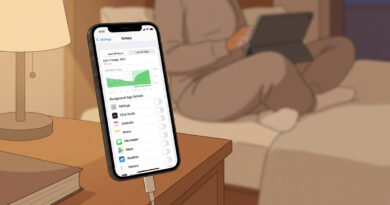
On iPhone, check Settings, General, iPhone Storage. On Android, check Settings, Storage.
Step 7: Clear the app cache, or offload the app
This is where many crash problems get fixed. Apps store temporary files to speed things up. When those files get messed up, the app can start acting haunted.
On Android
Go to Settings, Apps, pick the app, then Storage. Tap Clear cache first. This removes temporary files without deleting your account or personal data inside the app.
If that does not work, you can try Clear storage or Clear data, but pause first. This may sign you out and remove saved settings inside that app.
On iPhone
iPhones do not offer a simple clear cache button for most apps. Instead, go to Settings, General, iPhone Storage, choose the app, and use Offload App if available. That removes the app but keeps its documents and data. Then reinstall it.
If offloading does not help, deleting and reinstalling the app is the next step. Just make sure you know your login details first.
Step 8: Reinstall the app, but do it carefully
If one app keeps crashing after all of the above, delete it and install it fresh.
Before you do, ask yourself one question. Does this app hold anything local that is not synced yet? Draft notes, voice memos, downloaded maps, offline playlists, or files inside the app could disappear if they are stored only on the phone.
For banking, rideshare, and social apps, reinstalling is usually low risk as long as you know your password and can receive two-factor codes.
Step 9: Test your connection
An app can look frozen when it is really stuck waiting for data that never loads.
Switch from Wi-Fi to mobile data, or the other way around. Turn Airplane Mode on for 10 seconds, then off. If only certain apps fail on Wi-Fi, your router may be the real problem.
If nothing improves, reset network settings only if you are comfortable reconnecting to Wi-Fi and Bluetooth devices later. This is less drastic than wiping the whole phone, but it does erase saved network connections.
Step 10: Watch for battery saver, VPN, or security app interference
This one gets overlooked a lot.
If you recently turned on aggressive battery saving, installed a VPN, or added a security app, try disabling it for a moment and test again. Some apps, especially banking and rideshare ones, do not behave well when another app is filtering traffic or restricting background activity.
On Android, also check whether the problem app is being heavily optimized under battery settings. On iPhone, check if Low Power Mode is on. That usually does not break apps by itself, but it can make flaky apps feel worse.
What not to do right away
Do not start tapping random “cleaner” apps from the app store. Many do very little, and some make things worse.
Do not clear data for every app on your phone in one go. That creates a new mess of logins and lost settings.
And do not factory reset the phone because one app update went bad. That is the tech version of moving house because a light bulb burned out.
When the problem points to Google or Apple changes
Every so often, a background component changes and a lot of people get hit at once. Android has had waves tied to WebView, Play Services, and app framework updates. iPhone can see similar chaos when app developers rush to adapt to iOS changes or server-side updates.
If your timing is suspiciously perfect, meaning several apps broke in the same day, the fix may arrive from the app developer or platform provider rather than from anything you personally change. That is why it helps to go step by step. You want to rule out simple local issues without blowing up the phone.
When to contact support
If only one app fails after you have updated it, restarted the phone, checked storage, and reinstalled it, contact that app’s support team. Tell them your phone model, software version, app version, and exactly what happens. “Crashes on launch after latest update” is more useful than “It is broken.”
If the phone itself is freezing across many apps, or restarting on its own, then the issue may be bigger than a single app. That is the point where Apple Support, your phone maker, or your carrier may be worth calling.
At a Glance: Comparison
| Feature/Aspect | Details | Verdict |
|---|---|---|
| Single app crashing | Usually fixed by updating, force closing, clearing cache, or reinstalling that one app | Start here first |
| Several apps freezing | More likely tied to phone storage, network trouble, system software, or a wider platform issue | Check updates and storage before anything drastic |
| Factory reset | Erases the phone and creates a lot of setup work, while often failing to fix server-side or app-specific bugs | Last resort only |
Conclusion
If you came here asking how to fix apps that keep crashing on my phone, the short answer is this. Slow down, test one thing at a time, and keep your reset finger off the big red button. App crashes and freezes tend to spike when Google or Apple changes something in the background or when major apps push out rushed updates, and that is exactly the kind of chaos many people have been dealing with over the last 24 hours. A calm, simple checklist usually beats a full wipe. Start with the app, then your connection, then your storage, then your phone software. That order protects your data and saves you from hours of needless setup later. And if the bug is on the app company’s side, at least you will know your phone is not secretly falling apart after all.