How To Fix Android 15 / One UI 7 Updates That Break Your Data, Wi‑Fi Or Charging (Without Factory Resetting First)
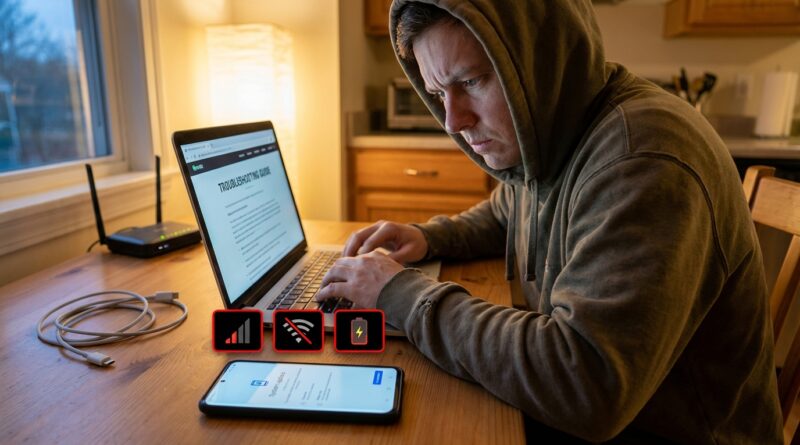
You update your phone, expect a few new features, and instead end up with a device that suddenly forgets how to be a phone. Mobile data cuts out. Wi‑Fi drops in the middle of a call. Charging that used to be quick now crawls like the battery is stuck in molasses. If that sounds familiar, you are not imagining it, and you are not alone. Recent Android 15 and One UI 7 updates, plus smaller quarterly patches, have caused exactly these problems on Pixels, Samsung phones, and some Motorolas. The most annoying part is what usually comes next: support tells you to factory reset everything and hope for the best. That is a miserable first step. Before you wipe banking apps, 2FA logins, photos, and work accounts off your phone, there is a much better way to troubleshoot. Start with the simple fixes below, in order. Most take only a few minutes, and many work without deleting your stuff.
⚡ In a Hurry? Key Takeaways
- If an android update broke mobile data wifi charging, do not factory reset first. Start with a reboot, carrier refresh, network reset, and app/cache checks.
- Most post-update issues come from settings getting scrambled, stuck radios, bad app behavior, or charging protection features that changed after the update.
- A factory reset should be your last resort, not step one, because many of these bugs can be fixed in under 30 minutes without wiping your phone.
First, check whether the update changed a setting
Big Android updates sometimes flip small switches you never touched before. That is why the phone feels broken even though the hardware is fine.
For mobile data problems
Open Settings, then check these:
- Airplane mode. Turn it on for 10 seconds, then off.
- SIM status. See if the phone actually detects your SIM or eSIM.
- Mobile data. Make sure it is still enabled.
- Preferred network type. If it changed to 5G Auto and your carrier is flaky, try LTE/4G for a while.
- Data limit or Data Saver. Updates sometimes re-enable these.
If your phone shows bars but says No SIM, No signal, or data works only for a minute at a time, this is often a radio or carrier settings glitch, not a dead phone.
For Wi‑Fi problems
- Turn Wi‑Fi off and back on.
- Forget your home network, then reconnect.
- Check whether Auto reconnect is disabled.
- Temporarily turn off Switch to mobile data or similar smart network options.
For charging problems
This one catches a lot of people out. After updates, phones often turn on battery protection features or relearn your charging habits.
- Look for Battery Protection, Adaptive Charging, or Protect battery.
- If your phone is stopping around 80 percent, that may be intentional.
- If charging is slow at every percentage, keep going through the checklist.
Step 1: Do a real restart, not just screen off and on
Yes, this sounds basic. It also works more often than people want to admit.
Restart the phone. If it is a Samsung, hold the side key and volume down, then restart. On Pixel and many Motorola phones, press and hold the power button and choose restart.
If the issue started right after the update, do one extra step. Power the phone off completely for a full minute, then turn it back on. That gives the modem, Wi‑Fi radio, and battery management system a better chance to reset properly.
Step 2: Reseat the SIM, or refresh the eSIM
If mobile data is the main problem, this is one of the best non-destructive fixes.
Physical SIM
- Turn the phone off.
- Remove the SIM tray.
- Check for dust or slight misalignment.
- Reinsert it carefully and power back on.
eSIM
You usually do not need to delete it. First try toggling the eSIM line off and back on in your SIM manager settings. On some phones, disabling and re-enabling the line forces the carrier profile to reload.
If your carrier has an app, open it and check for a line refresh or reprovision option. If not, ask support to resend activation settings before you agree to anything drastic.
Step 3: Reset network settings
This is the sweet spot for a lot of post-update bugs. It is more powerful than a reboot, but far less painful than a factory reset.
Look for Reset Wi‑Fi, mobile and Bluetooth or Reset network settings. The wording varies by brand.
What this does:
- Clears saved Wi‑Fi networks
- Resets mobile network and APN behavior
- Resets Bluetooth pairings
What it does not do:
- Delete your photos
- Remove apps
- Erase documents or messages
If an android update broke mobile data wifi charging, this is often the first step that makes a real difference, especially for the data and Wi‑Fi side of the problem.
Step 4: Check the APN if mobile data still fails
This sounds technical, but you only need to compare a few fields.
APN stands for Access Point Name. It is the carrier profile your phone uses for mobile internet. Updates sometimes scramble it, duplicate it, or switch to the wrong one.
- Go to Settings > Mobile Network > Access Point Names
- Compare the current APN with the one listed on your carrier’s website
- If you see multiple APNs, select the one your carrier recommends
- If the values are wrong, reset APNs to default
Do not randomly edit fields unless your carrier gives you the exact settings. A bad APN can create more confusion than it solves.
Step 5: Boot into Safe Mode to catch a bad app
Updates do not just affect Android itself. They can also expose apps that were already unstable, especially security apps, VPNs, ad blockers, battery tools, and anything that tries to control network traffic.
Booting into Safe Mode temporarily disables third-party apps.
Why this matters
If your Wi‑Fi or mobile data suddenly becomes stable in Safe Mode, the update may not be the only culprit. An app you installed is probably fighting the new system software.
What to do next
- Uninstall recently updated apps first
- Temporarily remove VPN apps
- Disable private DNS for testing
- Pause battery saver or device optimizer apps
If charging became slow after the update, also look at apps that keep the phone hot in the background. Heat is a big reason phones slow charging on purpose.
Step 6: Look for heat, cable, and charging mode issues
When charging slows down after an update, many people assume the battery is dying. Sometimes it is. Usually, it is something simpler.
Check the basics
- Use the original charger if you still have it
- Try a different cable, especially if the current one is old or bent
- Inspect the USB-C port for lint
- Charge with the screen off for 10 minutes and see if speed improves
Check battery and heat settings
If the phone is warm, charging speed often drops hard. Updates can cause background indexing, app optimization, or syncing for a day or two. That can make fast charging look broken when the phone is actually protecting itself.
- Open Battery settings and check battery health features
- Turn off Adaptive Battery or charging protection for one test
- Close navigation, gaming, or camera apps while charging
If charging is slow only in your car, on a wireless pad, or with one specific brick, the update may have changed compatibility or charging negotiation rather than damaging the phone.
Step 7: Clear system app caches where available
On some phones, you can clear cache for apps tied to connectivity without deleting personal data.
Useful candidates include:
- Carrier Services
- SIM Toolkit
- Wi‑Fi Direct or related network services
- Device Care or battery-related system tools on Samsung
Go to Settings > Apps, show system apps if needed, then open the app and clear cache, not storage, unless you know what you are doing.
Step 8: Install the next small patch, app update, or carrier update
This sounds backwards. You are here because an update broke things. But the fix is often a smaller follow-up patch pushed days later.
- Check for a new system update
- Update carrier services and Google Play system updates
- Update key apps from the Play Store, especially carrier, Samsung, Motorola, and Google apps
Also check Google Play system update separately from the normal Android update screen. It is hidden in security settings on many phones.
Step 9: Wipe the cache partition if your phone allows it
This step is not available on every phone, and the button combo differs by brand. But if your device supports it, wiping the cache partition can help after a major update without erasing your data.
This is not the same as a factory reset. It clears temporary system files that may have survived the update badly.
If you are not comfortable entering recovery mode, skip this step and move on. It is useful, but not essential.
When to suspect the update itself is the real problem
Sometimes you do everything right and the bug is still there because the bug is real. Here are the signs:
- The problem started immediately after the update
- Other people with the same model report the same issue
- Safe Mode does not help
- Different Wi‑Fi networks act the same way
- Different chargers and cables make no difference
- Your SIM works fine in another phone
At that point, gather evidence before contacting support:
- Phone model and software version
- Date the issue started
- Screenshots of error messages
- Whether Safe Mode or network reset changed anything
This helps you avoid the endless script where support asks you to repeat the first three steps again and again.
Only then should you consider a factory reset
A full reset can fix deep update corruption. It can also waste half your day if the bug is in the update itself.
Use it when:
- You have already tried the steps above
- The phone is stable enough to back up properly
- You are ready for app logins, banking verification, and 2FA setup again
If you do reset, back up the important things first. Not just photos. Think authenticator apps, offline notes, downloaded files, and account recovery codes.
A quick troubleshooting order that saves the most time
If you want the short version, use this order:
- Restart phone fully
- Toggle airplane mode
- Check update-changed settings
- Reseat SIM or refresh eSIM
- Forget and reconnect Wi‑Fi
- Reset network settings
- Check APN
- Test in Safe Mode
- Try another charger, cable, and cooler charging conditions
- Install any follow-up patches
- Consider cache partition wipe if available
- Factory reset only as a last resort
At a Glance: Comparison
| Feature/Aspect | Details | Verdict |
|---|---|---|
| Network reset | Resets Wi‑Fi, mobile data behavior, and Bluetooth without deleting personal files | Best first serious fix for data and Wi‑Fi issues |
| Safe Mode test | Temporarily disables third-party apps so you can see if a VPN, battery app, or blocker is causing trouble | Very useful before blaming the update alone |
| Factory reset | Wipes the phone and forces a full setup from scratch | Last resort only, because it is time-consuming and may not fix a vendor bug |
Conclusion
If your latest update turned a reliable phone into a part-time phone, you are not overreacting. Major Android updates and quarterly patches are rolling out right now, and they really are causing problems on Pixels, Motorolas, and Samsung phones. People are seeing “No SIM” and “No signal” with bars still showing, Wi‑Fi that refuses to stay connected, and charging that slows to a crawl or hangs around 80 percent. The good news is that you usually do not need to jump straight to a factory reset. A calm, ordered checklist can fix a surprising number of these problems in under half an hour. That saves you from burning a day on backups, restores, app logins, and 2FA recovery, and it gives you a repeatable playbook for the next time a rushed Android update misbehaves. Sadly, that next time will probably come sooner than any of us would like.