How to Fix a Slow iPhone Without Deleting Your Photos
If your iPhone feels like it’s crawling after a year or two, you’re not imagining it. And yes, it’s maddening that the most common advice is “delete photos” or “buy a new phone.” Your photos are your memories. You should not have to toss them just to make Instagram open faster. The good news is you can often get a real speed boost with one low-stress change: stop most apps from constantly refreshing in the background. It quietly eats battery, data, and system attention, especially after iOS updates when apps are busy re-syncing. Turn it off for anything you don’t use daily, restart, then let the phone sit on Wi‑Fi and a charger for 10 minutes. No scary reset. No storage purge. Just less hidden busywork happening behind the scenes.
⚡ In a Hurry? Key Takeaways
- Turn off Background App Refresh for every app you do not use daily.
- Restart your iPhone, then leave it on Wi‑Fi and charging for 10 minutes.
- This does not delete photos, apps, or data. It just cuts the behind-the-scenes workload.
Why your iPhone feels slower (and why it’s not always “your storage”)
A “slow iPhone” is usually a bunch of small slowdowns stacking up. Apps checking for updates in the background. Widgets updating. Mail fetching. Social apps syncing. Location services pinging. After an iOS update, this can feel worse for a day or two because the phone is also doing housekeeping in the background.
Photos get blamed because they take space, but space is not the only factor. Your phone can have plenty of storage left and still feel laggy if too many apps are constantly trying to do things when you are not using them.
The one change that fixes a lot: turn off Background App Refresh (selectively)
What Background App Refresh actually does
Background App Refresh lets apps update content when you are not actively using them. That can be handy for a few apps you use all the time. It is not handy for the shopping app you open twice a year.
Do this now (takes about 60 seconds)
1) Open Settings.
2) Tap General.
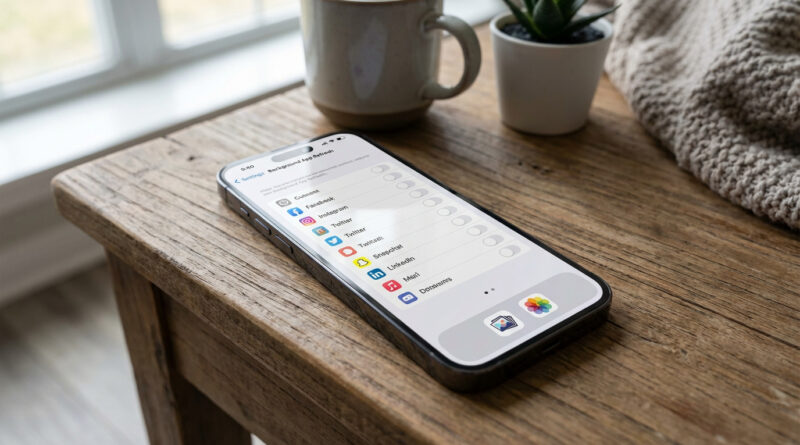
3) Tap Background App Refresh.
4) Tap Background App Refresh at the top, confirm it is set to Wi‑Fi or Wi‑Fi & Cellular Data.
5) Now go through the list and switch OFF anything you do not use daily.
Good candidates to turn OFF: games, shopping apps, airline apps, food delivery you rarely use, coupon apps, old social apps you “might” open, most news apps, most photo editors, most smart-home apps (unless you rely on notifications from them).
Usually fine to leave ON: your main messaging app, maps you rely on, your calendar, your main email app (if you want it pushing content), and any health or work app you truly need up-to-date.
The restart trick that makes the change “stick”
After you flip a bunch of those switches, do this part. It matters.
Step 1: Restart your iPhone
Face ID iPhones: Press and hold the side button + either volume button. Slide to power off. Then hold the side button to turn it back on.
Home button iPhones: Press and hold the side (or top) button. Slide to power off. Then hold the button to turn it back on.
Step 2: Give it 10 quiet minutes on Wi‑Fi and charging
Plug the phone in. Connect to Wi‑Fi. Then do not use it for about 10 minutes. This gives iOS time to settle and finish background cleanup without you actively piling on more tasks.
If you just updated iOS and it feels “broken,” try this mindset
Right after an update, phones often do extra work: re-indexing search, syncing photos, optimizing app data, and more. That can cause heat, battery drain, and lag temporarily.
Turning off unnecessary background refresh is like telling your iPhone, “Do less stuff when I’m not looking.” It is the same basic idea as setting a schedule so updates happen on your terms. If you have a Windows PC too, you might like How to Stop Windows 11 From Randomly Restarting After Updates. Different device, same peace-of-mind principle.
Extra quick wins (optional, still no photo deleting)
Close the browser tab hoard
If Safari has 40 tabs open, your phone is doing extra juggling. Open Safari, tap the tabs button, then close what you do not need. If you want to be gentle, keep a few important ones and ditch the rest.
Check iPhone storage without nuking anything
Go to Settings > General > iPhone Storage. Wait for the list to populate. Look for apps you never use that are taking a lot of space. Deleting one forgotten game can help more than deleting 2,000 photos.
Reduce motion (if the phone feels “stuttery”)
This does not increase raw power, but it can make the phone feel snappier.
Go to Settings > Accessibility > Motion and turn on Reduce Motion.
Update apps (yes, it can matter)
Open the App Store, tap your profile icon, and update apps. After an iOS update, older app versions can behave badly until they are patched.
At a Glance: Comparison
| Feature/Aspect | Details | Verdict |
|---|---|---|
| Speed impact | Cuts behind-the-scenes app activity that can bog down older phones, especially after iOS updates. | High payoff for low effort. |
| Risk to photos and data | Does not remove photos, messages, or apps. It only changes when apps are allowed to refresh. | Very safe. |
| Downside | Some apps may not feel “instantly updated” when you open them. They will refresh once launched. | Worth it for apps you do not use daily. |
Conclusion
If your iPhone started dragging right after an iOS update, it is easy to assume the update “broke” it. Most of the time, it is just extra background work piling up. Turning off Background App Refresh for apps you do not use daily, then restarting and letting the phone sit on Wi‑Fi and a charger for 10 minutes, is a simple fix that often makes things feel normal again. No photo deleting. No factory reset. No shopping for a new phone just to get your speed back.