How To Fix iPhone RCS Messages That Suddenly Stop Working After iOS 18
Your iPhone finally learned how to text Android phones like it lives in this decade, and then, for no clear
Read More
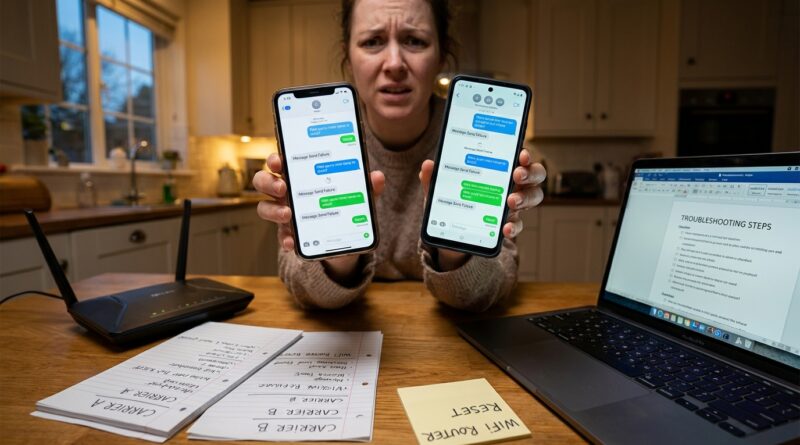
Your iPhone finally learned how to text Android phones like it lives in this decade, and then, for no clear
Read More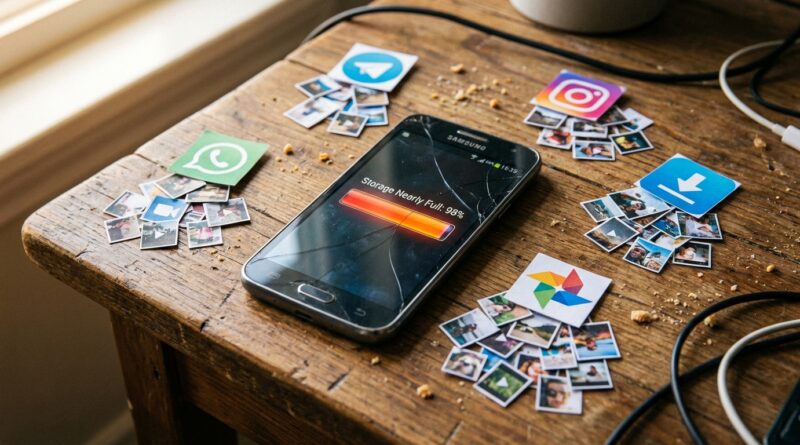
That “storage almost full” warning can make you want to throw your phone across the room. You delete photos, clear
Read More
You open Netflix, Disney Plus or F1 TV the same way you did yesterday, with your VPN on, and suddenly
Read More
Your phone was fine yesterday. Then a routine update lands, and suddenly it is warm in your pocket, the battery
Read More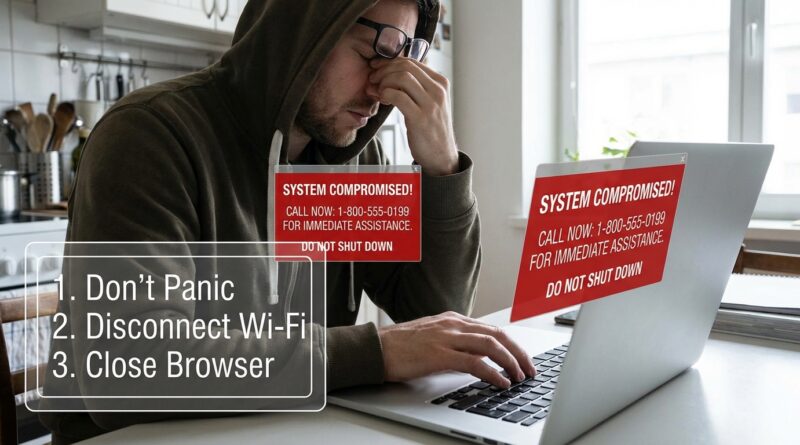
You’re trying to read an article, check your email, or shop for socks, and suddenly your screen explodes with warnings.
Read More
Nothing spikes your blood pressure quite like a password manager that worked yesterday and suddenly refuses to fill anything today.
Read More
You plug in your iPhone, do the responsible grown-up thing, and expect it to back up overnight. Then morning comes,
Read More
Nothing tests your patience quite like Bluetooth acting up everywhere at once. One minute your earbuds are fine, the next
Read More
Your phone probably is not dying. It just feels that way when the same few apps suddenly start crashing, freezing,
Read More
You update your phone, expect a few new features, and instead end up with a device that suddenly forgets how
Read More